Blog

  • How to Edit Cinematic Travel Transitions in 1 Minute (Create Viral, High-Retention Travel Edits)

    How to Edit Cinematic Travel Transitions in 1 Minute (Create Viral, High-Retention Travel Edits)

    Look, I’ve spent hours in the editing suite so you don’t have to—and here’s the truth most travel creators don’t want to hear:
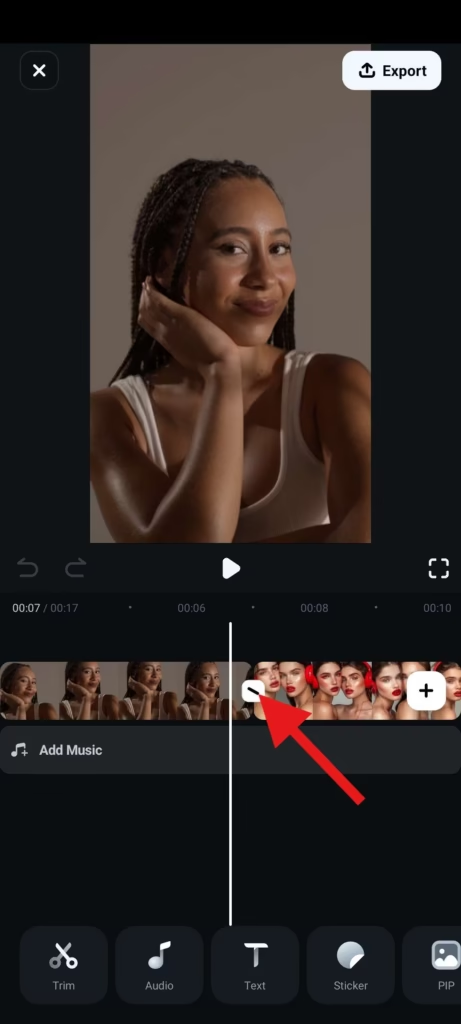
    Your footage isn’t the problem. Your transitions are.

    You can visit the most insane locations in the world… but if your edits feel slow or disconnected, people scroll.

    That’s why mastering how to edit cinematic travel transitions in 1 minute is one of the most valuable skills in 2026.

    Here is the real talk about high-retention editing:
    Travel videos don’t go viral because of where you go—they go viral because of how smoothly you move between moments.

    With tools like CapCut, Runway, and Sora, you can now create cinematic transitions directly on your phone—in under a minute.

    And yeah—this is exactly what creators on vfxcut.xyz are doing to build scroll-stopping travel reels.


    Why Cinematic Transitions Matter for Travel Content

    Travel content is all about:

    • Movement
    • Exploration
    • Discovery

    But without smooth transitions:

    • Clips feel disconnected
    • Story feels broken
    • Retention drops

    Cinematic transitions:

    • Connect locations seamlessly
    • Maintain visual flow
    • Create immersive storytelling

    The Core Principle: Motion Matching

    If you remember one thing, remember this:

    Motion continuity = cinematic transitions.

    This means:

    • Camera movement should match
    • Direction should stay consistent
    • Speed should feel natural

    Without this, even the best transitions feel fake.


    Best Tools for Fast Travel Editing (2026)

    CapCut

    • Fast workflow
    • Keyframing support
    • Built-in motion effects

    Runway

    • AI transition smoothing
    • Scene blending
    • Motion analysis

    Sora

    • Cinematic scene morphing
    • Advanced storytelling

    Premiere Pro / After Effects

    • Full manual control
    • Advanced masking and transitions

    Comparison Table: Travel Editing Tools

    ToolSpeedPowerBest For
    CapCut⭐⭐⭐⭐⭐⭐⭐⭐⭐Quick edits
    Runway⭐⭐⭐⭐⭐⭐⭐⭐⭐AI transitions
    Sora⭐⭐⭐⭐⭐⭐⭐⭐Cinematic scenes
    Premiere Pro⭐⭐⭐⭐⭐⭐⭐⭐Pro workflows

    Step-by-Step: How to Edit Cinematic Travel Transitions in 1 Minute

    Let’s break down the exact workflow.


    Step 1: Choose Matching Clips

    Pick clips that share:

    • Similar motion
    • Matching direction
    • Comparable framing

    Example:
    Walking forward → walking forward in next scene

    This is where most beginners fail.


    Step 2: Cut at Peak Motion

    Inside CapCut:

    • Find the moment of strongest motion
    • Cut exactly at that frame

    This hides the transition.


    Step 3: Add Motion Blur

    Apply:

    • Directional blur
    • Quick fade

    This smooths the cut instantly.


    Step 4: Use Keyframing for Zoom or Pan

    Add keyframing to:

    • Continue motion across clips
    • Enhance flow
    • Create cinematic feel

    Keep it subtle.


    Step 5: Sync with Audio

    Transitions should hit:

    • Beat drops
    • Sound effects
    • Music transitions

    Audio makes visuals feel intentional.


    Step 6: Color Match Clips

    Use color grading to:

    • Match exposure
    • Align tones
    • Fix lighting differences

    Nothing breaks cinematic flow faster than mismatched colors.


    Step 7: Export and Test Loop

    Loop your video.

    If transitions feel seamless → success.

    If not → adjust timing.


    Travel Transition Settings Checklist

    Before exporting:

    • Motion direction matches: ✔
    • Cuts at peak movement: ✔
    • Keyframing smooth: ✔
    • Motion blur applied: ✔
    • Audio synced: ✔
    • Color grading matched: ✔
    • No jarring transitions: ✔
    • Loop works cleanly: ✔

    Best Cinematic Travel Transitions (2026)

    1. Whip Pan Transition

    • Fast horizontal movement
    • Cut mid-motion

    Feels dynamic and natural.


    2. Walk-Through Transition

    • Walk into frame
    • Cut to new location

    Creates immersive storytelling.


    3. Object Pass Transition

    • Object crosses camera
    • Cut behind it

    Hides transition perfectly.


    4. Zoom Transition

    • Zoom into subject
    • Cut and continue motion

    Great for emphasis.


    5. AI Morph Transition

    Using Runway:

    • Blend scenes
    • Smooth transitions
    • Create seamless visuals

    High-Retention Travel Editing Techniques (2026)

    1. Micro Transitions Every 2–3 Seconds

    Don’t let your video feel static.

    Add:

    • Small zooms
    • Subtle pans
    • Quick cuts

    2. Invisible Transitions

    The best transitions are the ones viewers don’t notice.

    Focus on flow—not flash.


    3. Speed Ramping

    • Speed up before cut
    • Slow down after

    Creates energy and drama.


    4. AI-Assisted Workflow

    Use Runway to:

    • Enhance motion
    • Smooth transitions
    • Automate proccess

    Common Mistakes (Avoid These)

    Let me save your time:

    • Cutting without motion match
    • Overusing flashy effects
    • Ignoring color grading
    • Poor timing

    Also—don’t force transitions. Let motion guide you.


    Advanced Workflow: 1-Minute Cinematic System

    Here’s what pro creators do:

    1. Select clips with matching motion
    2. Cut at peak action
    3. Add motion blur
    4. Enhance with keyframing
    5. Sync with audio
    6. Polish with color grading

    This system creates cinematic travel edits fast.


    Final Thoughts (Creative Mentor Mode)

    Look—mastering how to edit cinematic travel transitions in 1 minute isn’t about speed.

    It’s about clarity.

    Every transition should:

    • Feel natural
    • Maintain motion
    • Increase retention

    If your transitions are smooth, your content feels cinematic—even if your shooting on a phone.

    And that’s the real advantage in 2026.


    Call to Action

    Now it’s your turn.

    Take your travel clips and create a 1-minute edit using these transition techniques. Focus on motion, timing, and flow.

    When you get it right, your videos will instantly feel more professional.

    And if you want more pro-level editing breakdowns, workflows, and insider secrets, check out vfxcut.xyz—the ultimate hub for short-form creators and VFX enthusiasts.

    Your next viral travel video isn’t about where you go.

    It’s about how you move between scenes.

  • Best Editing Style for “Day in the Life” Aesthetic Vlogs (Create Calm, Cinematic, High-Retention Content)

    Best Editing Style for “Day in the Life” Aesthetic Vlogs (Create Calm, Cinematic, High-Retention Content)

    Look, I’ve spent hours in the editing suite so you don’t have to—and here’s something most creators get completely wrong about aesthetic vlogs:
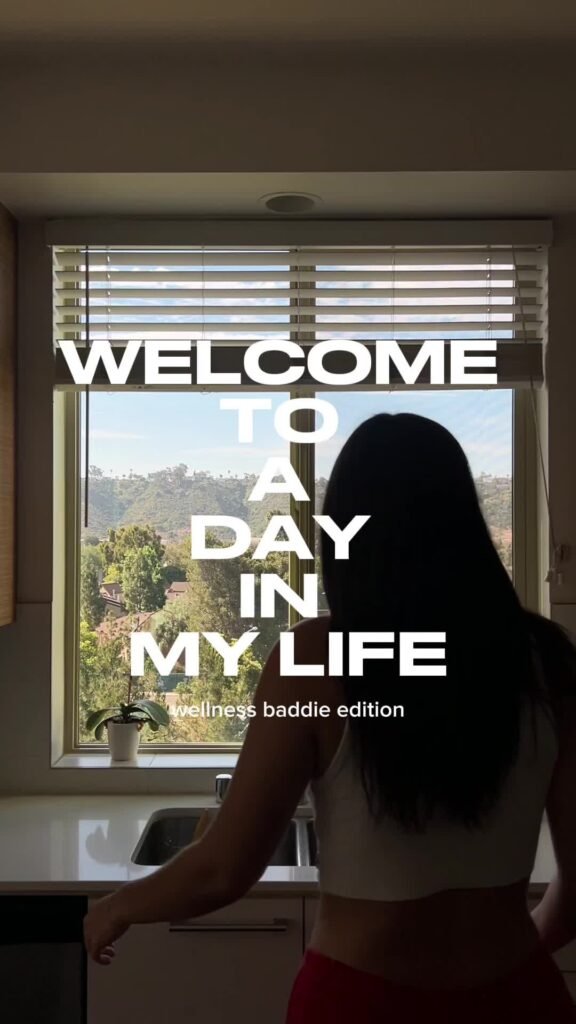
    They think slow = boring.

    But the truth?

    The best editing style for “Day in the Life” aesthetic vlogs is slow… but intentional.

    Here is the real talk about high-retention editing:
    Aesthetic content doesn’t keep people watching because it’s fast—it keeps them watching because it feels good to watch.

    That means:

    • Smooth pacing
    • Cinematic color grading
    • Subtle motion
    • Emotional storytelling

    In 2026, creators are combining minimal editing with AI tools like CapCut, Runway, and Sora to create calm, high-retention content.

    And yeah—this is exactly what creators on vfxcut.xyz are using to make aesthetic vlogs feel premium.


    What Defines an Aesthetic “Day in the Life” Editing Style?

    This style is all about feeling over speed.

    Core elements:

    • Soft transitions
    • Natural lighting
    • Warm tones
    • Minimal but intentional cuts
    • Ambient sound design

    It’s less about showing everything… and more about showing the right moments.


    Why This Style Works for Retention

    You might think fast edits = better retention.

    Not always.

    Aesthetic vlogs work because:

    • They relax the viewer
    • They create immersion
    • They feel authentic

    Instead of overstimulation, they provide:
    controlled engagement.


    Best Tools for Aesthetic Vlog Editing (2026)

    CapCut

    • Simple timeline
    • Smooth keyframing
    • Easy color grading

    Runway

    • AI color enhancement
    • Scene smoothing
    • Lighting adjustments

    Sora

    • Cinematic scene generation
    • Visual storytelling

    Premiere Pro / DaVinci Resolve

    • Advanced grading
    • Professional workflows

    Comparison Table: Editing Tools

    ToolEase of UseCinematic ControlBest For
    CapCut⭐⭐⭐⭐⭐⭐⭐⭐⭐Mobile creators
    Runway⭐⭐⭐⭐⭐⭐⭐⭐⭐AI enhancement
    Sora⭐⭐⭐⭐⭐⭐⭐⭐Cinematic visuals
    DaVinci Resolve⭐⭐⭐⭐⭐⭐⭐⭐Color grading pros

    Step-by-Step: Best Editing Style for “Day in the Life” Aesthetic Vlogs

    Let’s build a real workflow.


    Step 1: Select the Right Clips

    Choose clips that feel:

    • Calm
    • Natural
    • Visually pleasing

    Avoid chaotic or shaky footage.


    Step 2: Build a Soft Narrative

    Structure your vlog:

    • Morning routine
    • Midday activity
    • Evening wind-down

    Even simple content needs flow.


    Step 3: Cut with Intention

    Inside CapCut:

    • Keep clips longer than usual
    • Remove only distractions
    • Let moments breathe

    This is where many creators over-edit.


    Step 4: Add Subtle Motion with Keyframing

    Use keyframing to:

    • Slowly zoom in
    • Add gentle pan
    • Create movement

    Keep it minimal. This isn’t TikTok hype editing.


    Step 5: Apply Cinematic Color Grading

    This is the most important step.

    Use color grading to:

    • Warm up tones
    • Reduce harsh contrast
    • Create a soft look

    Pro tip:
    Lower highlights slightly for a filmic feel.


    Step 6: Use Soft Transitions

    Avoid harsh cuts.

    Use:

    • Cross dissolve
    • Fade in/out
    • Motion-based cuts

    Smooth transitions = better immersion.


    Step 7: Layer Ambient Sound

    Add:

    • Background noise (coffee shop, rain)
    • Soft music
    • Natural sounds

    Sound design is what makes it feel real.


    Step 8: Enhance with AI Tools

    Use Runway to:

    • Smooth lighting
    • Enhance colors
    • Fix inconsistencies

    Use Sora for:

    • Cinematic inserts
    • Creative storytelling

    Step 9: Maintain Visual Consistency

    Make sure:

    • Lighting matches
    • Colors are consistent
    • Style stays uniform

    Consistency builds trust.


    Step 10: Optimize for Retention

    Even slow videos need engagement:

    • Add micro motion every few seconds
    • Change angles subtly
    • Keep visuals evolving

    Aesthetic Editing Settings Checklist

    Before exporting:

    • Clips flow naturally: ✔
    • Keyframing subtle: ✔
    • Color grading consistent: ✔
    • Audio balanced: ✔
    • No harsh cuts: ✔
    • Lighting smooth: ✔
    • Mood consistent: ✔

    High-Retention Aesthetic Techniques (2026)

    1. Micro Movement

    Even calm videos need motion.

    Add:

    • Slight zooms
    • Gentle camera movement

    2. Emotional Timing

    Cut based on feeling—not just visuals.


    3. Natural Lighting Focus

    Use:

    • Window light
    • Golden hour

    Avoid artificial harsh lighting.


    4. AI-Assisted Cinematic Look

    Use Runway to:

    • Enhance mood
    • Balance lighting
    • Improve visuals

    Common Mistakes (Avoid These)

    Let me save your time:

    • Over-editing
    • Using flashy transitions
    • Ignoring sound design
    • Inconsistent color grading

    Also—don’t try to make aesthetic content fast-paced. That kills the vibe.


    Advanced Workflow: Cinematic Aesthetic System

    Here’s what top creators are doing:

    1. Capture natural footage
    2. Select calm, clean clips
    3. Edit minimally
    4. Add subtle keyframing
    5. Apply cinematic color grading
    6. Layer ambient sound
    7. Enhance with AI

    This system creates premium aesthetic content.


    Final Thoughts (Creative Mentor Mode)

    Look—mastering the best editing style for “Day in the Life” aesthetic vlogs isn’t about doing more.

    It’s about doing less… but better.

    Every edit should:

    • Feel natural
    • Support emotion
    • Maintain flow

    If your video feels calming and immersive, viewers stay—even if nothing “crazy” happens.

    Even if your using a phone, this style can make your content feel cinematic and professional.

    That’s the real power.


    Call to Action

    Now it’s your turn.

    Take a simple day from your life and edit it using this aesthetic workflow. Focus on mood, pacing, and subtle details.

    When you get it right, your content won’t just be watched—it will be felt.

    And if you want more pro-level breakdowns, editing workflows, and insider strategies, check out vfxcut.xyz—the ultimate hub for short-form creators and VFX enthusiasts.

    Your next viral vlog isn’t about doing more.

    It’s about creating a feeling people don’t want to leave.

  • How to Make Gym Workout Videos Look Epic with Speed Ramps (Create Viral, High-Energy Fitness Edits)

    How to Make Gym Workout Videos Look Epic with Speed Ramps (Create Viral, High-Energy Fitness Edits)

    Look, I’ve spent hours in the editing suite so you don’t have to—and if there’s one thing I’ve learned editing fitness content for short-form platforms, it’s this:
    Your workout isn’t what makes the video epic. Your pacing does.

    Most gym videos fail because they show effort… but not impact.

    Here is the real talk about high-retention editing:
    Speed ramps are not just a “cool effect”—they are a visual representation of power, intensity, and progression.

    In 2026, creators are combining cinematic pacing with AI tools like CapCut, Runway, and Sora to turn simple gym clips into explosive, viral content.

    And yeah—this is exactly the editing system used by creators on vfxcut.xyz to make fitness videos feel like movie trailers.


    Why Speed Ramps Work So Well in Gym Videos

    Gym content is naturally repetitive:

    • Lift
    • Drop
    • Repeat

    Without editing, it feels flat.

    Speed ramps fix this by:

    • Emphasizing effort
    • Highlighting impact moments
    • Creating rhythm and energy

    They turn ordinary reps into cinematic highlights.


    The Psychology Behind Speed Ramps

    Speed ramps manipulate perception:

    • Slow motion = power, tension
    • Fast motion = intensity, speed
    • Transition between both = emotional spike

    This creates:

    • Engagement spikes
    • Retention boosts
    • Visual satisfaction

    Best Tools for Speed Ramp Editing (2026)

    CapCut

    • Easy speed curve editor
    • Keyframing support
    • Mobile-friendly workflow

    Runway

    • AI motion smoothing
    • Scene enhancement
    • Auto pacing adjustments

    Sora

    • Cinematic motion generation
    • AI-assisted scene transitions

    Premiere Pro / After Effects

    • Advanced speed remapping
    • Precision control
    • Professional grading workflows

    Comparison Table: Speed Ramp Editing Tools

    ToolEase of UseSpeed ControlBest For
    CapCut⭐⭐⭐⭐⭐⭐⭐⭐⭐Fast gym edits
    Runway⭐⭐⭐⭐⭐⭐⭐⭐⭐AI enhancement
    Sora⭐⭐⭐⭐⭐⭐⭐⭐Cinematic visuals
    Premiere Pro⭐⭐⭐⭐⭐⭐⭐⭐Pro-level control

    Step-by-Step: How to Make Gym Workout Videos Look Epic with Speed Ramps

    Let’s build the exact workflow professionals use.


    Step 1: Record with Speed in Mind

    Before editing:

    • Film in high FPS (60–120fps)
    • Capture full motion reps
    • Keep camera stable

    This gives you flexibility in post.


    Step 2: Identify Impact Moments

    Look for:

    • Peak lift
    • Muscle contraction
    • Explosive movement

    These are your ramp points.


    Step 3: Cut at Motion Peaks

    Inside CapCut:

    • Cut at the moment of highest intensity
    • Align clips with movement direction

    This makes ramps feel natural.


    Step 4: Apply Speed Ramping (The Core Technique)

    Now the magic:

    • Slow motion during setup
    • Rapid speed during lift
    • Slow again at peak contraction

    This creates cinematic tension.


    Step 5: Add Keyframing for Motion Flow

    Use keyframing to:

    • Smooth speed transitions
    • Stabilize movement
    • Add subtle zooms

    This prevents robotic speed shifts.


    Step 6: Sync with Audio Beats

    Speed ramps MUST match audio:

    • Slow motion on buildup
    • Fast motion on beat drop
    • Impact sound on lift

    This is where retention spikes.


    Step 7: Apply Cinematic Color Grading

    Use color grading to:

    • Increase contrast
    • Deepen shadows
    • Enhance muscle definition

    This makes physique pop visually.


    Step 8: Add AI Enhancement (Optional but Powerful)

    Use Runway to:

    • Smooth motion artifacts
    • Enhance lighting
    • Stabilize footage

    Use Sora for:

    • Cinematic transitions
    • AI motion interpolation

    Speed Ramp Settings Checklist

    Before exporting:

    • High FPS footage used: ✔
    • Ramp points aligned with motion: ✔
    • Keyframing smooth: ✔
    • Audio synced: ✔
    • Color grading applied: ✔
    • No jitter in motion: ✔
    • Flow feels natural: ✔

    Best Speed Ramp Styles for Gym Videos (2026)

    1. Explosive Lift Ramp

    • Slow prep → fast lift → slow hold

    Creates maximum impact.


    2. Beast Mode Ramp

    • Fast montage → slow-motion highlights

    Perfect for hype edits.


    3. Pulse Ramp

    • Repeating slow-fast cycles

    Builds rhythm and intensity.


    4. AI Motion Ramp

    Using Runway:

    • Auto-detect motion peaks
    • Smooth transitions

    High-Retention Gym Editing Techniques

    1. Micro Ramps Every 2–3 Seconds

    Don’t keep pacing static.

    Add:

    • Small speed shifts
    • Subtle zooms
    • Movement variation

    2. Invisible Transitions

    Best edits don’t feel edited.

    Use motion continuity instead of flashy cuts.


    3. Sound-Driven Editing

    • Grunt on lift
    • Beat drop on impact
    • Whoosh on speed shift

    Sound = emotional trigger.


    4. Contrast Editing

    Alternate:

    • Slow powerful moments
    • Fast explosive reps

    This keeps viewers engaged.


    Common Mistakes (Avoid These)

    Let me save your time:

    • Overusing extreme speed changes
    • Ignoring audio sync
    • Poor lighting in footage
    • Random ramp timing

    Also—don’t apply speed ramps without purpose. That’s the fastest way to kill cinematic feel.


    Advanced Workflow: Epic Gym Edit System

    Here’s what pro creators do:

    1. Record high FPS gym footage
    2. Select impact moments
    3. Cut at motion peaks
    4. Apply speed ramps
    5. Add keyframing refinement
    6. Sync with powerful audio
    7. Apply cinematic color grading
    8. Enhance with AI tools

    This workflow turns basic gym clips into viral content.


    Final Thoughts (Creative Mentor Mode)

    Look—learning how to make gym workout videos look epic with speed ramps isn’t about making edits faster.

    It’s about controlling perception of power.

    Every speed shift should:

    • Highlight effort
    • Emphasize impact
    • Build energy

    If your pacing is right, even a simple dumbbell curl can feel like a movie scene.

    And that’s the difference between average content and viral fitness edits in 2026.

    Even if your shooting on a phone, this technique can completely change how your audience sees your workouts.


    Call to Action

    Now it’s your turn.

    Take your gym footage and rebuild it using speed ramps, audio syncing, and cinematic grading. Focus on impact moments and smooth transitions.

    When done right, your videos will feel instantly more powerful and professional.

    And if you want more pro editing workflows, AI breakdowns, and insider VFX secrets, check out vfxcut.xyz—the ultimate hub for short-form creators and VFX enthusiasts.

    Your next viral gym video isn’t about lifting heavier.

    It’s about making every rep look heavier.

  • Editing Food Recipes for TikTok: Best Angles and Cuts (Create Viral, Mouth-Watering Shorts That Keep People Watching)

    Editing Food Recipes for TikTok: Best Angles and Cuts (Create Viral, Mouth-Watering Shorts That Keep People Watching)

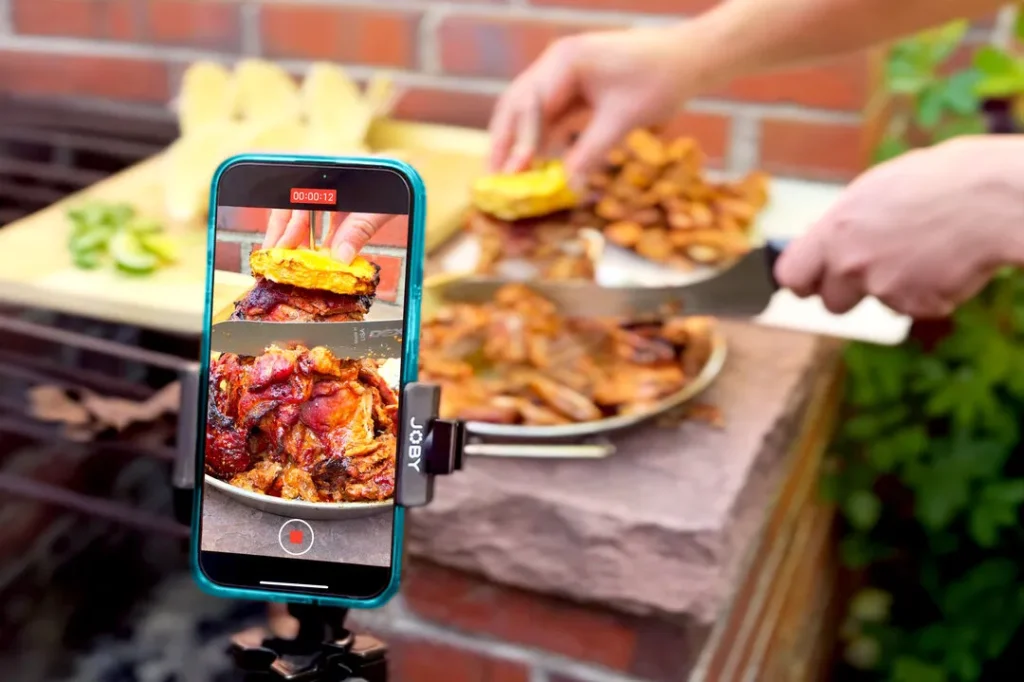
    Look, I’ve spent years inside editing timelines for food creators so you don’t have to—and here’s the blunt truth:

    Most recipe videos fail not because the food is bad… but because the angles and cuts are boring.
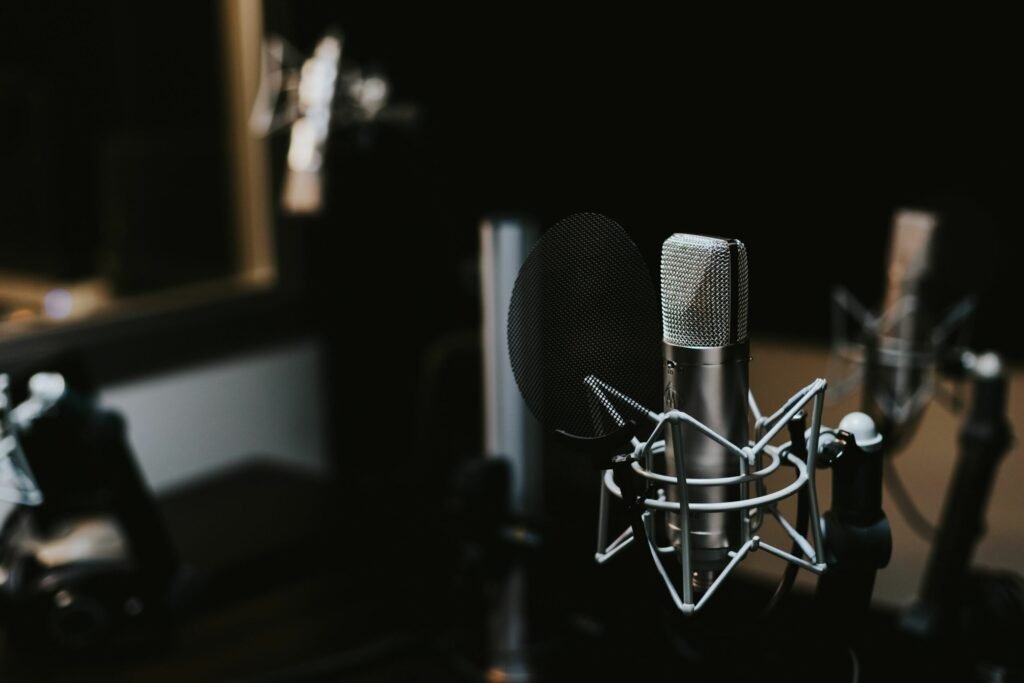
    In 2026, TikTok food content is no longer about “just showing the recipe.”

    It’s about:

    • Visual satisfaction
    • Fast storytelling
    • Sensory engagement
    • Perfect pacing

    Here is the real talk about high-retention editing:
    People don’t watch food videos to learn—they watch to feel hungry instantly.

    And if you master editing food recipes for TikTok: best angles and cuts, you can turn even basic home cooking into viral content.

    Creators on vfxcut.xyz are already using cinematic editing systems with AI tools like CapCut, Runway, and Sora to make food look like luxury commercials.


    Why Angles and Cuts Matter in Food Videos

    Food content is extremely visual-driven.

    Bad editing =

    • No appetite trigger
    • Low retention
    • Scroll away in 1 second

    Good editing =

    • Instant craving
    • Emotional reaction
    • Loop rewatching

    The difference is not the recipe—it’s the presentation language.


    The Psychology of Food Editing

    Food videos work because of:

    • Texture satisfaction
    • Color appeal
    • Motion anticipation

    Your job as an editor is to amplify:

    • Crunch
    • Steam
    • Pouring
    • Cutting

    Every cut should feel like a sensory hit.


    Best Angles for Food Recipe Videos (2026 Standard)

    1. Top-Down (Flat Lay Angle)

    • Perfect for preparation stages
    • Shows full workspace

    Best for:

    • Ingredient mixing
    • Plating setup

    2. Macro Close-Up Shots

    • Focus on texture
    • Cheese pull, sizzling, cutting

    This triggers appetite response instantly.


    3. Side Angle (Cinematic Depth)

    • Adds realism
    • Highlights motion

    Best for:

    • Cooking pans
    • Grilling shots

    4. POV (Point of View)

    • Viewer feels inside the cooking process
    • Extremely immersive

    5. Slow Motion Detail Shots

    • Oil drizzle
    • Sauce pour
    • Knife slicing

    This is where retention spikes.


    Best Cuts for TikTok Food Videos

    1. Jump Cuts (Fast Recipe Flow)

    • Remove waiting time
    • Keep only key actions

    2. Match Cuts (Smooth Transitions)

    • Ingredient → cooked result
    • Raw → plated

    Creates satisfaction.


    3. Speed Ramps (Cooking Drama)

    • Slow pour → fast chop → slow plating

    Adds cinematic energy.


    4. Reaction Cuts

    • Cook → reaction → dish reveal

    Builds emotional connection.


    5. ASMR Cuts

    • Crisp sound-focused edits
    • No music, pure sound

    Highly engaging in 2026.


    Best Tools for Food Editing (2026)

    CapCut

    • Fast trimming
    • Auto captions
    • Built-in effects

    Runway

    • AI cleanup
    • Lighting enhancement
    • Background refinement

    Sora

    • Cinematic food generation
    • Scene enhancement

    Premiere Pro / DaVinci Resolve

    • Advanced color grading
    • Professional cut control

    Comparison Table: Editing Tools for Food Content

    ToolSpeedAI PowerBest For
    CapCut⭐⭐⭐⭐⭐⭐⭐⭐⭐Fast TikTok edits
    Runway⭐⭐⭐⭐⭐⭐⭐⭐⭐AI enhancements
    Sora⭐⭐⭐⭐⭐⭐⭐⭐Cinematic food visuals
    Premiere Pro⭐⭐⭐⭐⭐⭐⭐⭐Pro color grading

    Step-by-Step: Editing Food Recipes for TikTok

    Let’s build a viral food editing workflow.


    Step 1: Capture with Editing in Mind

    While filming:

    • Use multiple angles
    • Keep lighting consistent
    • Shoot close-ups of textures

    Bad footage = impossible fix.


    Step 2: Build a Fast Story Structure

    Your recipe should feel like:

    • Hook (final dish teaser)
    • Ingredients
    • Cooking process
    • Final reveal

    No unnecessary steps.


    Step 3: Cut Ruthlessly

    Inside CapCut:

    • Remove waiting time
    • Cut boring transitions
    • Keep only visual impact moments

    This is retention editing.


    Step 4: Add Motion-Based Editing

    Use:

    • Zoom-ins
    • Speed ramps
    • Whip cuts

    Food must feel alive.


    Step 5: Enhance Texture with Color Grading

    Use color grading to:

    • Increase warmth
    • Enhance saturation
    • Boost contrast

    Food should look delicious—not flat.


    Step 6: Sync Cuts with Sound

    • Knife chop = beat
    • Sizzle = rhythm
    • Pour = accent

    Sound design is everything in food content.


    Step 7: Add AI Enhancement

    Use Runway to:

    • Enhance lighting
    • Sharpen textures
    • Clean visuals

    Optional: Use Sora for cinematic inserts.


    Editing Settings Checklist for Food Videos

    Before exporting:

    • Angles varied properly: ✔
    • Cuts are fast and clean: ✔
    • Textures clearly visible: ✔
    • Color grading applied: ✔
    • Audio synced with visuals: ✔
    • No dead time: ✔
    • Final dish shown early: ✔

    High-Retention Food Editing Techniques (2026)

    1. Front-Loading the Final Dish

    Always show:

    • Finished meal in first 2 seconds

    This increases retention instantly.


    2. Texture Emphasis Cuts

    Zoom into:

    • Cheese melt
    • Crispy edges
    • Sauce drip

    3. Invisible Transitions

    Cut on motion:

    • Stir → cut
    • Slice → cut

    Feels seamless.


    4. Multi-Angle Rotation

    Switch between:

    • Top-down
    • Close-up
    • Side angle

    Keeps visual interest alive.


    Common Mistakes (Avoid These)

    Let me save your time:

    • Showing too much preparation
    • Static camera shots
    • Poor lighting setup
    • Over-editing with effects

    Also—don’t drag recipes. TikTok rewards speed.


    Advanced Workflow: Viral Food Video System

    Top creators follow this system:

    1. Film multiple angles
    2. Capture macro textures
    3. Select only impactful moments
    4. Cut aggressively
    5. Add motion-based edits
    6. Apply color grading
    7. Sync sound perfectly
    8. Enhance with AI tools

    This creates addictive food content.


    Final Thoughts (Creative Mentor Mode)

    Look—mastering editing food recipes for TikTok: best angles and cuts isn’t about fancy cameras.

    It’s about making food feel irresistible through motion and timing.

    Every cut should:

    • Trigger appetite
    • Maintain flow
    • Increase retention

    If your editing is right, even a simple egg sandwich can look like a Michelin-star dish.

    And that’s the real power of editing in 2026.

    Even if your shooting on a phone, this workflow can completely transform your food content.


    Call to Action

    Now it’s your turn.

    Record a simple recipe and re-edit it using these angles and cutting techniques. Focus on texture, speed, and storytelling.

    When you get it right, your viewers won’t just watch—they’ll feel hungry instantly.

    And if you want more pro-level editing systems, AI workflows, and viral content strategies, check out vfxcut.xyz—the ultimate hub for short-form creators and VFX enthusiasts.

    Your next viral food video isn’t about what you cook.

    It’s about how you cut it.

  • How to Record and Edit High-Quality Voiceovers on a Phone (Pro-Level Audio for Viral Short-Form Content)

    How to Record and Edit High-Quality Voiceovers on a Phone (Pro-Level Audio for Viral Short-Form Content)

    Look, I’ve spent years cleaning up messy audio in post-production so you don’t have to—and here’s the uncomfortable truth most creators ignore:
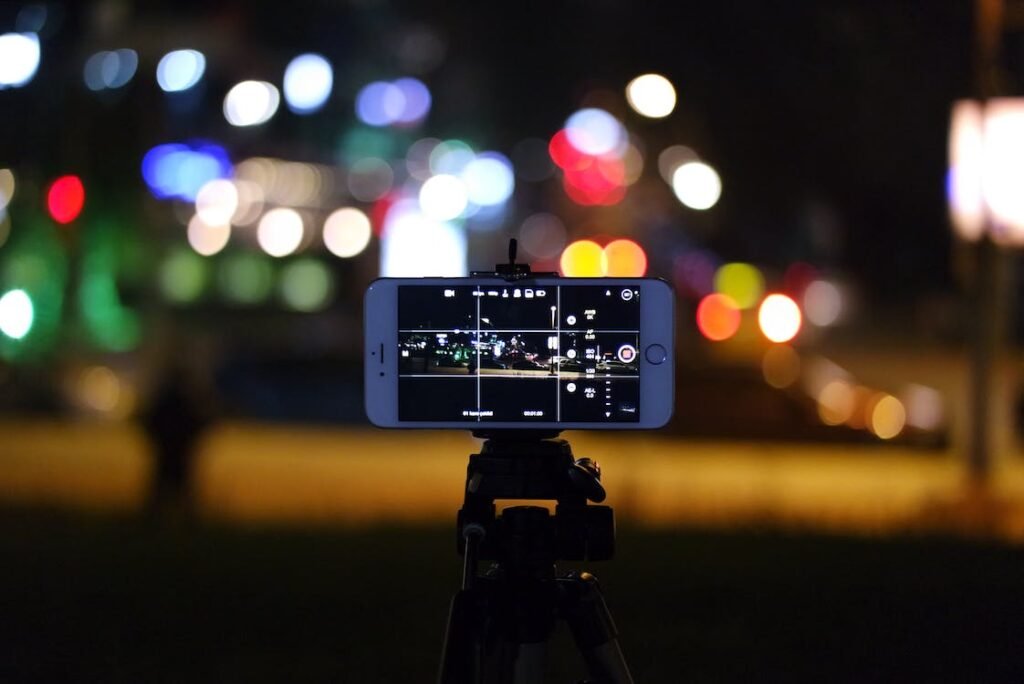
    Your video can look cinematic, but if your voiceover sounds cheap, the whole thing feels amateur.

    In 2026, short-form platforms like TikTok, Instagram Reels, and YouTube Shorts are prioritizing one thing more than ever:

    👉 Clear, emotionally engaging voiceovers.

    That’s why mastering how to record and edit high-quality voiceovers on a phone is now a core skill for creators.

    And here’s the real talk about high-retention editing:
    Viewers don’t just watch content—they listen first. If your audio hooks them in the first 2 seconds, your retention skyrockets.

    Creators on vfxcut.xyz are already using mobile-first workflows combined with AI tools like CapCut, Runway, and Sora to produce studio-level voiceovers directly from their phones.

    Let’s break it down like a pro sound engineer would.


    Why Voiceovers Matter More Than Ever in 2026

    Voiceovers are no longer just narration.

    They are:

    • Emotional direction
    • Story pacing
    • Viewer retention control

    A strong voiceover can:

    • Hold attention without visuals
    • Guide emotional response
    • Increase watch time significantly

    Bad voiceover = instant scroll.


    The Psychology of High-Retention Voiceovers

    A great voiceover works because of:

    • Tone variation
    • Strategic pauses
    • Emotional pacing
    • Clarity and texture

    Your voice is not just sound—it’s storytelling.


    Best Tools for Mobile Voiceover Recording (2026)

    CapCut

    • Built-in voice recorder
    • Noise reduction tools
    • Auto-sync with video

    Runway

    • AI voice cleanup
    • Audio enhancement
    • Background noise removal

    Sora

    • AI-generated narration
    • Synthetic voice enhancement

    Native Phone Recorder (iOS/Android)

    • Best raw capture quality
    • Zero compression editing

    Comparison Table: Voiceover Tools

    ToolAudio QualityAI EnhancementBest For
    CapCut⭐⭐⭐⭐⭐⭐⭐⭐Fast editing
    Runway⭐⭐⭐⭐⭐⭐⭐⭐⭐AI cleanup
    Sora⭐⭐⭐⭐⭐⭐⭐⭐Synthetic voice
    Phone Recorder⭐⭐⭐⭐⭐⭐⭐Raw recording

    Step-by-Step: How to Record High-Quality Voiceovers on a Phone

    Let’s build a professional workflow.


    Step 1: Control Your Recording Environment

    Before you even hit record:

    • Choose a quiet room
    • Avoid echo-heavy spaces
    • Turn off fans or background noise

    Pro tip: Closet spaces work surprisingly well.


    Step 2: Use Proper Mic Positioning

    Your phone mic should be:

    • 6–10 inches from your mouth
    • Slightly off-axis (not directly in front)

    This reduces harsh plosives.


    Step 3: Speak with Intent (Not Just Words)

    Here is where most creators fail.

    Don’t just talk—perform:

    • Emphasize key words
    • Add pauses
    • Control pacing

    Think of it like storytelling, not reading.


    Step 4: Record Multiple Takes

    Never settle for one take.

    Record:

    • Fast version
    • Slow version
    • Emotional version

    You can always edit later.


    Step 5: Clean Audio in CapCut

    Inside CapCut:

    • Apply noise reduction
    • Normalize volume
    • Remove background hiss

    This is your first cleanup stage.


    Step 6: AI Audio Enhancement

    Use Runway to:

    • Remove echo
    • Enhance clarity
    • Balance frequencies

    This is where audio becomes studio-grade.


    Step 7: Sync Voiceover with Visuals

    Your voice must match:

    • Cuts
    • Motion
    • Transitions

    Bad sync = broken immersion.


    Step 8: Add Emotional Sound Design

    Enhance storytelling with:

    • Background ambience
    • Subtle music
    • Sound effects (whooshes, clicks)

    This increases retention dramatically.


    Voiceover Editing Checklist (Mobile Workflow)

    Before exporting:

    • No background noise: ✔
    • Consistent volume levels: ✔
    • Clear articulation: ✔
    • Emotional pacing correct: ✔
    • Sync with visuals: ✔
    • Clean pauses included: ✔

    Best Techniques for Viral Voiceovers (2026)

    1. Hook in First 2 Seconds

    Start strong:

    • Question
    • Bold statement
    • Emotional trigger

    Example:
    “You’re editing your videos wrong—and it’s killing your views.”


    2. Micro-Pauses for Retention

    Silence is powerful.

    Use pauses to:

    • Build tension
    • Highlight key points

    3. Dynamic Tone Shifts

    Avoid monotone speech:

    • Slow → fast
    • Calm → intense

    This keeps viewers engaged.


    4. Layered Audio Editing

    Combine:

    • Voiceover
    • Background music
    • Subtle effects

    This creates depth.


    5. AI Voice Enhancement

    Use Runway to:

    • Smooth inconsistencies
    • Enhance clarity
    • Fix imperfections

    Common Mistakes (Avoid These)

    Let me save your time:

    • Recording in noisy environments
    • Speaking too fast or monotone
    • Ignoring audio sync
    • Over-processing with effects

    Also—don’t try to fix bad recording with heavy filters. Fix it at the source.


    Advanced Workflow: Pro Mobile Voiceover System

    Here’s how professionals do it:

    1. Record multiple takes on phone
    2. Select best performance
    3. Clean audio in CapCut
    4. Enhance with AI tools
    5. Sync with visuals
    6. Add sound design layer
    7. Final polish with compression

    This workflow makes mobile audio sound studio-grade.


    Final Thoughts (Creative Mentor Mode)

    Look—mastering how to record and edit high-quality voiceovers on a phone isn’t about having expensive gear.

    It’s about:

    • Clarity
    • Emotion
    • Control

    If your voice sounds confident and clean, your entire video feels premium—even if it’s shot on a phone in your room.

    And that’s the real advantage in 2026.

    Even if your setup is basic, your storytelling can still sound professional.


    Call to Action

    Now it’s your turn.

    Record a simple voiceover on your phone and apply these editing techniques. Focus on clarity, pacing, and emotional delivery.

    When done right, your content will instantly feel more engaging and professional.

    And if you want more pro-level audio workflows, editing breakdowns, and AI-powered content strategies, check out vfxcut.xyz—the ultimate hub for short-form creators and VFX enthusiasts.

    Your next viral video doesn’t start with visuals.

    It starts with your voice.

  • Best Mobile Camera Settings for Low-Light Short-Form Content (Create Clean, Cinematic Night Videos That Go Viral)

    Best Mobile Camera Settings for Low-Light Short-Form Content (Create Clean, Cinematic Night Videos That Go Viral)

    Look, I’ve spent years fixing grainy, noisy low-light footage in post-production so you don’t have to—and here’s the truth most creators learn the hard way:
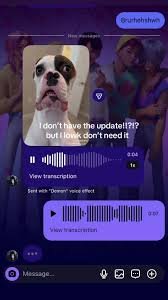
    Bad low-light settings can destroy even the best creative idea.

    You can have perfect storytelling, strong hooks, and viral pacing—but if your night footage looks muddy, viewers scroll instantly.

    Here is the real talk about high-retention editing:
    Low-light content is where creators either look amateur or cinematic. There is no middle ground.

    In 2026, platforms like TikTok and Instagram Reels are pushing cinematic realism more than ever, and creators are now using AI-enhanced workflows with tools like CapCut, Runway, and Sora to clean up mobile footage and elevate night visuals.

    And yeah—this is exactly the kind of workflow used by creators on vfxcut.xyz to turn low-light phone clips into cinematic short-form content.


    Why Low-Light Settings Matter More Than Ever

    Low-light content is everywhere now:

    • Night vlogs
    • Street reels
    • Neon aesthetic edits
    • Car POV videos
    • Indoor cinematic shots

    But the challenge is always the same:

    • Noise (grain)
    • Motion blur
    • Loss of detail
    • Poor color accuracy

    Your camera settings determine whether your footage is usable—or ruined.


    The Science Behind Low-Light Mobile Video

    Low-light performance depends on:

    • Sensor sensitivity (ISO)
    • Light intake (aperture)
    • Shutter speed
    • Digital processing

    Your goal is simple:

    👉 Let in more light without destroying clarity.


    Best Mobile Camera Settings for Low-Light Short-Form Content

    Let’s break it down like a pro cinematographer would.


    1. Frame Rate: 30fps (or 24fps for cinematic look)

    • 30fps = balanced motion + light capture
    • 24fps = more cinematic but less smooth

    Avoid 60fps in low light unless necessary—it reduces light intake.


    2. Shutter Speed: 1/50 or 1/60 Rule

    This is critical.

    • 30fps → 1/60 shutter
    • 24fps → 1/50 shutter

    Why?

    • Prevents unnatural motion blur
    • Maintains cinematic realism

    3. ISO: Keep as Low as Possible

    • Ideal range: ISO 100–800
    • Avoid going beyond 1600

    Higher ISO = more noise.


    4. White Balance: Lock It Manually

    Do NOT use auto white balance.

    Set manually:

    • Warm lighting → 3000K–4000K
    • Street lights → 4000K–5000K
    • Neon → adjust based on tone

    This prevents color shifting mid-shot.


    5. Exposure Compensation (-0.3 to -1.0)

    Slightly underexpose your shot:

    • Preserves highlights
    • Reduces noise amplification
    • Improves grading flexibility

    6. Focus Mode: Manual or Locked AF

    Avoid autofocus hunting.

    Use:

    • Manual focus
    • Tap-to-lock focus

    Keeps subject stable.


    7. HDR Mode: OFF for Video

    HDR in low light often:

    • Creates ghosting
    • Adds unnatural contrast
    • Reduces cinematic feel

    Mobile Camera Settings Checklist (Low-Light Optimization)

    Before recording:

    • Frame rate locked (24/30fps): ✔
    • Shutter speed matched: ✔
    • ISO kept low: ✔
    • White balance locked: ✔
    • Exposure slightly reduced: ✔
    • Focus locked: ✔
    • HDR disabled: ✔

    Comparison Table: Low-Light Editing Tools (2026)

    ToolNoise ReductionAI EnhancementBest Use Case
    CapCut⭐⭐⭐⭐⭐⭐⭐⭐Fast mobile edits
    Runway⭐⭐⭐⭐⭐⭐⭐⭐⭐⭐AI cleanup + enhancement
    Sora⭐⭐⭐⭐⭐⭐⭐⭐⭐Cinematic generation
    Native Camera⭐⭐⭐⭐⭐Raw capture only

    Step-by-Step: How to Shoot and Edit Low-Light Mobile Content

    Let’s build a pro-level workflow.


    Step 1: Control Your Light Source

    In low-light shooting:

    • Use practical light (lamps, neon, street lights)
    • Avoid complete darkness
    • Add small fill light if possible

    Even weak light is better than none.


    Step 2: Lock Your Camera Settings

    Set manually:

    • Frame rate
    • ISO
    • Shutter speed
    • White balance

    This prevents auto adjustments ruining your shot.


    Step 3: Stabilize Your Shot

    Low light = more motion blur risk.

    Use:

    • Tripod
    • Gimbal
    • Or stable handheld grip

    Shaky footage becomes worse in darkness.


    Step 4: Shoot in Short Takes

    Avoid long continuous shots.

    Instead:

    • Record multiple short clips
    • Focus on key moments

    This improves editing flexibility.


    Step 5: Import Into CapCut

    Inside CapCut:

    • Apply noise reduction
    • Stabilize footage
    • Adjust brightness carefully

    Step 6: AI Enhancement for Low-Light

    Use Runway to:

    • Reduce grain
    • Enhance shadows
    • Improve sharpness

    AI helps recover lost detail.


    Step 7: Color Grading for Cinematic Look

    This is where transformation happens.

    Use color grading to:

    • Add contrast
    • Boost shadows
    • Slightly desaturate highlights
    • Apply cinematic LUTs

    Goal: film-like mood, not phone look.


    Step 8: Enhance with AI Generation (Optional)

    Use Sora for:

    • Cinematic inserts
    • Lighting enhancements
    • Scene extensions

    High-Retention Low-Light Editing Techniques

    1. Contrast-Based Editing

    Low-light content works best when:

    • Bright highlights pop
    • Shadows stay deep

    2. Motion Illumination Technique

    Move light sources during recording:

    • Walking past neon lights
    • Passing cars
    • Flickering signs

    Adds cinematic energy.


    3. Micro Light Flares

    Use editing effects to simulate:

    • Lens flares
    • Glow effects
    • Light leaks

    4. Slow Reveal Cuts

    Don’t show everything instantly.

    Reveal:

    • Subject gradually
    • Environment slowly

    Builds curiosity.


    Common Mistakes (Avoid These)

    Let me save your footage:

    • Using auto ISO in dark scenes
    • Overexposing night shots
    • Ignoring white balance
    • Recording in total darkness
    • Over-sharpening noisy footage

    Also—don’t try to “fix” bad lighting in post only. It starts at capture.


    Advanced Workflow: Cinematic Low-Light Mobile System

    Here’s what pro creators do:

    1. Set manual camera controls
    2. Use controlled lighting environment
    3. Shoot short stabilized clips
    4. Import into CapCut
    5. Apply noise reduction
    6. Enhance with Runway AI
    7. Apply cinematic color grading
    8. Final polish with sound design

    This system turns low-light footage into cinematic content.


    Final Thoughts (Creative Mentor Mode)

    Look—mastering best mobile camera settings for low-light short-form content isn’t about having the best phone.

    It’s about understanding light, control, and discipline.

    Every setting you adjust:

    • Protects your image quality
    • Enhances cinematic feel
    • Improves retention

    If your low-light footage looks clean and intentional, your entire content level rises instantly—even if you’re filming on a budget phone.

    And that’s the real advantage in 2026.

    Even simple night clips can look like movie scenes if you know what you’re doing.


    Call to Action

    Now it’s your turn.

    Go shoot a low-light video using these exact settings and apply the editing workflow above. Focus on light control, stability, and color grading.

    When done right, your footage will instantly look more cinematic and professional.

    And if you want more advanced mobile filmmaking guides, AI editing workflows, and VFX breakdowns, check out vfxcut.xyz—the ultimate hub for short-form creators and VFX enthusiasts.

    Your next viral night reel doesn’t depend on your camera.

    It depends on how you control the light.

  • How to Fix Instagram Reels Audio Sync Issues After Upload (2026 Pro Guide for Perfect Lip-Sync & Retention)

    How to Fix Instagram Reels Audio Sync Issues After Upload (2026 Pro Guide for Perfect Lip-Sync & Retention)

    Fix Instagram Reels audio sync issues after upload with pro editing, export, and AI workflow techniques (2026 guide).


    Look, I’ve spent hours in the editing suite so you don’t have to… and if there’s one thing that kills a Reel faster than bad lighting, it’s audio out of sync. Even a 0.2-second delay can destroy retention, break immersion, and stop your content from going viral.
    In this deep-dive guide, you’ll learn how to fix Instagram Reels audio sync issues after upload, plus the real reasons it happens — and how top creators avoid it completely using modern AI workflows.

    This isn’t basic advice. This is the stuff editors actually use.


    Why Instagram Reels Audio Goes Out of Sync (2026 Reality Check)

    Before fixing it, understand the problem.

    Here’s the real talk about high-retention editing: sync issues don’t happen randomly — they’re caused by technical mismatches.

    Common Causes

    • Variable Frame Rate (VFR) footage from phones
    • Improper export settings (especially bitrate + FPS mismatch)
    • Instagram compression algorithm (still aggressive in 2026)
    • Audio sample rate mismatch (44.1kHz vs 48kHz)
    • Editing in apps that auto-adjust timing (yes, this happens)
    • Uploading over unstable internet (causes encoding glitches)

    Even tools like CapCut AI or Runway can mess this up if your base settings are wrong.


    The Golden Rule (Most Creators Ignore This)

    If you remember ONE thing:

    Always edit and export in CONSTANT FRAME RATE (CFR)

    This single fix solves about 70% of sync issues.


    Pro Editing Software Comparison (Sync Stability Focus)

    FeatureCapCut AIPremiere ProRunway AI
    Frame Rate ControlMediumFull ControlMedium
    Audio Sync PrecisionGoodExcellentGood
    AI Auto AdjustmentHigh (can cause drift)LowHigh
    Export CustomizationLimitedAdvancedMedium
    Best ForQuick editsProfessional ReelsAI-heavy workflows

    Pro Tip: If your Reel must be PERFECT (lip-sync, dialogue), use Premiere Pro. CapCut is great, but sometimes it “helps” too much.


    Settings Checklist (Fix Sync Before Upload)

    Use this checklist BEFORE exporting your Reel:

    Video Settings

    • Resolution: 1080×1920 (vertical)
    • Frame Rate: 30fps (or 24fps, but stay consistent)
    • Frame Type: Constant Frame Rate (CFR)
    • Codec: H.264

    Audio Settings

    • Sample Rate: 48kHz (important!)
    • Bitrate: 320 kbps
    • Format: AAC

    Timeline Settings

    • Match timeline FPS with export FPS
    • Avoid mixing 24fps + 30fps clips
    • Manually align audio (don’t trust auto-sync fully)

    Miss one of these, and your editting can break after upload.


    Step-by-Step: How to Fix Instagram Reels Audio Sync Issues After Upload

    Now let’s fix it properly.

    Step 1: Re-Import Your Original Video

    Don’t edit the downloaded Instagram version.

    Go back to:

    • Original footage
    • Original timeline project

    Compressed files already have timing distortion.


    Step 2: Convert to Constant Frame Rate (CRITICAL)

    Use tools like:

    • HandBrake
    • Premiere Pro (Interpret Footage)
    • Media Encoder

    Set:

    • Frame rate = Constant
    • Match your timeline (e.g., 30fps)

    This step alone fixes most desync problems.


    Step 3: Manually Sync Audio (Frame-Level Precision)

    Zoom into timeline.

    • Align lip movement with waveform peaks
    • Use markers for dialogue points
    • Shift audio by milliseconds if needed

    Don’t rely on auto-sync — it’s not perfect, especially with AI processed clips.


    Step 4: Disable Auto AI Adjustments

    In tools like CapCut AI or Runway:

    Turn OFF:

    • Auto beat sync
    • Smart timing adjustments
    • Auto captions timing (temporarily)

    These features can subtly shift audio timing.


    Step 5: Export With Correct Settings

    Export settings should be:

    • H.264
    • 1080×1920
    • 30fps constant
    • AAC 48kHz

    Avoid:

    • HEVC (can cause issues on upload)
    • Variable bitrate spikes

    Consistency > compression.


    Step 6: Upload Using Stable Internet

    Sounds basic, but it matters.

    Upload with:

    • Strong WiFi
    • No background downloads

    Instagram sometimes re-encodes badly on weak connections.


    Advanced Fix (Used by Pro Editors)

    If your Reel STILL has sync issues:

    Trick: Add a Silent Audio Layer

    • Add a silent audio track underneath
    • Export again

    This forces Instagram to reprocess audio differently.

    Weird? Yes. Effective? Also yes.


    AI Tools Workflow (2026 Optimization)

    Modern creators are using AI — but incorrectly configured AI can CAUSE sync issues.

    Best Workflow

    1. Edit base video in Premiere Pro (for accuracy)
    2. Enhance in Runway (background, VFX)
    3. Final polish in CapCut AI (captions, effects)
    4. Export again from a stable editor

    Don’t do full edits in AI tools only — they sometimes alter timing dynamically.


    Retention Impact: Why Sync Matters More Than Ever

    Here is the brutal truth:

    • Viewers notice sync issues in under 1 second
    • Watch time drops instantly
    • Algorithm reduces reach

    Good sync = better retention = more viral potential

    Bad sync = scroll away

    That simple.


    Common Mistakes (That Ruin Your Reel)

    Avoid these:

    • Mixing FPS clips (24 + 60 fps)
    • Using TikTok export for Instagram
    • Uploading directly from editing apps
    • Ignoring audio sample rate
    • Overusing AI auto timing

    And yes… exporting in the wrong format once can ruin your entire proccess.


    Pro-Level Tips for Perfect Sync

    • Always clap or snap at start of recording (sync reference)
    • Use waveform matching instead of visual guessing
    • Keep edits tight — long cuts hide sync issues poorly
    • Do a test upload before publishing

    And one more thing:

    Watch your Reel after upload before posting publicly.

    Sounds obvious, but most creators skip this step.


    Final Thoughts (Creative Mentor Advice)

    Look, fixing Instagram Reels audio sync issues after upload isn’t about one trick — it’s about controlling your entire pipeline.

    From frame rate → timeline → export → upload.

    Once you lock this in, your content instantly feels more “premium”. Viewers may not know why… but they feel it.

    And in 2026, that feeling = retention.


    Your Next Move

    Now go test this workflow:

    • Fix one old Reel
    • Re-upload with correct settings
    • Compare retention

    You’ll see the difference.

    And if you’re serious about mastering short-form editing, AI workflows, and viral storytelling, explore more pro-level tutorials on vfxcut.xyz — the ultimate hub for creators who don’t just edit… they craft experiences.

    Now go fix your sync — your next viral Reel is waiting.

  • Why Your TikToks Are Stuck at 200 Views: Editing Fixes That Actually Go Viral in 2026

    Why Your TikToks Are Stuck at 200 Views: Editing Fixes That Actually Go Viral in 2026

    Discover why your TikToks are stuck at 200 views and fix it with pro editing, AI tools, and high-retention techniques (2026 guide).

    Look, I’ve spent hours in the editing suite so you don’t have to… and here’s the uncomfortable truth:

    Your TikToks aren’t stuck at 200 views because of the algorithm — they’re stuck because of editing mistakes.

    Yeah, harsh. But fixable.

    In 2026, TikTok’s algorithm is smarter than ever. It doesn’t just look at likes — it analyzes retention, replays, micro-engagement, and pacing. If your video fails in the first 2–3 seconds, it dies at 200 views. Period.

    Let’s break down why your TikToks are stuck at 200 views: editing fixes that actually work.


    The Real Reason You’re Stuck at 200 Views

    Here is the real talk about high-retention editing:

    TikTok tests your video with a small audience first (around 200–300 views). If your video doesn’t perform, it stops distribution.

    What TikTok Measures

    • Average Watch Time (must be 80%+ for growth)
    • Retention Curve (no early drop-offs)
    • Rewatches (loop-friendly edits win)
    • Engagement (comments > likes)

    If your editting fails here, your video gets buried.


    The #1 Editing Mistake Killing Your Reach

    Weak First 2 Seconds (No Hook)

    Most creators start like this:

    • “Hey guys…”
    • Slow intro
    • No visual movement

    Result: Instant scroll.

    Fix: Pattern Interrupt Hook

    Use:

    • Fast zoom cuts
    • Motion in first frame
    • Bold captions
    • Sound effect hit

    Example:
    Instead of: “Today I’ll show you…”
    Start with: “This is why your TikTok is stuck at 200 views…”

    Hook = retention = reach


    Editing Software Comparison (2026 Creator Stack)

    FeatureCapCut AIPremiere ProRunway ML
    SpeedVery FastMediumFast
    AI ToolsAdvancedLimitedVery Advanced
    KeyframingBasicPro-LevelMedium
    ControlMediumFullMedium
    Best UseViral editsPrecision editingAI VFX

    Pro Insight: Use Premiere for structure, CapCut AI for virality features.


    The Retention Formula (Used by Viral Creators)

    If your content doesn’t follow this structure, it won’t scale:

    Hook (0–3 sec)

    Grab attention instantly

    Value (3–10 sec)

    Deliver fast, clear content

    Pattern Interrupt (Every 2–3 sec)

    Zoom, cut, sound, or text change

    Loop Ending

    Make the video feel like it restarts

    This is not optional anymore. This is required.


    Settings Checklist (Fix Your Editing Pipeline)

    Before exporting your TikTok, check this:

    Video Settings

    • Resolution: 1080×1920
    • Frame Rate: 30fps (consistent)
    • Format: MP4 (H.264)

    Audio Settings

    • 48kHz sample rate
    • Clear voice (no clipping)
    • Music balanced (-18 to -12 LUFS)

    Editing Rules

    • Cut every 1–3 seconds
    • Add captions (always)
    • Use motion (keyframing zooms)
    • Avoid static shots

    Miss this checklist, and your content will feel “dead”.


    Step-by-Step: Fix TikToks Stuck at 200 Views

    Now let’s fix your content properly.

    Step 1: Analyze Your Retention Drop

    Open TikTok analytics.

    Look for:

    • Drop at 1–2 seconds → bad hook
    • Drop mid-video → boring pacing
    • No replays → weak ending

    Your audience is telling you what’s wrong.


    Step 2: Re-Edit With Aggressive Cuts

    Cut out:

    • Pauses
    • Breathing gaps
    • Filler words

    Make your video slightly faster than natural.

    Yes, it feels weird — but it works.


    Step 3: Add Micro-Movements (Keyframing)

    Every 2–3 seconds:

    • Zoom in 5–10%
    • Slight camera shake
    • Text animation

    This keeps the brain engaged.

    Static video = low retention.


    Step 4: Use AI Tools Smartly

    Modern tools like CapCut AI and Runway can boost your content — but only if used correctly.

    Use AI for:

    • Auto captions
    • Background cleanup
    • Face tracking zooms

    Avoid:

    • Over-automation
    • AI timing shifts

    AI should assist, not control your edit.


    Step 5: Upgrade Your Color Grading

    Flat colors = boring video.

    Quick fix:

    • Increase contrast
    • Boost saturation slightly
    • Sharpen subject

    Good color grading makes your content feel “premium”.


    Step 6: Design a Loop Ending

    This is a viral trick most beginners ignore.

    End your video so it connects to the beginning.

    Example:
    End with: “And that’s why your TikToks…”
    Which loops back to: “This is why your TikToks…”

    Result:

    • More replays
    • Higher retention
    • Algorithm boost

    Advanced Editing Tricks (2026 Viral Techniques)

    1. Speed Ramping

    • Slow → fast → slow
    • Keeps visual interest high

    2. Sound Design Layering

    • Add subtle whooshes, clicks
    • Match cuts with sound

    3. Caption Psychology

    • Highlight key words
    • Use color contrast
    • Animate text

    Captions aren’t optional anymore — they drive retention.


    Common Mistakes Keeping You Stuck

    Let’s be honest:

    • Over-editing with no structure
    • Under-editing (boring clips)
    • Copying trends without adapting
    • Ignoring storytelling
    • Posting without testing

    And yeah… sometimes your just not hooking fast enough.


    The Truth About the Algorithm

    Stop blaming TikTok.

    If your video:

    • Hooks fast
    • Keeps attention
    • Loops cleanly

    It WILL grow.

    The algorithm rewards watch behavior, not effort.


    Final Thoughts (Mentor Mode)

    Look, getting stuck at 200 views is normal.

    Every creator goes through it.

    But the ones who break through? They fix their editing, not their luck.

    Once you understand retention, pacing, and viewer psychology… everything changes.

    Your content stops feeling random — and starts feeling engineered.


    Your Next Move

    Take one of your low-performing TikToks and:

    • Re-edit using this guide
    • Improve the hook
    • Add keyframing and motion
    • Fix pacing

    Then repost it.

    You’ll see the difference.

    And if you want more deep, creator-level strategies like this, head over to vfxcut.xyz — the ultimate hub for short-form editors, AI creators, and VFX artists.

    Now go fix your content… because your next viral video is probably already sitting in your drafts.

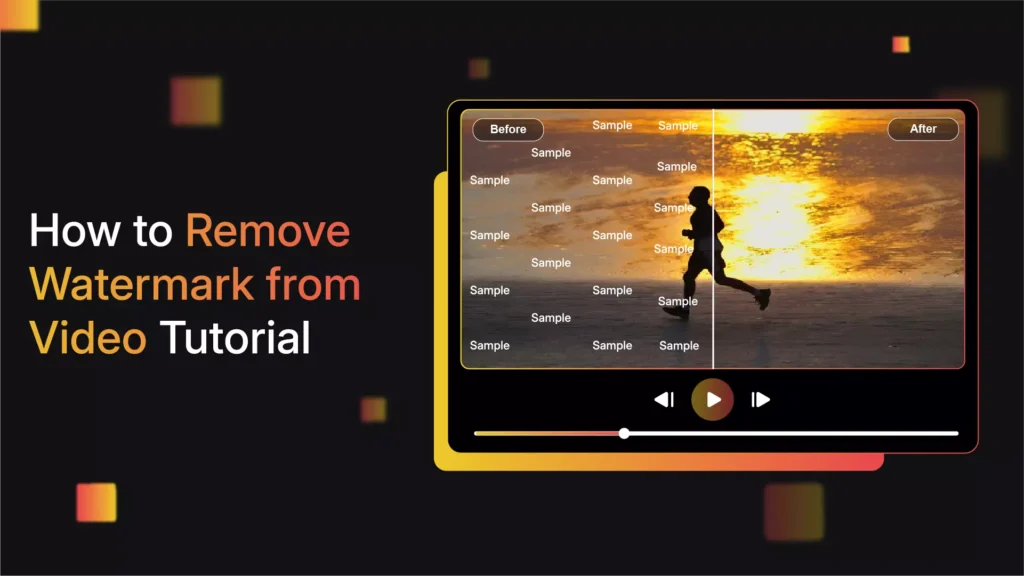
  • How to Remove Watermarks from Video Editing Apps for Free (2026 Pro Creator Guide That Actually Works)

    How to Remove Watermarks from Video Editing Apps for Free (2026 Pro Creator Guide That Actually Works)

    Learn how to remove watermarks from video editing apps for free using pro editing, AI tools, and smart export tricks (2026 guide).

    Look, I’ve spent hours in the editing suite so you don’t have to… and let me be straight with you:

    Most “watermark removal” hacks online are either low-quality, illegal, or just don’t work properly.

    But here’s the real secret — professional creators don’t “remove” watermarks… they avoid, mask, or out-edit them.

    In this guide, you’ll learn how to remove watermarks from video editing apps for free using legit, high-quality techniques that actually preserve your video quality and retention.


    The Truth About Watermarks (2026 Reality Check)

    Before jumping into fixes, understand this:

    Watermarks exist because:

    • Apps want branding exposure
    • Free versions have limitations
    • Premium exports unlock clean output

    So instead of fighting the system blindly, smart editors use workflow hacks + editing techniques.


    3 Legit Ways to Remove Watermarks (Without Ruining Quality)

    1. Export Without Watermark (Best Method)

    Some apps allow:

    • Watching ads
    • Using trial features
    • Exporting via specific settings

    2. Crop + Reframe (Fast Fix)

    Remove watermark by cropping and adjusting framing.

    3. Masking with Elements (Pro Trick)

    Hide watermark using:

    • Text overlays
    • Logos
    • Blur effects
    • AI object fill

    Each method has pros and cons — we’ll break them down.


    Editing Software Comparison (Watermark Control)

    FeatureCapCut AIPremiere ProRunway ML
    Free Export Without WatermarkYes (limited)YesYes
    AI Object RemovalBasicAdvanced (plugins)Excellent
    KeyframingMediumFull ControlMedium
    Watermark RiskMediumNoneLow
    Best UseQuick editsPro editingAI cleanup

    Pro Insight: If you’re serious, move your final export to Premiere Pro — zero watermark, full control.


    Method 1: Export Without Watermark (Hidden Features)

    Here is the real talk about high-retention editing:

    The cleanest video always wins.

    CapCut Trick (2026)

    • Remove ending clip (CapCut adds watermark here)
    • Turn off “Auto Add Outro”
    • Export manually

    Boom — no watermark.

    Some versions may still add branding, but most users miss this simple step.


    Other Apps (General Trick)

    Apps like:

    • VN Editor
    • InShot
    • Alight Motion

    Often allow:

    • Free export after watching an ad
    • Watermark removal toggle

    Check settings before exporting — your probably missing it.


    Method 2: Crop and Reframe (Quick Fix for Existing Videos)

    If you already exported with watermark:

    Step-by-Step

    1. Import video into editor
    2. Scale video to 105–110%
    3. Reposition frame to remove watermark
    4. Adjust composition

    Pro Tip

    Use keyframing to adjust framing dynamically if subject moves.

    Downside:

    • Slight quality loss
    • Tight framing

    But for short-form content? It works.


    Method 3: Masking Watermarks Like a Pro

    This is where real editors shine.

    Option A: Text Overlay

    • Add captions over watermark
    • Match style with video

    Option B: Logo Placement

    • Place your brand logo over watermark
    • Turn problem into branding

    Option C: Blur Patch

    • Add blur effect to small area
    • Feather edges for smooth blending

    Option D: AI Object Removal (Advanced)

    Use tools like Runway ML:

    • Select watermark area
    • Apply object removal
    • Let AI fill background

    This works best on:

    • Static backgrounds
    • Simple textures

    Step-by-Step: Remove Watermark Using AI (Runway Workflow)

    Now let’s go advanced.

    Step 1: Upload Your Video

    Import your clip into Runway.


    Step 2: Select Watermark Area

    Use brush tool:

    • Highlight watermark
    • Keep selection tight

    Step 3: Apply AI Removal

    Run:

    • Object removal
    • Inpainting

    AI will fill background automatically.


    Step 4: Export Clean Clip

    Download cleaned video and re-import into your main editor.


    Step 5: Final Polish

    • Add color grading
    • Adjust sharpness
    • Re-sync audio if needed

    Done.


    Settings Checklist (Avoid Watermarks in Future)

    Before Editing

    • Choose app with free export option
    • Disable auto outro

    During Editing

    • Keep safe margins (avoid edges)
    • Plan framing early

    Before Export

    • Check watermark toggle
    • Preview final frame

    Skipping this checklist = repeat mistakes.


    High-Retention Editing After Watermark Removal

    Removing watermark isn’t enough.

    You need to maintain retention.

    Key Techniques

    • Fast cuts every 2–3 seconds
    • Dynamic captions
    • Motion using keyframing
    • Clean color grading

    Watermark-free + engaging edit = viral potential.


    Common Mistakes (That Make Videos Look Cheap)

    Let’s be honest:

    • Blurry watermark removal
    • Cropping too much
    • Ignoring composition
    • Overusing blur effects
    • Leaving partial logos visible

    And yeah… bad removal kills trust instantly.


    Pro Creator Workflow (2026 Standard)

    Here’s what professionals actually do:

    1. Edit in CapCut AI (speed)
    2. Export without watermark
    3. Enhance in Runway (AI tools)
    4. Final polish in Premiere Pro

    This hybrid workflow gives:

    • Speed
    • Quality
    • Control

    The Bigger Picture: Why This Matters

    Viewers notice details.

    Even subconsciously:

    • Watermarks = “low effort”
    • Clean visuals = “premium”

    That affects:

    • Watch time
    • Trust
    • Shares

    In short-form content, perception is everything.


    Final Thoughts (Creative Mentor Mode)

    Look, learning how to remove watermarks from video editing apps for free is useful…

    But the real upgrade is this:

    Start editing like someone who never needed to remove one in the first place.

    Plan your workflow. Choose the right tools. Control your export.

    Once you do that, your content instantly levels up.


    Your Next Move

    Try this today:

    • Take a watermarked video
    • Apply 2 different removal methods
    • Compare quality

    Then upgrade your workflow.

    And if you want more pro-level editing strategies, AI workflows, and viral techniques, explore vfxcut.xyz — the ultimate hub for creators who take content seriously.

    Now go clean up your edits… your next viral video shouldn’t have someone else’s logo on it.

  • Best Free Alternatives to Premiere Pro for Short-Form Creators (2026 Guide to Viral Editing Without Paying)

    Best Free Alternatives to Premiere Pro for Short-Form Creators (2026 Guide to Viral Editing Without Paying)

    Discover the best free alternatives to Premiere Pro for short-form creators with AI tools, pro workflows, and viral editing tips (2026).


    Look, I’ve spent hours in the editing suite so you don’t have to… and here’s the truth most beginners don’t want to hear:

    You don’t need Premiere Pro to go viral.

    In fact, many short-form creators in 2026 are using free tools and outperforming professionals — not because the software is better, but because their editing, pacing, and retention strategy is dialed in.

    So if you’re searching for the best free alternatives to Premiere Pro for short-form creators, this guide will show you the tools, workflows, and pro-level tricks that actually work.


    Why Creators Are Moving Away from Premiere Pro

    Premiere Pro is powerful — no doubt.

    But for short-form content (TikTok, Reels, Shorts), it has some drawbacks:

    • Slower workflow for quick edits
    • Limited built-in AI tools
    • Requires plugins for modern effects
    • Paid subscription

    Meanwhile, free tools now offer:

    • AI auto captions
    • One-click effects
    • Built-in templates
    • Faster mobile workflows

    Here is the real talk about high-retention editing:

    Speed + creativity > complex software


    Best Free Alternatives to Premiere Pro for Short-Form Creators

    Let’s break down the top tools dominating 2026.


    1. CapCut AI (The Viral Editing Machine)

    Best for: TikTok, Reels, Shorts

    CapCut is the go-to tool for short-form creators.

    Key Features:

    • Auto captions (high accuracy)
    • Beat sync editing
    • AI background removal
    • Built-in trending effects
    • Mobile + desktop workflow

    Why It Wins:

    CapCut is designed for retention-first editing.

    You can:

    • Add motion with keyframing
    • Create fast-paced cuts
    • Optimize for vertical instantly

    Downside:
    Too much AI can sometimes mess with timing.


    2. DaVinci Resolve (The Pro-Level Free Editor)

    Best for: Cinematic + high-quality edits

    Key Features:

    • Advanced color grading
    • Pro-level keyframing
    • Fusion VFX system
    • Audio post-production tools

    Why It Wins:

    This is the closest free alternative to Premiere Pro.

    If your focus is:

    • Clean visuals
    • Professional storytelling
    • Advanced editing

    Resolve is unmatched.

    Downside:
    Heavy software, steeper learning curve.


    3. Runway ML (AI-Powered Editing Future)

    Best for: AI effects and automation

    Key Features:

    • AI object removal
    • Background generation
    • Motion tracking
    • Text-to-video tools

    Why It Wins:

    Runway is redefining editing.

    You can:

    • Create scenes without filming
    • Enhance footage instantly
    • Automate complex tasks

    Downside:
    Not a full traditional editor.


    4. VN Video Editor (Underrated Mobile Beast)

    Best for: Clean mobile editing

    Key Features:

    • No watermark
    • Smooth timeline
    • Keyframe animations
    • Multi-layer editing

    Why It Wins:

    VN gives you manual control without complexity.

    Perfect for creators who want:

    • Precision
    • Speed
    • Simplicity

    5. Clipchamp (Browser-Based Editing)

    Best for: Quick edits on low-end PCs

    Key Features:

    • Online editing
    • Built-in templates
    • Stock assets

    Why It Wins:

    No heavy installation needed.

    Downside:
    Limited pro features.


    Comparison Table (Which Tool Should You Use?)

    ToolBest ForAI FeaturesKeyframingColor GradingSkill Level
    CapCut AIViral short-formAdvancedMediumBasicBeginner
    DaVinci ResolvePro editingLowAdvancedPro-LevelAdvanced
    Runway MLAI VFXVery HighMediumMediumMedium
    VN EditorMobile controlLowMediumBasicBeginner
    ClipchampQuick editsMediumLowBasicBeginner

    The Real Secret: Tools Don’t Matter (Workflow Does)

    You can use the best software in the world…

    But if your:

    • Hook is weak
    • Pacing is slow
    • Retention drops early

    You’ll still get 200 views.

    So let’s fix that.


    Step-by-Step: Build a Viral Workflow Using Free Tools

    This is the exact system I recommend.


    Step 1: Structure Your Video First

    Before editing, plan:

    • Hook (first 2 seconds)
    • Core value (fast delivery)
    • Pattern interrupts (every 2–3 sec)
    • Loop ending

    Without structure, editing won’t save you.


    Step 2: Edit Base Video (DaVinci or VN)

    Do:

    • Cut dead space
    • Sync audio
    • Arrange clips

    Keep it clean.

    This is your foundation.


    Step 3: Add Viral Elements (CapCut AI)

    Now import into CapCut:

    • Add captions
    • Apply zoom keyframing
    • Insert sound effects
    • Use trending templates (lightly)

    This is where your content becomes engaging.


    Step 4: Enhance with AI (Runway)

    Optional but powerful:

    • Remove distractions
    • Improve background
    • Add subtle VFX

    Don’t overdo it — subtle edits win.


    Step 5: Color Grading & Polish

    Fix:

    • Contrast
    • Saturation
    • Skin tones

    Even basic color grading improves retention massively.


    Step 6: Export Correctly

    Settings:

    • 1080×1920
    • 30fps constant
    • H.264 format

    Bad export = bad results.


    High-Retention Editing Techniques (2026)

    If you want your content to perform:

    Micro-Movement Editing

    • Constant zoom changes
    • Slight camera motion

    Fast Cuts

    • Remove every pause
    • Keep energy high

    Caption Strategy

    • Highlight key words
    • Use bold colors
    • Animate text

    Sound Design

    • Add subtle effects
    • Sync with cuts

    This is what keeps viewers watching.


    Common Mistakes (Even Experienced Creators Make)

    Let’s be real:

    • Using too many effects
    • Ignoring storytelling
    • Over-relying on AI
    • Skipping keyframing
    • Bad color grading

    And yeah… sometimes your tool isn’t the problem — your approach is.


    Final Thoughts (Creative Mentor Mode)

    Look, the best free alternatives to Premiere Pro for short-form creators are already here.

    You don’t need expensive software.

    You need:

    • Smart workflow
    • Strong editing fundamentals
    • Focus on retention

    Once you master that, any tool becomes powerful.


    Your Next Move

    Pick ONE tool from this list and:

    • Re-edit an old video
    • Improve pacing
    • Add keyframing
    • Upgrade color grading

    Then post it.

    Track the difference.

    And if you want more pro-level breakdowns, AI workflows, and viral editing strategies, check out vfxcut.xyz — the ultimate hub for short-form creators and VFX artists.

    Now stop overthinking software… and start creating content that actually performs 🚀