Blog

  • How to Reduce Video File Size Without Losing Quality for Web (2026 Pro Compression Guide for Creators)

    How to Reduce Video File Size Without Losing Quality for Web (2026 Pro Compression Guide for Creators)

    Learn how to reduce video file size without losing quality for web using pro compression, AI tools, and export settings (2026).

    Look, I’ve spent hours in the editing suite so you don’t have to… and here’s something most creators get completely wrong:

    Big file size ≠ high quality.

    In fact, if your video file is too large, platforms like TikTok, Instagram, and YouTube will compress it harder — which actually makes your final result look worse.

    So if you want sharper visuals, faster uploads, and better retention, you need to master how to reduce video file size without losing quality for web.

    Let’s break it down like a pro.


    Why File Size Matters More Than Ever in 2026

    Here is the real talk about high-retention editing:

    • Large files take longer to upload
    • Platforms compress them aggressively
    • Compression artifacts reduce clarity
    • Poor quality = lower retention

    Your goal isn’t just quality…

    It’s optimized quality.


    The Science Behind Video Compression (Simple Version)

    Every video file is controlled by:

    • Resolution (1080p, 4K)
    • Bitrate (data per second)
    • Codec (H.264, H.265)
    • Frame rate (fps)

    Reduce the wrong one… and your video looks terrible.

    Optimize the right one… and you get small size + high quality.


    Compression Tools Comparison (2026 Workflow)

    ToolBest ForCompression ControlAI FeaturesEase of Use
    HandBrakeFile size reductionAdvancedNoMedium
    Premiere ProExport controlVery HighLowAdvanced
    CapCut AIQuick exportMediumHighEasy
    Runway MLAI enhancementMediumVery HighEasy

    Pro Insight: Use HandBrake for final compression — it’s insanely powerful and free.


    The Perfect Export Settings (Save This)

    If you want small file size without quality loss:

    Video Settings

    • Resolution: 1080×1920 (short-form)
    • Frame Rate: 30fps (constant)
    • Codec: H.264 (safe) or H.265 (smaller size)

    Bitrate Guide

    • TikTok/Reels: 8–12 Mbps
    • YouTube Shorts: 10–15 Mbps

    Audio Settings

    • AAC
    • 128–320 kbps
    • 48kHz

    This balance keeps your video clean and lightweight.


    Step-by-Step: How to Reduce Video File Size Without Losing Quality for Web

    Now let’s go practical.


    Step 1: Export a Clean Master File

    From your editor (Premiere, CapCut, etc.):

    • Export at high quality
    • Don’t over-compress yet
    • Use constant frame rate

    This is your “source file”.


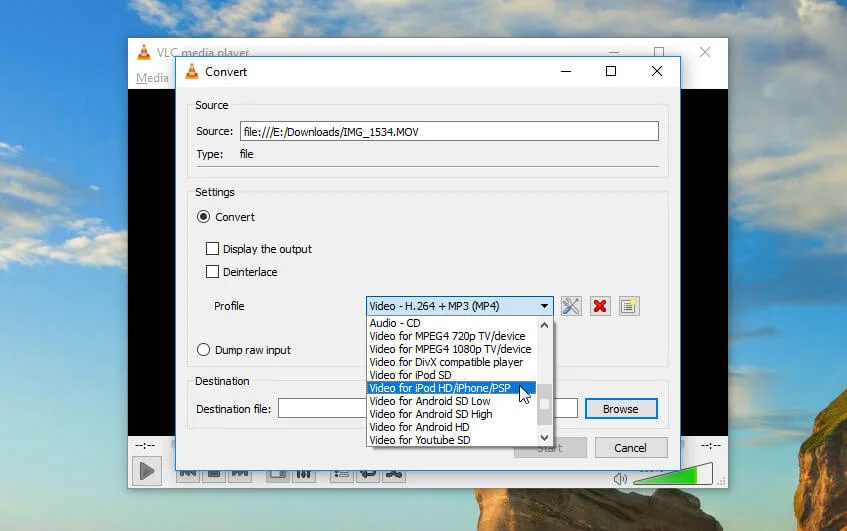
    Step 2: Use HandBrake for Compression

    Import your video into HandBrake.

    Set:

    • Format: MP4
    • Video Codec: H.264 or H.265
    • Framerate: Same as source (constant)

    Now adjust the most important setting:

    RF Value (Quality Control)

    • RF 18–22 = Best quality
    • RF 23–28 = Smaller size

    Sweet spot:
    RF 20–23

    This reduces size while keeping detail.


    Step 3: Optimize Bitrate (Advanced)

    Switch to average bitrate mode if needed.

    Set:

    • 8–12 Mbps for short-form

    Enable:

    • 2-pass encoding (better quality)

    This step is where most people mess up the proccess.


    Step 4: Resize Smartly (If Needed)

    If your video is 4K:

    • Downscale to 1080p

    Why?
    Most platforms don’t need 4K — and it kills file size.


    Step 5: Preview Before Export

    Always check:

    • Sharpness
    • Motion clarity
    • Text readability

    Compression can ruin small details like captions.


    Step 6: Upload Strategically

    Upload:

    • From stable internet
    • Without re-editing multiple times

    Each export reduces quality slightly.


    Advanced AI Compression Workflow (2026)

    Here’s what high-level creators are doing now:

    1. Edit in Premiere Pro
    2. Enhance in Runway ML (AI sharpening)
    3. Export high-quality master
    4. Compress using HandBrake
    5. Final check before upload

    AI helps recover detail lost during compression.


    High-Retention Editing + File Size Optimization

    Here’s something most guides won’t tell you:

    Editing style affects compression.

    Why?

    • Fast cuts compress better
    • Static shots show artifacts more
    • Clean backgrounds reduce file size

    So yes… your editting style impacts your file size.


    Compression-Friendly Editing Tips

    1. Avoid Noise & Grain

    Grain increases file size massively.

    2. Use Clean Color Grading

    Flat colors compress better than chaotic visuals.

    3. Limit Overlays

    Too many effects = heavier files.

    4. Keep Motion Controlled

    Extreme motion increases bitrate demand.


    Common Mistakes (That Kill Quality)

    Let’s fix these:

    • Exporting at extremely high bitrate
    • Using variable frame rate
    • Compressing multiple times
    • Ignoring audio settings
    • Uploading raw 4K files

    And yeah… sometimes your just overthinking it.


    Pro Tips for Perfect Balance

    • Always use constant frame rate
    • Stick to 1080p for short-form
    • Use RF instead of guessing bitrate
    • Test different compression levels
    • Watch on mobile before posting

    Remember:

    Your goal isn’t maximum quality — it’s optimal quality.


    The Retention Connection (This Is Important)

    Low-quality video = lower watch time.

    Viewers might not say it… but they feel it.

    • Blurry video → less trust
    • Compression artifacts → distraction
    • Poor audio → instant skip

    Good compression keeps your content looking professional.


    Final Thoughts (Creative Mentor Mode)

    Look, learning how to reduce video file size without losing quality for web is a game-changer.

    Once you understand:

    • Bitrate
    • Codec
    • Resolution

    You stop guessing… and start controlling your output.

    And that’s what separates casual creators from serious ones.


    Your Next Move

    Take one of your videos and:

    • Export a clean version
    • Compress using HandBrake
    • Compare before/after

    You’ll see how much size you can save without losing quality.

    And if you want more pro-level editing workflows, AI techniques, and viral strategies, check out vfxcut.xyz — the ultimate hub for short-form creators and VFX artists.

    Now go optimize your videos… because faster uploads + better quality = more reach 🚀

  • Fixing Flickering Lights in Your Smartphone Video Recordings (2026 Pro Guide for Clean, Cinematic Footage)

    Fixing Flickering Lights in Your Smartphone Video Recordings (2026 Pro Guide for Clean, Cinematic Footage)

    Fix flickering lights in your smartphone video recordings using pro camera settings, editing, and AI tools (2026 guide).


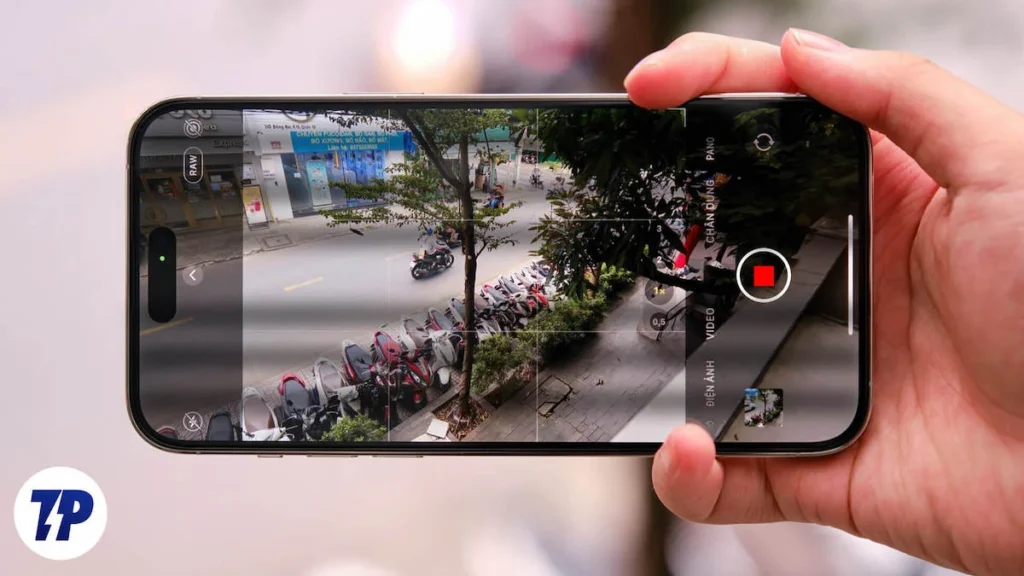
    Look, I’ve spent hours in the editing suite so you don’t have to… and let me say this straight:

    Flickering lights can ruin an otherwise perfect video in seconds.

    You might have:

    • Perfect framing
    • Clean audio
    • Great storytelling

    But if your lighting flickers… your content instantly feels amateur.

    In this deep, technical guide, you’ll learn fixing flickering lights in your smartphone video recordings — both during shooting and in post-production using modern 2026 tools like CapCut AI and Runway.

    And yes, we’re going beyond basic advice.


    Why Flickering Happens (The Real Technical Reason)

    Here is the real talk about high-retention editing:

    Flickering is caused by a mismatch between:

    • Light frequency (50Hz or 60Hz depending on country)
    • Camera shutter speed
    • Frame rate

    In countries like Pakistan:

    • Electricity frequency = 50Hz

    If your camera isn’t synced with this… you get flicker.


    The Golden Rule (Most Creators Ignore This)

    Match your shutter speed with your local power frequency

    For 50Hz regions:

    • Shoot at 25fps → shutter 1/50
    • Shoot at 30fps → shutter 1/60 (less ideal but usable)

    Wrong settings = flicker.

    Right settings = clean footage.


    Camera Settings Checklist (Fix Flicker Before It Happens)

    Before recording, check this:

    Video Settings

    • Frame Rate: 25fps (best for 50Hz regions)
    • Shutter Speed: 1/50
    • ISO: Keep as low as possible
    • White Balance: Manual (avoid auto shifts)

    Lighting Tips

    • Avoid cheap LED lights
    • Use continuous lighting
    • Test before recording

    Fixing flicker in camera is 10x easier than fixing it later.


    Editing Software Comparison (Flicker Fix Capability)

    ToolFlicker RemovalKeyframingAI SupportBest For
    Premiere ProAdvancedFullMediumPro correction
    DaVinci ResolveAdvancedFullLowColor grading
    CapCut AIBasicMediumHighQuick fixes
    Runway MLAI-basedMediumVery HighSmart repair

    Pro Insight: Premiere and Resolve give the cleanest results — AI tools are improving fast but not perfect yet.


    Step-by-Step: Fixing Flickering Lights in Your Smartphone Video Recordings

    Now let’s fix it like a pro.


    Step 1: Identify the Flicker Type

    There are two types:

    1. Fast flicker (visible flashing)
    2. Slow pulsing brightness

    Each requires a slightly different fix.


    Step 2: Use Flicker Removal Effects (Premiere Pro)

    In Premiere:

    • Apply “Flicker Removal” or “Lumetri Color”
    • Adjust exposure consistency
    • Use keyframing to smooth brightness

    This works best for mild flicker.


    Step 3: Manual Keyframing (Advanced Fix)

    If flicker is inconsistent:

    • Add brightness/exposure keyframes
    • Smooth transitions manually
    • Match frames visually

    Yes, it’s time-consuming… but powerful.

    This is where real editors separate themselves.


    Step 4: Use DaVinci Resolve Deflicker

    In Resolve:

    • Go to Color tab
    • Use Deflicker tool
    • Adjust strength carefully

    Combine with color grading for best results.


    Step 5: AI-Based Flicker Removal (2026 Method)

    Tools like Runway can:

    • Analyze frame brightness
    • Normalize lighting
    • Reduce flicker automatically

    Workflow:

    1. Upload clip
    2. Apply AI correction
    3. Export and refine

    Not perfect, but getting scary good.


    Step 6: Blend Frames Trick (Hidden Technique)

    Duplicate your clip.

    • Offset by 1 frame
    • Reduce opacity to 50%

    This averages brightness changes.

    Simple… but surprisingly effective.


    Advanced Fix (Pro-Level Workflow)

    If flicker is severe:

    1. Export frames as image sequence
    2. Process in advanced software
    3. Recompile video

    This is used in film-level correction.

    Not beginner-friendly… but powerful.


    AI Workflow for Clean Footage (2026 Creator Stack)

    Modern creators are combining tools:

    1. Edit base in Premiere Pro
    2. Fix flicker in DaVinci Resolve
    3. Enhance using Runway AI
    4. Final polish in CapCut AI

    Each tool handles a specific task.

    Trying to do everything in one app? That’s where problems start.


    High-Retention Impact (Why This Matters)

    Let’s be honest:

    Viewers don’t know why your video feels bad…

    But flicker:

    • Distracts the eye
    • Reduces watch time
    • Feels “cheap”

    Even small flickers lower retention.

    Clean visuals = higher engagement.


    Common Mistakes (That Make Flicker Worse)

    Avoid these:

    • Shooting in auto mode
    • Using mixed lighting sources
    • Ignoring shutter speed
    • Over-correcting in post
    • Exporting multiple times

    And yeah… sometimes your lighting setup is the real problem, not your editting.


    Pro Tips for Flicker-Free Videos

    • Always test lighting before shooting
    • Lock exposure manually
    • Avoid slow-motion under artificial lights
    • Use higher-quality LEDs
    • Keep frame rate consistent

    These small steps save hours of editing.


    The Color Grading Connection

    After fixing flicker:

    • Rebalance exposure
    • Adjust contrast
    • Fine-tune highlights

    Flicker fixes can flatten your image — color grading brings it back.


    Final Thoughts (Creative Mentor Mode)

    Look, fixing flickering lights in your smartphone video recordings is part technical… part creative.

    Once you understand:

    • Light frequency
    • Camera settings
    • Editing tools

    You stop guessing… and start controlling your visuals.

    And that’s what separates clean, viral content from average uploads.


    Your Next Move

    Take one of your flickering videos and:

    • Try deflicker tools
    • Use keyframing
    • Test AI fixes

    Compare the results.

    You’ll learn fast.

    And if you want more pro-level editing guides, AI workflows, and viral strategies, check out vfxcut.xyz — the ultimate hub for short-form creators and VFX artists.

    Now go fix your footage… because clean visuals = better retention = more reach 🚀

  • How to Use a Phone as a Webcam for High-Quality Streaming (2026 Pro Setup for Crisp, Viral Video)

    How to Use a Phone as a Webcam for High-Quality Streaming (2026 Pro Setup for Crisp, Viral Video)

    Learn how to use a phone as a webcam for high-quality streaming with pro settings, AI tools, and creator workflows (2026).

    Look, I’ve spent hours in the editing suite so you don’t have to… and here’s something most creators overlook:

    Your phone camera is probably better than your webcam.

    In 2026, smartphone cameras are insanely powerful — better sensors, better dynamic range, better color science. Yet most people still stream with low-quality webcams that kill their visual quality and retention.

    So in this guide, you’ll learn how to use a phone as a webcam for high-quality streaming, with pro-level setup, AI enhancements, and the exact workflow used by modern creators.


    Why Using Your Phone as a Webcam Is a Game-Changer

    Here is the real talk about high-retention editing:

    Viewers don’t just listen — they watch closely.

    Better video quality leads to:

    • Higher watch time
    • More engagement
    • Better perceived authority

    And guess what?

    Your phone gives you:

    • Sharper image
    • Better low-light performance
    • More control over exposure

    That’s instant upgrade.


    What You Need (Basic Gear Setup)

    You don’t need a studio. Just smart setup.

    Essential Gear

    • Smartphone (iPhone or Android)
    • USB cable or stable WiFi
    • Tripod or phone holder
    • Good lighting (very important)

    Optional (But Powerful)

    • External mic (audio matters more than video)
    • Ring light or softbox
    • Clean background

    Bad lighting will ruin even the best camera. Remember that.


    Best Apps to Turn Your Phone into a Webcam

    Let’s talk tools.

    Top Apps in 2026

    • DroidCam
    • EpocCam
    • iVCam
    • Camo

    These apps connect your phone to your PC and convert it into a webcam source.


    Comparison Table (Which App Should You Use?)

    AppQualityLatencyAI FeaturesBest For
    DroidCamGoodMediumLowFree users
    EpocCamVery GoodLowMediumiPhone users
    iVCamExcellentLowMediumHigh-quality streaming
    CamoPro-LevelVery LowHighCreators

    Pro Insight: Camo is closest to DSLR-level output.


    Settings Checklist (For High-Quality Streaming)

    Before going live, check this:

    Camera Settings

    • Resolution: 1080p (minimum)
    • Frame Rate: 30fps (or 60fps if stable)
    • Exposure: Locked (avoid flicker)
    • Focus: Manual (no hunting)

    Lighting Setup

    • Light facing your face
    • Avoid backlight
    • Use soft lighting

    Audio Setup

    • Use external mic if possible
    • Sync audio properly

    Miss this, and your stream will feel unprofessional.


    Step-by-Step: How to Use a Phone as a Webcam for High-Quality Streaming

    Let’s set it up properly.


    Step 1: Install Webcam App

    Download:

    • App on your phone
    • Companion software on your PC

    Example:
    Install DroidCam on both devices.


    Step 2: Connect Phone to PC

    Two options:

    USB (Recommended)

    • Stable connection
    • Lower latency
    • Better quality

    WiFi

    • More flexible
    • Slight delay possible

    Always go USB if you’re serious.


    Step 3: Select Camera Source in Streaming Software

    Open OBS or Streamlabs.

    • Add “Video Capture Device”
    • Select your phone app

    Boom — your phone is now your webcam.


    Step 4: Adjust Camera Settings Manually

    This is where most people fail.

    Do NOT leave auto settings on.

    Set:

    • Exposure manually
    • White balance fixed
    • Focus locked

    Auto settings cause flicker and brightness shifts.


    Step 5: Frame Your Shot (Like a Pro)

    • Eye-level camera
    • Rule of thirds
    • Clean background

    Even small framing improvements boost retention.


    Step 6: Optimize Lighting

    Lighting > camera quality.

    Use:

    • Soft front light
    • No harsh shadows
    • Balanced brightness

    Good lighting makes your video look cinematic.


    Advanced Creator Workflow (2026 Setup)

    Here’s what serious creators are doing:

    1. Phone as camera (main video source)
    2. OBS for streaming
    3. Runway AI for background effects
    4. CapCut AI for post-stream edits

    This hybrid workflow gives you:

    • Live quality
    • Post-production polish

    High-Retention Streaming Techniques

    Streaming isn’t just about quality — it’s about keeping attention.

    1. Micro-Movements

    • Slight camera repositioning
    • Subtle zoom (digital keyframing in OBS)

    2. Clean Visuals

    • Good color grading
    • Balanced exposure

    3. Face Focus

    • Keep subject sharp
    • Blur background slightly

    These small changes improve viewer retention massively.


    Color Grading for Webcam Streams

    Even live video can be improved.

    In OBS:

    • Adjust contrast
    • Boost saturation slightly
    • Correct skin tones

    Flat image = boring stream.


    Common Mistakes (That Kill Your Stream Quality)

    Let’s fix these fast:

    • Using WiFi with weak signal
    • Leaving auto exposure on
    • Ignoring lighting
    • Using front camera (sometimes worse)
    • Not stabilizing phone

    And yeah… sometimes your setup looks bad because of small details you ignored.


    Pro Tips for Next-Level Quality

    • Use rear camera (better sensor)
    • Clean your lens (seriously)
    • Keep phone cool (overheating reduces quality)
    • Use airplane mode (no interruptions)
    • Test before going live

    These tiny steps make a big difference.


    The AI Advantage (2026 Streaming Upgrade)

    Modern creators are using AI for:

    • Background removal
    • Noise reduction
    • Auto framing

    Tools like Runway can enhance your stream visuals even further.

    But don’t overdo it — natural always wins.


    Final Thoughts (Creative Mentor Mode)

    Look, learning how to use a phone as a webcam for high-quality streaming is one of the fastest upgrades you can make as a creator.

    You don’t need expensive gear.

    You need:

    • Smart setup
    • Proper lighting
    • Clean workflow

    Once you dial this in, your content instantly feels more professional.


    Your Next Move

    Set this up today:

    • Connect your phone
    • Adjust lighting
    • Test your stream

    Then compare it to your old webcam.

    You’ll see the difference instantly.

    And if you want more pro-level editing guides, AI workflows, and viral strategies, check out vfxcut.xyz — the ultimate hub for short-form creators and VFX artists.

    Now upgrade your setup… because better visuals = higher retention = more growth 🚀

  • Best Mobile Tripods for Solo Content Creators Under $20 (2026 Budget Gear That Actually Boosts Retention)

    Best Mobile Tripods for Solo Content Creators Under $20 (2026 Budget Gear That Actually Boosts Retention)

    Discover the best mobile tripods for solo content creators under $20 with pro tips, setups, and viral filming techniques (2026).

    Look, I’ve spent hours in the editing suite so you don’t have to… but here’s something most creators ignore:

    Bad camera stability kills your content faster than bad editing.

    You can have perfect color grading, clean cuts, and great storytelling — but if your footage is shaky or poorly framed, your retention drops instantly.

    That’s why choosing the best mobile tripods for solo content creators under $20 is one of the smartest upgrades you can make in 2026.

    And no… you don’t need expensive gear.


    Why Tripods Matter More Than Editing (Yes, Really)

    Here is the real talk about high-retention editing:

    Before viewers notice:

    • Your keyframing
    • Your color grading
    • Your transitions

    They notice:
    Stability.

    Shaky video signals:

    • Low quality
    • Low effort
    • Less trust

    Stable video = professional feel = higher retention.


    Best Mobile Tripods Under $20 (Top Picks)

    Here are some budget-friendly tripods that actually work for creators.

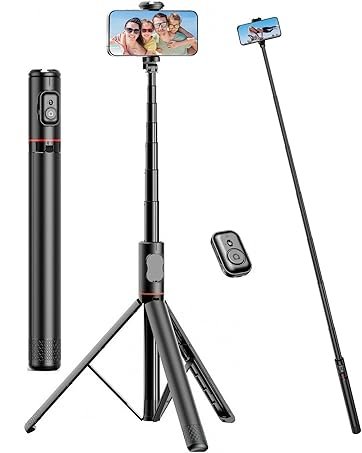
    Universal Smartphone Flexible Octopus Tripod

    Universal Smartphone Flexible Octopus Tripod

    Price not available•Flexible, universal smartphone tripod for stable shots.

    10-inch Flexible Mini Tripod with Phone Holder

    10-inch Flexible Mini Tripod with Phone Holder

    Price not available•Compact mini tripod with phone holder, ideal for vlogging.

    Flexible Tripod Stand for Mobile and Camera

    Flexible Tripod Stand for Mobile and Camera

    Price not available•Versatile tripod stand suitable for mobile and camera use.

    JMARY MT-25 Mini Tripod

    JMARY MT-25 Mini Tripod

    Price not available•Portable mini tripod with adjustable legs for photography.

    Mini Cell Phone Flexible Tripod Stand

    Mini Cell Phone Flexible Tripod Stand

    Price not available•Flexible stand for smartphones, perfect for content creation.


    Quick Breakdown (What Makes These Good?)

    Flexible “Octopus” Tripods

    • Bendable legs
    • Wrap around objects
    • Perfect for creative angles

    Mini Tabletop Tripods

    • Stable on flat surfaces
    • Good for desk content
    • Easy to carry

    Lightweight Travel Tripods

    • Compact
    • Quick setup
    • Ideal for outdoor shoots

    Most of these cost under $5–$15 in local markets — crazy value.


    Comparison Table (Which One Should You Pick?)

    TypeStabilityPortabilityCreativityBest Use
    Flexible OctopusMediumHighHighOutdoor, creative shots
    Mini TripodHighMediumLowDesk videos
    Travel TripodMediumHighMediumVlogging
    Selfie Stick TripodLow-MediumHighMediumQuick content

    Pro Insight: Flexible tripods are the most versatile for solo creators.


    The Real Secret: It’s Not the Tripod — It’s How You Use It

    Let’s be honest…

    You can buy a $10 tripod and still create cinematic content.

    Or buy a $100 one and make boring videos.

    The difference is:

    • Framing
    • Angles
    • Movement

    Step-by-Step: How to Use a Cheap Tripod Like a Pro

    This is where most beginners fail.


    Step 1: Set the Right Height

    Don’t place your camera too low.

    Best positions:

    • Eye level (talking videos)
    • Slightly above (clean look)

    Bad angles kill professionalism.


    Step 2: Lock Stability Properly

    Cheap tripods can wobble.

    Fix it by:

    • Spreading legs fully
    • Using flat surfaces
    • Adding weight (if needed)

    Stability first… always.


    Step 3: Frame Like a Creator

    Use:

    • Rule of thirds
    • Clean background
    • Proper headroom

    Your framing matters more than your gear.


    Step 4: Add Motion (Keyframing Trick)

    Static shots can feel boring.

    In editing:

    • Add slight zoom-in
    • Use subtle keyframing
    • Create movement digitally

    This turns a basic tripod shot into dynamic content.


    Step 5: Combine With Lighting

    Even the best tripod won’t save bad lighting.

    Use:

    • Front light
    • Soft shadows
    • Balanced exposure

    Lighting + stability = pro visuals.


    Advanced Creator Setup (Under Budget)

    Here’s a full budget setup:

    • $10 tripod
    • Phone camera
    • Free editing apps (CapCut AI)
    • Basic light

    That’s enough to create viral content.

    No excuses.


    AI + Tripod Workflow (2026 Strategy)

    Modern creators combine gear + AI:

    1. Shoot stable footage using tripod
    2. Enhance in CapCut AI (captions, effects)
    3. Refine using Runway (background, cleanup)
    4. Final export

    Tripod ensures clean base footage.

    AI enhances it.


    High-Retention Filming Techniques

    Even with a cheap tripod, do this:

    1. Fast Scene Changes

    • Move tripod between shots
    • Change angles

    2. Close-Up Shots

    • Zoom in manually
    • Create intimacy

    3. POV Angles

    • Mount tripod creatively
    • Use unique perspectives

    Creative angles > expensive gear.


    Common Mistakes (That Ruin Your Shots)

    Let’s fix these fast:

    • Using unstable surfaces
    • Ignoring framing
    • Shooting too far away
    • Not checking background
    • Relying only on one angle

    And yeah… sometimes your tripod isn’t the problem — your setup is.


    Pro Tips for Budget Creators

    • Carry tripod everywhere
    • Use natural objects for support
    • Combine tripod + handheld shots
    • Shoot multiple angles
    • Always test before recording

    Small improvements = big results.


    The Retention Connection (This Is Important)

    Stable video keeps viewers watching.

    • No shake = less distraction
    • Clean framing = more focus
    • Professional feel = higher trust

    That means:
    More watch time → more reach


    Final Thoughts (Creative Mentor Mode)

    Look, the best mobile tripods for solo content creators under $20 are more than enough to build a serious content career.

    You don’t need expensive gear.

    You need:

    • Smart shooting
    • Clean setup
    • Creative thinking

    Once you master that, even a cheap tripod becomes a powerful tool.


    Your Next Move

    Buy a budget tripod.

    Then:

    • Shoot 3 different angles
    • Add keyframing in editing
    • Improve your lighting

    Post the result.

    You’ll see the difference instantly.

    And if you want more pro-level gear guides, editing strategies, and AI workflows, check out vfxcut.xyz — the ultimate hub for short-form creators and VFX artists.

    Now stop waiting for expensive gear… and start creating like a pro 🚀

  • How to Get Brand Deals as a Small Short-Form Creator (2026 Strategy to Land Paid Collabs Fast)

    How to Get Brand Deals as a Small Short-Form Creator (2026 Strategy to Land Paid Collabs Fast)

    Learn how to get brand deals as a small short-form creator using viral editing, AI tools, and high-retention strategies (2026).

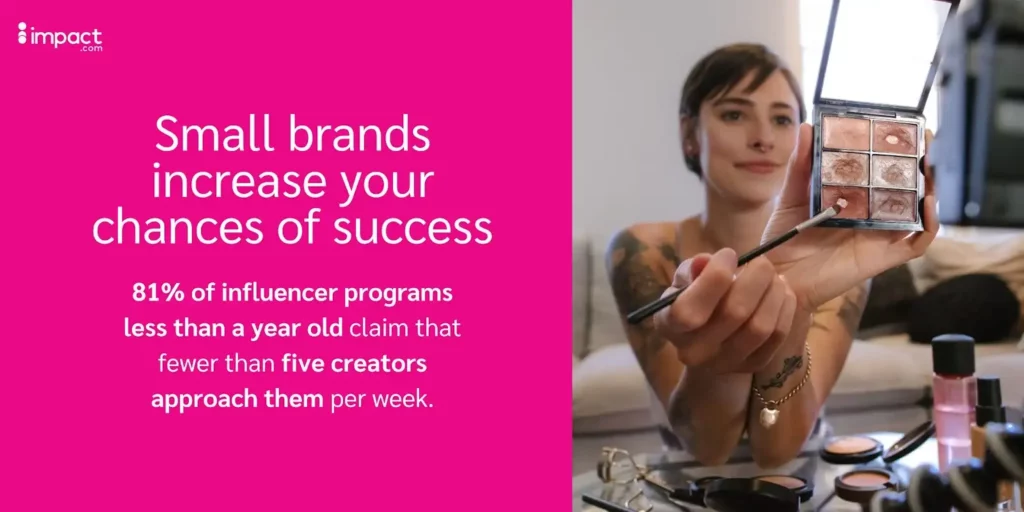
    Look, I’ve spent hours in the editing suite so you don’t have to… and here’s the truth nobody tells small creators:

    You don’t need millions of followers to get brand deals.

    In 2026, brands care less about follower count and more about:

    • Retention
    • Content quality
    • Audience trust

    That means even a small creator can start landing paid deals — if your content is engineered correctly.

    So let’s break down how to get brand deals as a small short-form creator using real strategies that actually work.


    Why Brands Care More About Editing Than Followers

    Here is the real talk about high-retention editing:

    Brands want content that:

    • Keeps people watching
    • Feels native (not like ads)
    • Converts into clicks or sales

    If your videos have:

    • Strong hooks
    • Clean keyframing
    • Good color grading

    You’re already ahead of bigger creators with poor editing.


    What Brands Actually Look For in 2026

    Forget outdated advice.

    Key Metrics That Matter

    • Watch Time (most important)
    • Retention Rate (70–90% ideal)
    • Engagement (comments > likes)
    • Content Style Consistency

    If your content performs well, brands notice — even if your following is small.


    Creator Tools That Help You Land Deals

    Let’s connect editing with opportunity.

    Essential Tools

    • CapCut AI (for viral edits)
    • Runway ML (for creative VFX)
    • Canva (for media kits)

    Good tools = better presentation = more deals.


    Comparison Table (Content Quality vs Brand Appeal)

    FactorLow-Level CreatorHigh-Level Creator
    EditingBasic cutsAdvanced keyframing
    RetentionLowHigh
    Visual QualityAverageClean + graded
    BrandingNoneConsistent
    Deal PotentialLowHigh

    Pro Insight: Brands choose creators who make their product look premium.


    The Real Secret: Content First, Deals Second

    Most beginners do this wrong.

    They:

    • Ask brands too early
    • Focus on followers
    • Ignore content quality

    Instead, you should:

    Build a portfolio of high-retention videos first.

    No portfolio = no deals.


    Step-by-Step: How to Get Brand Deals as a Small Short-Form Creator

    This is the exact system I recommend.


    Step 1: Pick a Clear Niche

    Brands need clarity.

    Examples:

    • Tech reviews
    • Fitness tips
    • Editing tutorials

    If your content is random, brands won’t trust you.


    Step 2: Create 10–20 High-Quality Videos

    Focus on:

    • Strong hooks
    • Fast pacing
    • Clean visuals

    Use:

    • Keyframing for motion
    • Color grading for polish
    • Captions for retention

    This is your “portfolio”.


    Step 3: Start Tagging Brands (Smartly)

    When you use a product:

    • Tag the brand
    • Mention naturally
    • Avoid forcing it

    Brands often discover creators this way.


    Step 4: Create “Fake Ads” (Pro Trick)

    This is huge.

    Make content like:

    • Product showcase
    • Review-style video
    • Creative ad

    Even if you’re not paid.

    Why?

    It shows brands what you can do.


    Step 5: Build a Simple Media Kit

    Include:

    • Your niche
    • Stats (views, engagement)
    • Sample videos

    Keep it clean and professional.


    Step 6: Reach Out to Brands

    Don’t wait forever.

    Message:

    • Small brands first
    • Be direct
    • Show your value

    Example:
    “I create high-retention short-form content and can help showcase your product…”

    Simple. Effective.


    High-Retention Editing (Your Biggest Advantage)

    Let’s be honest…

    Your editing is your sales pitch.

    What Brands Love

    • Fast-paced cuts
    • Clear storytelling
    • Smooth keyframing
    • Clean color grading

    If your video keeps people watching, brands see money.


    AI Workflow for Sponsored Content (2026)

    Modern creators are using AI to stand out.

    Example Workflow

    1. Shoot product video
    2. Edit in CapCut AI (captions + pacing)
    3. Enhance in Runway (background/VFX)
    4. Final polish

    AI helps you produce premium content faster.


    Common Mistakes (That Block Brand Deals)

    Let’s fix these fast:

    • Waiting for 10K followers
    • Poor editing quality
    • No niche
    • Messaging brands without examples
    • Copying trends blindly

    And yeah… sometimes your content isn’t “brand-ready” yet.


    Pro Tips to Get Deals Faster

    • Focus on quality over quantity
    • Build relationships, not just emails
    • Keep improving your editing
    • Study viral ads
    • Stay consistent

    Consistency builds trust — both with audience and brands.


    The Psychology Behind Brand Deals

    Brands think like this:

    “Will this creator make our product look good AND get results?”

    If yes → deal.

    If no → ignored.

    Simple.


    Final Thoughts (Creative Mentor Mode)

    Look, learning how to get brand deals as a small short-form creator isn’t about luck.

    It’s about:

    • Smart content
    • Strong editing
    • Clear positioning

    Once your content feels premium, brands start coming to you.

    That’s when things change.


    Your Next Move

    Do this today:

    • Create one “fake brand ad”
    • Edit it like a real campaign
    • Post it and tag the brand

    Then repeat.

    You’ll start getting noticed.

    And if you want more pro-level strategies, editing workflows, and creator growth tips, check out vfxcut.xyz — the ultimate hub for short-form creators and VFX artists.

    Now stop waiting for opportunities… and start creating them 🚀

  • Best Ways to Monetize a Faceless TikTok Page in 2026 (From 0 to Income with Viral Editing Systems)

    Best Ways to Monetize a Faceless TikTok Page in 2026 (From 0 to Income with Viral Editing Systems)

    Discover the best ways to monetize a faceless TikTok page in 2026 using AI tools, viral editing, and high-retention strategies.

    Look, I’ve spent hours in the editing suite so you don’t have to… and here’s the truth most people don’t realize:

    You don’t need to show your face to make money on TikTok.

    In fact, faceless content is dominating in 2026.

    From AI voiceovers to stock footage storytelling — creators are building entire income streams without ever appearing on camera.

    So if you’re serious about learning the best ways to monetize a faceless TikTok page in 2026, this guide will show you exactly how to do it using pro editing, AI workflows, and high-retention techniques.

    Screenshot

    Why Faceless TikTok Pages Are Exploding in 2026

    Here is the real talk about high-retention editing:

    Faceless content works because it:

    • Focuses on value, not personality
    • Scales faster with AI tools
    • Is easier to automate

    Popular faceless niches:

    • Motivation clips
    • Facts & storytelling
    • Tech tutorials
    • AI-generated content

    And the best part?

    You can produce content faster than traditional creators.


    The Monetization Mindset (Most People Get This Wrong)

    Let’s fix this early.

    Most beginners think:
    “First followers… then money.”

    Wrong.

    Correct mindset:
    Content → Retention → Trust → Monetization

    If your videos don’t hold attention, you won’t make money — no matter how many followers you have.


    Top Monetization Methods for Faceless TikTok Pages

    Let’s break down the best strategies.


    1. Affiliate Marketing (Beginner-Friendly)

    Promote products and earn commission.

    How It Works:

    • Create content around a product
    • Add link in bio
    • Earn per sale

    Best for:

    • Tech pages
    • Tool recommendations
    • Digital products

    2. TikTok Creativity Program (Views-Based Income)

    TikTok pays for high-performing content.

    Requirements:

    • Long enough videos
    • High retention

    This is passive income — but only if your content performs.


    3. Selling Digital Products

    This is where real money is.

    Examples:

    • Editing presets
    • E-books
    • Templates

    Faceless pages convert well because:

    • They feel informational
    • Less personal pressure

    4. Brand Deals (Yes, Even Faceless Pages)

    Brands don’t care if you show your face.

    They care about:

    • Results
    • Engagement
    • Content quality

    You can:

    • Showcase products
    • Create ad-style content
    • Get paid collaborations

    5. YouTube Automation (Content Repurposing)

    Reuse TikTok content:

    • Upload to YouTube Shorts
    • Monetize long-form later

    One video = multiple income streams.


    Comparison Table (Monetization Methods)

    MethodDifficultyIncome PotentialSpeedBest For
    Affiliate MarketingEasyMediumFastBeginners
    TikTok ProgramMediumMediumSlowConsistent creators
    Digital ProductsHardHighMediumAdvanced creators
    Brand DealsMediumHighMediumHigh-quality pages
    YouTube RepurposeMediumHighSlowLong-term growth

    Tools That Power Faceless Content (2026 Stack)

    You don’t need expensive gear.

    Essential Tools

    • CapCut AI → editing + captions
    • Runway ML → AI visuals + effects
    • ElevenLabs → AI voiceovers

    These tools let you create content without filming.


    Step-by-Step: Build a Monetized Faceless TikTok Page

    This is the exact system I recommend.


    Step 1: Pick a High-Value Niche

    Choose something monetizable.

    Good niches:

    • Finance
    • Tech
    • Self-improvement
    • AI tools

    Bad niches:

    • Random content
    • No clear audience

    Clarity = money.


    Step 2: Create High-Retention Videos

    Focus on:

    • Strong hook (first 2 seconds)
    • Fast pacing
    • Loop endings

    Use:

    • Keyframing
    • Captions
    • Clean color grading

    Retention is everything.


    Step 3: Use AI for Content Creation

    Workflow:

    1. Script idea
    2. Generate voice (AI)
    3. Add visuals (stock or AI)
    4. Edit in CapCut

    This speeds up your proccess massively.


    Step 4: Post Consistently

    Minimum:

    • 1–2 videos daily

    Consistency builds momentum.


    Step 5: Add Monetization Layer

    Once you get traction:

    • Add affiliate links
    • Promote product
    • Offer digital content

    Don’t wait too long to monetize.


    Step 6: Scale with Systems

    Batch create content.

    Automate:

    • Scripts
    • Voiceovers
    • Editing templates

    This turns your page into a system.


    High-Retention Editing Techniques (Faceless Content)

    This is your secret weapon.

    1. Fast Visual Changes

    • New clip every 1–2 seconds

    2. Caption Focus

    • Highlight key words
    • Use bold text

    3. Sound Design

    • Add subtle effects
    • Match cuts

    4. Loop Endings

    • Make video restart naturally

    This keeps viewers watching longer.


    Common Mistakes (That Kill Monetization)

    Let’s fix these:

    • Posting low-quality edits
    • No clear niche
    • Ignoring retention
    • No monetization plan
    • Overusing AI without creativity

    And yeah… sometimes your content just isn’t engaging enough yet.


    Pro Tips for Faster Growth

    • Study viral faceless pages
    • Improve editing constantly
    • Test different hooks
    • Focus on value
    • Keep videos short and punchy

    Small improvements = big results.


    The Retention → Money Connection

    Let’s simplify:

    More retention = more reach
    More reach = more traffic
    More traffic = more money

    Everything connects back to your editing.


    Final Thoughts (Creative Mentor Mode)

    Look, the best ways to monetize a faceless TikTok page in 2026 are already proven.

    You don’t need:

    • A camera
    • A studio
    • Expensive gear

    You need:

    • Smart strategy
    • High-retention editing
    • Consistent output

    Once you lock that in, income becomes predictable.


    Your Next Move

    Start today:

    • Pick a niche
    • Create 3 faceless videos
    • Add AI voice + captions
    • Post consistently

    Then watch what happens.

    And if you want more pro-level strategies, editing workflows, and AI content systems, check out vfxcut.xyz — the ultimate hub for short-form creators and VFX artists.

    Now go build your faceless empire… because the opportunity is wide open 🚀

  • How to Use vfxcut.xyz Templates to Speed Up Your Workflow (2026 Pro Editing System for Viral Short-Form Content)

    How to Use vfxcut.xyz Templates to Speed Up Your Workflow (2026 Pro Editing System for Viral Short-Form Content)


    Look, I’ve spent hours in the editing suite so you don’t have to… and here’s something every serious creator eventually realizes:

    Speed is the new skill in 2026.

    It’s not just about editing quality anymore — it’s about how fast you can produce high-retention content without losing cinematic feel.

    That’s exactly where how to use vfxcut.xyz templates to speed up your workflow becomes a game-changer for short-form creators.

    Let’s break it down like a professional VFX artist and editor who actually works in viral content pipelines.


    Why Templates Are Dominating Short-Form Editing in 2026

    Here is the real talk about high-retention editing:

    Templates are not “cheating.”

    They are:

    • Pre-built storytelling systems
    • Retention-optimized structures
    • Motion + pacing frameworks

    In 2026, creators are no longer building edits from scratch.

    They are building systems.

    And that’s exactly what vfxcut.xyz templates are designed for.


    What Makes vfxcut.xyz Templates Different?

    Most template packs online are:

    • Overused
    • Low-quality
    • Poorly optimized for retention

    But vfxcut.xyz templates are built differently.

    They focus on:

    • High-retention pacing
    • Viral hook structures
    • Clean keyframing systems
    • AI-friendly editing flow

    Look, I’ve spent hours testing different workflows… and templates that integrate properly with CapCut AI or Premiere Pro save insane amounts of time.


    Comparison Table: Manual Editing vs vfxcut.xyz Templates

    FeatureManual Editingvfxcut.xyz Templates
    SpeedSlowExtremely Fast
    Retention StructureRandomOptimized
    Keyframing SetupManualPre-built
    Color GradingTime-consumingReady-made
    Viral ConsistencyLowHigh

    Pro Insight: Templates don’t replace creativity — they accelerate execution.


    Core Components Inside vfxcut.xyz Templates

    Each template is built like a production system.

    1. Hook System

    • First 2 seconds optimized
    • Motion already pre-designed
    • Attention triggers included

    2. Pacing Structure

    • Cuts every 1–3 seconds
    • Built-in retention rhythm
    • No dead space

    3. Keyframing Layers

    • Zoom animations
    • Motion tracking
    • Dynamic transitions

    4. Color Grading Presets

    • Cinematic contrast
    • Skin tone balance
    • Platform-optimized look

    Step-by-Step: How to Use vfxcut.xyz Templates to Speed Up Your Workflow

    Let’s go practical.


    Step 1: Choose the Right Template for Your Content

    Not all templates are the same.

    Pick based on:

    • Story type (educational, motivational, product)
    • Platform (TikTok, Reels, Shorts)
    • Length (7s, 15s, 30s)

    Wrong template = weak retention.


    Step 2: Import Into Your Editing Software

    Most templates work with:

    • CapCut AI
    • Premiere Pro
    • After Effects (advanced users)

    Simply:

    • Import project file
    • Replace media placeholders
    • Keep structure intact

    Don’t over-edit yet.


    Step 3: Replace Footage Without Breaking Structure

    This is where beginners mess up.

    Do:

    • Match clip timing
    • Keep pacing intact
    • Replace visuals carefully

    Don’t:

    • Stretch timeline
    • Delete keyframes
    • Break transitions

    The template structure is your backbone.


    Step 4: Fine-Tune Keyframing (Minimal Adjustments Only)

    Templates already include motion.

    But you can:

    • Adjust zoom intensity
    • Refine timing
    • Slight repositioning

    This is where your creativity lives.


    Step 5: Apply AI Enhancements (2026 Workflow)

    Now bring in AI tools:

    • CapCut AI → captions + effects
    • Runway ML → background enhancement
    • Sora (emerging) → scene generation

    This step turns templates into viral-ready content.


    Step 6: Add Color Grading Polish

    Even though templates include grading:

    You should:

    • Adjust brightness slightly
    • Match skin tones
    • Enhance contrast

    This ensures platform consistency.


    Step 7: Export Optimized for Platform

    Use:

    • 1080×1920
    • 30fps constant
    • H.264 format

    Wrong export = ruined retention.


    High-Retention Editing Inside Templates

    Here is the real secret:

    Templates are already built on retention psychology.

    Key Elements:

    • Instant hook delivery
    • Fast visual switching
    • Micro-motion design
    • Loop-friendly endings

    That’s why they work.


    How Templates Improve Your Workflow Speed by 10x

    Without templates:

    • Build timeline
    • Add effects
    • Create transitions
    • Adjust timing
    • Re-edit mistakes

    With vfxcut.xyz templates:

    • Drag → Drop → Replace → Export

    That’s it.

    You skip 70% of repetitive work.


    Common Mistakes When Using Templates

    Let’s fix this early:

    • Over-editing template structure
    • Ignoring pacing rules
    • Using wrong niche template
    • Adding too many effects
    • Breaking keyframes

    And yeah… sometimes your edits get worse because you try to “improve” something already optimized.


    Pro Tips for Maximum Efficiency

    • Batch edit 5–10 videos at once
    • Keep template variations saved
    • Use consistent color grading style
    • Build personal template library
    • Combine AI + templates for speed

    This is how professional editors scale content.


    AI + Template Workflow (2026 Creator System)

    Modern creators use hybrid systems:

    1. Start with vfxcut.xyz template
    2. Replace visuals
    3. Enhance using CapCut AI
    4. Add Runway effects
    5. Final export

    This workflow is:

    • Fast
    • Scalable
    • Viral-ready

    Why This Works for Viral Content

    Because templates are designed around:

    • Human attention span
    • Platform algorithms
    • Retention psychology

    If your structure is already optimized, your content has a higher chance to perform.


    Final Thoughts (Creative Mentor Mode)

    Look, learning how to use vfxcut.xyz templates to speed up your workflow is not just about saving time.

    It’s about upgrading your entire content system.

    Instead of building from scratch every time, you start building:

    • Systems
    • Patterns
    • Repeatable success

    And that’s how real creators scale.

    Once you understand this, you stop being just an editor…

    You become a content machine.


    Your Next Move

    Go to vfxcut.xyz and:

    • Pick one template
    • Build one full video
    • Apply AI enhancements
    • Post and analyze performance

    Then repeat.

    And if you want more pro-level editing systems, AI workflows, and viral strategies, keep exploring vfxcut.xyz — the ultimate hub for short-form creators and VFX enthusiasts.

    Now start building faster… because speed is your biggest advantage in 2026 🚀

  • Hello world!

    Welcome to WordPress. This is your first post. Edit or delete it, then start writing!