Learn how to remove watermarks from video editing apps for free using pro editing, AI tools, and smart export tricks (2026 guide).
Look, I’ve spent hours in the editing suite so you don’t have to… and let me be straight with you:
Most “watermark removal” hacks online are either low-quality, illegal, or just don’t work properly.
But here’s the real secret — professional creators don’t “remove” watermarks… they avoid, mask, or out-edit them.
In this guide, you’ll learn how to remove watermarks from video editing apps for free using legit, high-quality techniques that actually preserve your video quality and retention.

The Truth About Watermarks (2026 Reality Check)
Before jumping into fixes, understand this:
Watermarks exist because:
- Apps want branding exposure
- Free versions have limitations
- Premium exports unlock clean output
So instead of fighting the system blindly, smart editors use workflow hacks + editing techniques.
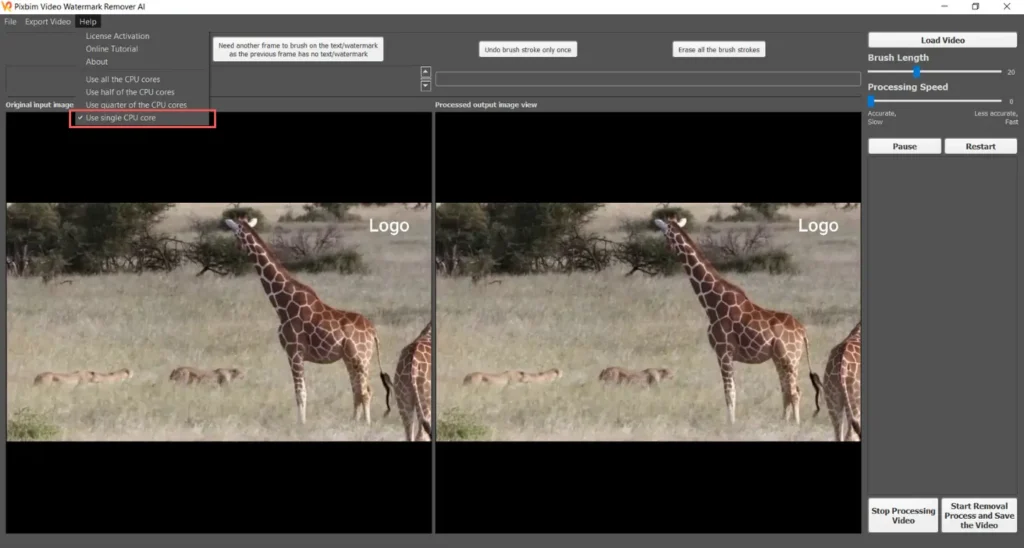
3 Legit Ways to Remove Watermarks (Without Ruining Quality)
1. Export Without Watermark (Best Method)
Some apps allow:
- Watching ads
- Using trial features
- Exporting via specific settings
2. Crop + Reframe (Fast Fix)
Remove watermark by cropping and adjusting framing.
3. Masking with Elements (Pro Trick)
Hide watermark using:
- Text overlays
- Logos
- Blur effects
- AI object fill
Each method has pros and cons — we’ll break them down.
Editing Software Comparison (Watermark Control)
| Feature | CapCut AI | Premiere Pro | Runway ML |
|---|---|---|---|
| Free Export Without Watermark | Yes (limited) | Yes | Yes |
| AI Object Removal | Basic | Advanced (plugins) | Excellent |
| Keyframing | Medium | Full Control | Medium |
| Watermark Risk | Medium | None | Low |
| Best Use | Quick edits | Pro editing | AI cleanup |
Pro Insight: If you’re serious, move your final export to Premiere Pro — zero watermark, full control.
Method 1: Export Without Watermark (Hidden Features)
Here is the real talk about high-retention editing:
The cleanest video always wins.
CapCut Trick (2026)
- Remove ending clip (CapCut adds watermark here)
- Turn off “Auto Add Outro”
- Export manually
Boom — no watermark.
Some versions may still add branding, but most users miss this simple step.
Other Apps (General Trick)
Apps like:
- VN Editor
- InShot
- Alight Motion
Often allow:
- Free export after watching an ad
- Watermark removal toggle
Check settings before exporting — your probably missing it.
Method 2: Crop and Reframe (Quick Fix for Existing Videos)
If you already exported with watermark:
Step-by-Step
- Import video into editor
- Scale video to 105–110%
- Reposition frame to remove watermark
- Adjust composition
Pro Tip
Use keyframing to adjust framing dynamically if subject moves.
Downside:
- Slight quality loss
- Tight framing
But for short-form content? It works.
Method 3: Masking Watermarks Like a Pro
This is where real editors shine.
Option A: Text Overlay
- Add captions over watermark
- Match style with video
Option B: Logo Placement
- Place your brand logo over watermark
- Turn problem into branding
Option C: Blur Patch
- Add blur effect to small area
- Feather edges for smooth blending
Option D: AI Object Removal (Advanced)
Use tools like Runway ML:
- Select watermark area
- Apply object removal
- Let AI fill background
This works best on:
- Static backgrounds
- Simple textures
Step-by-Step: Remove Watermark Using AI (Runway Workflow)
Now let’s go advanced.
Step 1: Upload Your Video
Import your clip into Runway.
Step 2: Select Watermark Area
Use brush tool:
- Highlight watermark
- Keep selection tight
Step 3: Apply AI Removal
Run:
- Object removal
- Inpainting
AI will fill background automatically.
Step 4: Export Clean Clip
Download cleaned video and re-import into your main editor.
Step 5: Final Polish
- Add color grading
- Adjust sharpness
- Re-sync audio if needed
Done.
Settings Checklist (Avoid Watermarks in Future)
Before Editing
- Choose app with free export option
- Disable auto outro
During Editing
- Keep safe margins (avoid edges)
- Plan framing early
Before Export
- Check watermark toggle
- Preview final frame
Skipping this checklist = repeat mistakes.
High-Retention Editing After Watermark Removal
Removing watermark isn’t enough.
You need to maintain retention.
Key Techniques
- Fast cuts every 2–3 seconds
- Dynamic captions
- Motion using keyframing
- Clean color grading
Watermark-free + engaging edit = viral potential.
Common Mistakes (That Make Videos Look Cheap)
Let’s be honest:
- Blurry watermark removal
- Cropping too much
- Ignoring composition
- Overusing blur effects
- Leaving partial logos visible
And yeah… bad removal kills trust instantly.
Pro Creator Workflow (2026 Standard)
Here’s what professionals actually do:
- Edit in CapCut AI (speed)
- Export without watermark
- Enhance in Runway (AI tools)
- Final polish in Premiere Pro
This hybrid workflow gives:
- Speed
- Quality
- Control
The Bigger Picture: Why This Matters
Viewers notice details.
Even subconsciously:
- Watermarks = “low effort”
- Clean visuals = “premium”
That affects:
- Watch time
- Trust
- Shares
In short-form content, perception is everything.
Final Thoughts (Creative Mentor Mode)
Look, learning how to remove watermarks from video editing apps for free is useful…
But the real upgrade is this:
Start editing like someone who never needed to remove one in the first place.
Plan your workflow. Choose the right tools. Control your export.
Once you do that, your content instantly levels up.
Your Next Move
Try this today:
- Take a watermarked video
- Apply 2 different removal methods
- Compare quality
Then upgrade your workflow.
And if you want more pro-level editing strategies, AI workflows, and viral techniques, explore vfxcut.xyz — the ultimate hub for creators who take content seriously.
Now go clean up your edits… your next viral video shouldn’t have someone else’s logo on it.