Author: mumariqbal191@gmail.com

  • How to Use “The Hook” in the First 3 Seconds of a Reel (Turn Scrolls into Viral Retention)

    How to Use “The Hook” in the First 3 Seconds of a Reel (Turn Scrolls into Viral Retention)

    Look, I’ve spent hours in the editing suite so you don’t have to—and if there’s one skill that separates viral creators from everyone else in 2026, it’s this:

    How to use “The Hook” in the first 3 seconds of a reel.

    Not transitions. Not effects. Not even color grading.

    It’s the hook.

    Because here is the real talk about high-retention editing:
    If you lose attention in the first 3 seconds… nothing else matters.

    This guide will break down exactly how to engineer hooks using AI tools like CapCut, Runway, and Sora—combined with pro storytelling, timing, and editing psychology.

    And yeah, this is the same strategy creators on vfxcut.xyz use to consistently hit high retention.


    What Is “The Hook” (And Why It Controls Everything)

    A hook is the first visual + audio moment that makes someone stop scrolling.

    It’s not just what you say—it’s:

    • What they see
    • What they hear
    • What they feel instantly

    In short-form content, your hook decides:

    • Watch time
    • Retention curve
    • Viral potential

    If your hook is weak, your video dies. Simple as that.


    The 3-Second Rule (2026 Algorithm Reality)

    Platforms now measure:

    • Scroll speed
    • Pause rate
    • Early retention

    If your video doesn’t:

    • Stop the scroll in <1 second
    • Hold attention for 3 seconds

    …it gets buried.

    That’s why mastering how to use “The Hook” in the first 3 seconds of a reel is non-negotiable.


    Types of High-Performing Hooks

    Let’s break down what actually works right now.

    1. Pattern Interrupt Hook

    Something unexpected.

    Examples:

    • Sudden zoom
    • Loud sound
    • Visual glitch

    This disrupts scrolling behavior instantly.


    2. Curiosity Hook

    Make the viewer ask a question.

    • “This changed everything…”
    • “Nobody talks about this…”

    Curiosity = retention.


    3. Visual Shock Hook

    Start with something visually striking:

    • Before/after
    • Extreme contrast
    • Cinematic shot

    4. Relatable Hook

    Call out the viewer directly.

    • “If you’re struggling with editing…”
    • “Every creator makes this mistake…”

    This creates instant connection.


    Tools That Help You Build Hooks Faster

    CapCut

    • Auto captions for instant messaging
    • Fast cuts and templates
    • Easy keyframing for zoom hooks

    Runway

    • AI scene detection
    • Object tracking for dynamic shots
    • Advanced visual effects

    Sora

    • Generate cinematic hook shots
    • Create impossible visuals
    • Perfect for storytelling hooks

    Comparison Table: Hook Creation Tools

    ToolSpeedControlBest Hook Type
    CapCutFastMediumText + zoom hooks
    RunwayMediumHighVisual + cinematic
    SoraSlowVery HighStory-driven hooks

    The Hook Formula (Steal This)

    Every viral hook follows this structure:

    Pattern Interrupt + Curiosity + Emotion

    Example:

    • Sudden zoom (interrupt)
    • “This editing trick…” (curiosity)
    • Dramatic music (emotion)

    Stack these, and your retention spikes.


    Step-by-Step: How to Use “The Hook” in the First 3 Seconds of a Reel

    Let’s break it into an actual editing workflow.


    Step 1: Identify Your Strongest Moment

    Don’t start from the beginning.

    Find:

    • The most emotional
    • The most surprising
    • The most valuable

    Start there.

    This alone fixes 50% of bad hooks.


    Step 2: Cut Aggressively

    Remove:

    • Slow intros
    • Dead space
    • Unnecessary context

    Your hook should hit instantly.


    Step 3: Add a Visual Punch (Keyframing)

    Use keyframing to:

    • Zoom in quickly
    • Add motion
    • Create energy

    Fast motion = attention.


    Step 4: Add Text Hook

    Use bold captions:

    • Large font
    • High contrast
    • Animated entrance

    Example:
    “This changed my edits forever”

    Text anchors the message.


    Step 5: Layer Sound Design

    Sound is half the hook.

    Add:

    • Impact sound
    • Whoosh
    • Bass hit

    Without sound, your hook feels weak.


    Step 6: Color Grade for Impact

    Use color grading to:

    • Boost contrast
    • Enhance highlights
    • Create mood

    Your first frame should pop visually.


    Step 7: Test Looping

    A strong hook often loops naturally.

    Make the end connect to the beginning.

    This increases retention massively.


    Hook Settings Checklist

    Before exporting:

    • Hook within first 1 second: ✔
    • Strong visual or motion: ✔
    • Text hook added: ✔
    • Sound design layered: ✔
    • Keyframing applied: ✔
    • Color grading enhanced: ✔
    • No dead frames: ✔

    High-Retention Hook Techniques (2026)

    1. Micro Hooks Every 2–3 Seconds

    Don’t rely on just one hook.

    Add mini-hooks throughout:

    • Zooms
    • Cuts
    • Sound effects

    2. Fast Pacing

    • Keep cuts tight
    • Avoid static frames

    Energy keeps attention.


    3. Emotional Triggers

    Use:

    • Surprise
    • Fear
    • Excitement

    Emotion = retention.


    4. AI-Assisted Hook Testing

    Use AI tools to:

    • Generate variations
    • Test different openings
    • Analyze performance

    This is next-level optimization.


    Common Mistakes (Avoid These)

    Let me save you hours:

    • Starting slow
    • Overcomplicating the hook
    • Ignoring sound design
    • Weak text captions

    Also—don’t copy hooks blindly. Adapt them to your style.


    Advanced Strategy: AI-Generated Hooks

    Here’s where things get interesting.

    Use AI to:

    • Generate multiple hook ideas
    • Create variations quickly
    • Test different edits

    Example workflow:

    • Generate 3 hooks in CapCut
    • Enhance visuals in Runway
    • Add cinematic intro using Sora

    Now you’re not guessing—you’re optimizing.


    Final Thoughts (Creative Mentor Mode)

    Look—learning how to use “The Hook” in the first 3 seconds of a reel is the highest ROI skill in short-form content.

    Everything else—transitions, effects, editting—comes after.

    If your hook works:

    • People watch
    • People rewatch
    • Algorithms push your content

    If it doesn’t… nothing saves it.

    So stop overthinking the middle of your video. Focus on the first 3 seconds.

    That’s where virality starts.


    Call to Action

    Now it’s your turn.

    Take one of your old videos and re-edit the first 3 seconds using this hook strategy. Test different variations and see what works.

    And if you want more deep, practical breakdowns like this, check out vfxcut.xyz—the ultimate hub for creators who want to level up fast.

    Your next viral reel doesn’t start at the middle.

    It starts in the first 3 seconds.

  • Best Transition Effects to Increase Watch Time on TikTok (Create Scroll-Stopping Viral Edits)

    Best Transition Effects to Increase Watch Time on TikTok (Create Scroll-Stopping Viral Edits)

    Look, I’ve spent hours in the editing suite so you don’t have to—and if there’s one thing most creators completely misunderstand, it’s this:
    Transitions don’t just make your video look cool… they control retention.

    In 2026, TikTok isn’t rewarding flashy edits—it’s rewarding watch time, loopability, and pacing. And the right transitions? They glue your entire video together so viewers don’t even realize they’re watching longer.

    This guide breaks down the best transition effects to increase watch time on TikTok, using modern workflows with CapCut, Runway, and Sora.

    And yeah—this is the exact strategy creators on vfxcut.xyz are using to keep viewers locked in.


    Why Transitions Matter More Than Ever in 2026

    Here is the real talk about high-retention editing:

    Bad transitions = drop in attention
    Good transitions = seamless engagement

    Transitions do three critical things:

    • Maintain visual flow
    • Hide cuts and pacing jumps
    • Create micro-surprises that keep viewers watching

    Think of transitions as invisible storytelling tools.


    The Psychology Behind Watch Time

    TikTok’s algorithm tracks:

    • How long viewers stay
    • Whether they rewatch
    • Where they drop off

    Smooth transitions:

    • Reduce friction between clips
    • Keep the brain engaged
    • Encourage continuous viewing

    If your cuts feel jarring, your retention graph crashes.


    Best Transition Effects to Increase Watch Time on TikTok

    Let’s break down what’s actually working right now.


    1. Match Cut Transition

    Cut between two similar shapes or movements.

    Example:

    • Jump → landing in new scene
    • Hand swipe → scene change

    Why it works:
    Feels natural and satisfying.


    2. Zoom Transition (Keyframing Heavy)

    Use keyframing to:

    • Zoom into subject
    • Cut at peak zoom
    • Continue motion in next clip

    This creates momentum.


    3. Motion Blur Transition

    Add directional blur between clips.

    Why it works:

    • Hides cuts
    • Feels cinematic
    • Smooths fast pacing

    4. Whip Pan Transition

    Fast horizontal or vertical camera movement.

    Pro tip:
    Add sound effects for impact.


    5. Mask Transition (Advanced)

    Use masking to reveal next scene.

    Example:

    • Walk behind object → new scene appears

    This is where pro-level editting stands out.


    6. Glitch / Digital Break Transition

    Quick glitch effect for energy spikes.

    Use sparingly—too much kills realism.


    7. AI Scene Transition (Runway/Sora)

    Use AI tools to:

    • Morph scenes
    • Blend environments
    • Create impossible transitions

    This is next-gen storytelling.


    Comparison Table: Transition Tools

    ToolEase of UsePowerBest For
    CapCut⭐⭐⭐⭐⭐⭐⭐⭐⭐Fast transitions
    Runway⭐⭐⭐⭐⭐⭐⭐⭐⭐AI transitions
    Sora⭐⭐⭐⭐⭐⭐⭐⭐Cinematic
    Premiere Pro⭐⭐⭐⭐⭐⭐⭐⭐Full control

    Step-by-Step: Creating High-Retention Transitions

    Let’s build a real workflow you can use today.


    Step 1: Plan Your Cuts First

    Before adding transitions:

    • Identify key moments
    • Decide pacing
    • Map out flow

    Transitions should support your story—not replace it.


    Step 2: Use Keyframing for Motion

    This is the secret sauce.

    In CapCut:

    • Add zoom or pan keyframes
    • Match movement between clips

    Motion continuity = smooth transitions.


    Step 3: Add Transition Effects

    Now apply:

    • Motion blur
    • Whip pan
    • Zoom transitions

    Keep it subtle. Overdoing it screams beginner.


    Step 4: Sync with Audio

    Transitions should hit on beats.

    • Align cuts with music drops
    • Add whoosh or impact sounds

    Audio makes transitions feel intentional.


    Step 5: Color Match Clips

    Use color grading to:

    • Match tones
    • Fix lighting differences

    Nothing kills a transition faster than mismatched color.


    Step 6: Test Looping

    Loop your video.

    If the transition from end → start feels smooth, your retention increases.


    Transition Settings Checklist

    Before exporting:

    • Cuts aligned with beats: ✔
    • Keyframing smooth: ✔
    • Motion consistent: ✔
    • Color grading matched: ✔
    • Sound effects added: ✔
    • No jarring transitions: ✔
    • Loop works cleanly: ✔

    High-Retention Transition Techniques (2026)

    1. Micro Transitions Every 2–3 Seconds

    Don’t let your video feel static.

    Add:

    • Small zooms
    • Subtle motion
    • Quick cuts

    2. Invisible Transitions

    The best transitions are the ones viewers don’t notice.

    Focus on flow, not flash.


    3. Speed Ramping

    Speed up before transition, slow down after.

    This creates dynamic energy.


    4. AI-Assisted Transitions

    Use Runway to:

    • Smooth transitions automatically
    • Blend frames intelligently

    Common Mistakes (Avoid These)

    Let me save your time:

    • Overusing flashy effects
    • Ignoring pacing
    • Not syncing with audio
    • Skipping color correction

    Also—don’t rely only on presets. Customize everything.


    Advanced Workflow: Cinematic Transitions with AI

    If you want next-level results:

    1. Edit base video in CapCut
    2. Export to Runway for AI enhancement
    3. Use Sora for scene transitions
    4. Final polish with keyframing + grading

    This hybrid workflow is what top creators are using.


    Final Thoughts (Creative Mentor Mode)

    Look—mastering the best transition effects to increase watch time on TikTok isn’t about making flashy edits.

    It’s about controlling attention.

    Every transition should:

    • Guide the viewer
    • Maintain momentum
    • Increase retention

    If your transitions feel smooth, your content feels professional—even if your shooting on a phone.

    And that’s the game.


    Call to Action

    Now it’s your turn.

    Take one of your videos and re-edit it using these transition techniques. Focus on flow, timing, and subtlety.

    When you get it right, you’ll feel the difference instantly.

    And if you want more pro-level breakdowns, workflows, and insider secrets, check out vfxcut.xyz—the ultimate hub for short-form creators and VFX artists.

    Your next viral TikTok isn’t just about what you show.

    It’s about how you move between moments.

  • How to Use Sound Design to Make Your Shorts More Engaging (Boost Retention Like a Pro in 2026)

    How to Use Sound Design to Make Your Shorts More Engaging (Boost Retention Like a Pro in 2026)

    Look, I’ve spent hours in the editing suite so you don’t have to—and if there’s one thing most creators still underestimate, it’s this:

    Sound design is not background noise. It is storytelling.

    In 2026, visuals grab attention—but sound controls emotion, retention, and pacing. If your audio is weak, your edits feel flat no matter how good your visuals are.

    This guide breaks down exactly how to use sound design to make your shorts more engaging, using real workflows with CapCut, Runway, and Sora.

    And yeah—this is the same sound strategy used by top creators featured across vfxcut.xyz, where short-form creators learn the real mechanics behind virality.


    Why Sound Design Controls Retention More Than Visuals

    Here is the real talk about high-retention editing:

    People don’t just watch videos—they feel them through sound.

    Sound directly impacts:

    • Attention span
    • Emotional engagement
    • Memory retention

    Even a simple clip becomes powerful when audio is designed correctly.

    Think of it like this:

    • Bad audio = scroll away
    • Great audio = emotional hook

    The Psychology of Sound in Short-Form Content

    Your brain processes sound faster than visuals.

    That means:

    • A beat drop can trigger instant attention
    • A whoosh can guide focus
    • Silence can build tension

    TikTok’s algorithm rewards:

    • Longer watch time
    • Replays
    • Emotional engagement

    And sound design directly influences all three.


    Core Elements of Sound Design for Shorts

    Let’s break down the foundation.

    1. Impact Sounds

    Used for:

    • Cuts
    • Zooms
    • Reveals

    Example sounds:

    • Hits
    • Bass drops
    • Cinematic booms

    2. Whoosh Transitions

    Used for:

    • Scene changes
    • Motion effects
    • Zoom transitions

    They create continuity between clips.


    3. Ambient Sound Layers

    Used for realism:

    • Wind
    • Room tone
    • Background noise

    This prevents “empty” feeling edits.


    4. Foley Effects

    Real-world sounds:

    • Footsteps
    • Cloth movement
    • Object handling

    These make edits feel alive.


    5. Music Layering

    Music is the emotional backbone:

    • Sets tone
    • Controls pacing
    • Drives retention curve

    Best Tools for Sound Design in 2026

    CapCut

    • Built-in sound effects library
    • Auto beat detection
    • AI music sync
    • Easy layering system

    Best for: Fast short-form editing


    Runway

    • Advanced audio syncing tools
    • AI-driven scene sound matching
    • Smart enhancement features

    Best for: Pro-level sound refinement


    Sora

    • Generates scene-matched audio concepts
    • Experimental audio-visual sync
    • Cinematic sound prediction

    Best for: Future-level storytelling


    Comparison Table: Sound Design Tools

    ToolEase of UseAudio PowerBest For
    CapCut⭐⭐⭐⭐⭐⭐⭐⭐⭐Fast edits
    Runway⭐⭐⭐⭐⭐⭐⭐⭐⭐Pro workflows
    Sora⭐⭐⭐⭐⭐⭐⭐⭐Cinematic AI
    DAWs⭐⭐⭐⭐⭐⭐⭐Full control

    Step-by-Step: How to Use Sound Design to Make Your Shorts More Engaging

    Now let’s build a real workflow.


    Step 1: Start with Silence (Yes, Silence)

    Most beginners start with music.

    Pros start with silence.

    Why?
    Because silence creates:

    • Contrast
    • Attention spikes
    • Emotional buildup

    Even 0.3 seconds of silence increases impact.


    Step 2: Build Audio Layers

    Now stack:

    1. Background music
    2. Ambient sound
    3. Foley effects
    4. Impact sounds

    Think of sound like a 3D structure, not a single layer.


    Step 3: Sync Sound with Visual Cuts

    This is where keyframing comes in.

    In CapCut:

    • Align cuts with beat drops
    • Match zooms with bass hits
    • Sync motion with whooshes

    This creates emotional flow.


    Step 4: Use Sound to Guide Attention

    Sound should direct the viewer’s eye.

    Example:

    • Whoosh → new object appears
    • Impact → focus shift
    • Rising tone → buildup moment

    This is subconscious editing.


    Step 5: Add Micro Sound Effects

    Don’t ignore small details:

    • Clicks
    • Pops
    • Taps

    These tiny sounds dramatically improve immersion.


    Step 6: Balance Audio Levels

    Here’s where most creators mess up.

    You must balance:

    • Music (low)
    • Effects (medium)
    • Voice (clear and dominant)

    Bad mixing kills retention instantly.


    Sound Design Settings Checklist

    Before exporting:

    • Audio layers balanced: ✔
    • Sound synced with cuts: ✔
    • Silence used strategically: ✔
    • Impact sounds added: ✔
    • Ambient layer included: ✔
    • No clipping distortion: ✔
    • Final mix tested on headphones: ✔

    High-Retention Sound Design Techniques (2026)

    1. Beat-Driven Editing

    Every cut matches a beat.

    This creates rhythm-based retention loops.


    2. Emotional Sound Shifts

    Change audio mood during the video:

    • Calm → tension → release

    This keeps viewers emotionally engaged.


    3. Sound-First Editing

    Instead of editing visuals first:

    • Start with audio
    • Build visuals around it

    This is how cinematic shorts are made.


    4. AI Sound Matching

    Use Runway to:

    • Auto-sync sound to motion
    • Match effects to visuals

    This saves hours of manual work.


    Common Mistakes (Avoid These)

    Let me save you from beginner mistakes:

    • Overloading sound effects
    • Using random audio layers
    • Ignoring silence completely
    • Not balancing volume levels

    Also—don’t let your audio fight your visuals. They should work together.


    Advanced Workflow: AI Sound Design System

    Here’s how pros scale:

    1. Generate visuals in CapCut
    2. Enhance motion in Runway
    3. Add AI-assisted sound syncing
    4. Refine emotional tone manually

    This hybrid workflow is what high-level creators use to produce viral content daily.


    Final Thoughts (Creative Mentor Mode)

    Look—learning how to use sound design to make your shorts more engaging is one of the fastest ways to increase retention.

    Most creators obsess over visuals.

    But the truth is simple:

    Sound is what makes people feel your content.

    If your audio hits right:

    • Your edits feel cinematic
    • Your retention increases
    • Your content becomes memorable

    And once you master this, even simple videos feel premium.

    That’s the difference.


    Call to Action

    Now it’s your turn.

    Take one of your existing shorts and re-edit it using proper sound design techniques. Focus on layering, timing, and emotional flow.

    When you hear the difference, you’ll understand why this matters.

    And if you want more deep, practical breakdowns like this, visit vfxcut.xyz—the ultimate hub for short-form creators and VFX enthusiasts.

    Your next viral short isn’t just what people see.

    It’s what they hear.

  • Creating “MrBeast Style” Subtitles for High Retention (Turn Every Word Into Watch Time)

    Creating “MrBeast Style” Subtitles for High Retention (Turn Every Word Into Watch Time)

    Look, I’ve spent hours in the editing suite so you don’t have to—and if there’s one technique that quietly dominates retention in 2026, it’s this:
    Creating “MrBeast style” subtitles for high retention.

    Not basic captions. Not boring text.

    We’re talking about dynamic, animated, attention-controlling subtitles that guide the viewer’s eyes, reinforce emotion, and keep people watching till the end.

    Here is the real talk about high-retention editing:
    If your subtitles are static, your retention drops.

    If your subtitles move, react, and feel alive… your content hits different.

    This guide breaks down exactly how to create these subtitles using tools like CapCut, Runway, and Sora.

    And yeah—this is the exact strategy used by top creators featured on vfxcut.xyz, the ultimate hub for short-form creators and VFX artists.


    What Are “MrBeast Style” Subtitles?

    These subtitles are not just for accessibility—they are visual storytelling tools.

    They:

    • Highlight key words
    • Use bold animations
    • Sync perfectly with speech
    • Add emotion and pacing

    Instead of showing full sentences, they break dialogue into impactful chunks.


    Why These Subtitles Boost Retention

    Let’s break it down psychologically:

    • They guide eye movement
    • They reinforce audio with visuals
    • They create rhythm in your edit
    • They reduce cognitive load

    In short-form content, many viewers watch without sound initially. Subtitles become your second hook.


    Core Elements of High-Retention Subtitles

    1. Word-by-Word Animation

    Instead of static lines:

    • Animate each word
    • Sync to speech timing

    This creates constant motion on screen.


    2. Emphasis Styling

    Highlight key words:

    • Bigger size
    • Different color
    • Bold font

    Example:
    “This is CRAZY


    3. Motion & Keyframing

    Use keyframing to:

    • Scale text
    • Add bounce effects
    • Create entrance/exit animations

    Motion = attention.


    4. Sound Sync

    Subtitles must match:

    • Voice tone
    • Beat drops
    • Sound effects

    Audio + text = retention multiplier.


    5. Clean Color Grading Integration

    Your subtitles should match your color grading.

    Don’t use random colors—build a visual identity.


    Best Tools for Creating MrBeast Style Subtitles

    CapCut

    • Auto captions
    • Easy animation presets
    • Keyframing tools
    • Perfect for fast workflows

    Runway

    • Advanced text tracking
    • AI-assisted animation
    • Scene-aware caption placement

    Sora

    • Experimental text-to-video workflows
    • Cinematic subtitle integration

    Premiere Pro + After Effects

    • Full control
    • Advanced motion graphics
    • Professional pipelines

    Comparison Table: Subtitle Creation Tools

    ToolEase of UseCustomizationBest For
    CapCut⭐⭐⭐⭐⭐⭐⭐⭐⭐Fast reels
    Runway⭐⭐⭐⭐⭐⭐⭐⭐⭐AI workflows
    Sora⭐⭐⭐⭐⭐⭐⭐⭐Experimental
    After Effects⭐⭐⭐⭐⭐⭐⭐Pro motion

    Step-by-Step: Creating “MrBeast Style” Subtitles for High Retention

    Let’s break this into a real workflow.


    Step 1: Generate Auto Captions

    Inside CapCut:

    • Use auto caption feature
    • Generate base subtitles

    This saves hours of manual typing.


    Step 2: Break Sentences into Chunks

    Don’t keep long lines.

    Split into:

    • 1–3 words per line
    • Short, punchy phrases

    This improves readability and pacing.


    Step 3: Apply Emphasis Styling

    Identify key words and:

    • Increase size
    • Change color
    • Add bold effect

    This directs attention.


    Step 4: Animate with Keyframing

    Here’s the secret sauce:

    • Add scale-in animation
    • Use slight bounce effect
    • Sync animation to speech

    Without animation, subtitles feel dead.


    Step 5: Sync with Audio

    Match subtitles to:

    • Voice timing
    • Beat drops
    • Sound effects

    Perfect sync = professional feel.


    Step 6: Add Motion Tracking (Advanced)

    In Runway:

    • Track text to subject movement
    • Keep subtitles dynamic

    This makes your edit feel high-end.


    Step 7: Final Polish with Color & Effects

    • Match subtitle colors to video palette
    • Add shadow or stroke for readability
    • Ensure visibility on all backgrounds

    Subtitle Settings Checklist

    Before exporting:

    • Text synced perfectly: ✔
    • Key words highlighted: ✔
    • Animations smooth: ✔
    • Font readable: ✔
    • Colors consistent: ✔
    • No overcrowding: ✔
    • Matches audio tone: ✔

    High-Retention Subtitle Techniques (2026)

    1. Kinetic Typography

    Text moves with energy:

    • Bounce
    • Slide
    • Pop

    This keeps visual interest high.


    2. Audio-Reactive Subtitles

    Subtitles react to:

    • Volume
    • Beat
    • Emotion

    This is next-level engagement.


    3. Minimal Text Strategy

    Less is more.

    Show only what matters.


    4. AI-Assisted Captioning

    Use Runway to:

    • Auto-style captions
    • Optimize timing
    • Enhance readability

    Common Mistakes (Avoid These)

    Let me save your time:

    • Using long sentences
    • Over-animating everything
    • Ignoring readability
    • Poor timing

    Also—don’t copy styles blindly. Adapt them to your content.


    Advanced Workflow: Viral Subtitle System

    Here’s what high-level creators do:

    1. Generate captions in CapCut
    2. Refine animation manually
    3. Enhance with Runway tracking
    4. Match with sound design + color grading

    This system balances speed and quality.


    Final Thoughts (Creative Mentor Mode)

    Look—creating “MrBeast style” subtitles for high retention isn’t about copying a trend.

    It’s about understanding attention.

    Every word on screen should:

    • Guide the viewer
    • Reinforce emotion
    • Increase retention

    If your subtitles feel alive, your content feels alive.

    And in 2026, that’s what wins.

    Even if your using simple footage, strong subtitles can carry your entire video.


    Call to Action

    Now it’s your turn.

    Take one of your videos and rebuild the subtitles using this method. Focus on timing, animation, and emphasis.

    Once you see the retention difference, you won’t go back.

    And if you want more advanced breakdowns, pro workflows, and insider strategies, check out vfxcut.xyz—the ultimate hub for short-form creators and VFX artists.

    Your next viral video might not need better footage.

    It might just need better subtitles.

  • How to Use Color Grading to Make Mobile Videos Look Cinematic (Turn Basic Clips into Film-Level Visuals)

    How to Use Color Grading to Make Mobile Videos Look Cinematic (Turn Basic Clips into Film-Level Visuals)

    Look, I’ve spent hours in the editing suite so you don’t have to—and if there’s one skill that instantly separates average creators from cinematic storytellers, it’s this:
    How to use color grading to make mobile videos look cinematic.

    Not transitions. Not effects. Not even expensive cameras.

    Color grading.

    Here is the real talk about high-retention editing:
    People don’t consciously notice good color grading—but they feel it. And that feeling is what keeps them watching.

    In 2026, with AI tools like CapCut, Runway, and Sora, you don’t need Hollywood gear to get cinematic results.

    And yeah—this is exactly the type of workflow creators on vfxcut.xyz are using to turn simple mobile footage into scroll-stopping visuals.


    What Is Color Grading (And Why It Matters for Retention)

    Color grading is the process of:

    • Adjusting colors
    • Enhancing mood
    • Creating a consistent visual style

    But here’s the key difference:

    • Color correction = fixing mistakes
    • Color grading = creating emotion

    If your colors feel random, your video feels amateur.

    If your colors feel intentional, your content feels cinematic—even if your shooting on a phone.


    Why Cinematic Color Boosts Watch Time

    Let’s break this down:

    • Warm tones → emotional connection
    • Cool tones → dramatic tension
    • High contrast → visual clarity
    • Balanced exposure → professional feel

    These factors increase:

    • Viewer comfort
    • Engagement
    • Retention

    Color grading isn’t just aesthetic—it’s psychological.


    Best Tools for Mobile Color Grading (2026)

    CapCut

    • Built-in color grading tools
    • LUT support
    • Easy keyframing for exposure shifts
    • Perfect for mobile creators

    Runway

    • AI color matching
    • Auto scene grading
    • Advanced tone adjustments

    Sora

    • Generates cinematic lighting styles
    • AI-assisted grading suggestions
    • Future-forward workflows

    Premiere Pro / DaVinci Resolve

    • Professional-level grading
    • Advanced color wheels
    • Full control

    Comparison Table: Color Grading Tools

    ToolEase of UseControlBest For
    CapCut⭐⭐⭐⭐⭐⭐⭐⭐⭐Mobile editing
    Runway⭐⭐⭐⭐⭐⭐⭐⭐⭐AI workflows
    Sora⭐⭐⭐⭐⭐⭐⭐⭐Cinematic AI
    DaVinci Resolve⭐⭐⭐⭐⭐⭐⭐Pro grading

    The Cinematic Color Formula (Steal This)

    Most cinematic looks follow this:

    • Warm highlights
    • Cool shadows
    • Slight desaturation
    • High contrast

    This creates that “film look” you see everywhere.


    Step-by-Step: How to Use Color Grading to Make Mobile Videos Look Cinematic

    Let’s break it down into a real workflow.


    Step 1: Start with Color Correction

    Inside CapCut:

    Fix:

    • Exposure
    • White balance
    • Contrast

    If your base is wrong, your grade will fail.


    Step 2: Adjust Contrast and Lighting

    Increase:

    • Contrast slightly
    • Highlights (but don’t blow them out)
    • Shadows (for depth)

    This creates dimension.


    Step 3: Set Your Color Mood

    Decide your vibe:

    • Warm cinematic → orange tones
    • Cool cinematic → blue tones
    • Neutral → documentary style

    Stick to one direction.


    Step 4: Adjust Color Wheels (Advanced Look)

    If available:

    • Push shadows toward blue
    • Push highlights toward orange
    • Keep midtones natural

    This is the Hollywood look.


    Step 5: Add LUTs (Optional)

    LUTs are preset color grades.

    Use them as a base—but always tweak manually.

    Don’t rely 100% on LUTs.


    Step 6: Use Keyframing for Dynamic Grading

    This is next-level:

    • Change exposure during transitions
    • Adjust color tone across scenes

    Keyframing adds life to your visuals.


    Step 7: Final Polish with Saturation

    Reduce saturation slightly.

    Over-saturated footage looks cheap.

    Subtle = cinematic.


    Color Grading Settings Checklist

    Before exporting:

    • Exposure balanced: ✔
    • White balance correct: ✔
    • Contrast adjusted: ✔
    • Color mood consistent: ✔
    • Saturation controlled: ✔
    • No color clipping: ✔
    • Skin tones natural: ✔

    High-Retention Color Techniques (2026)

    1. Scene Consistency

    All clips should match.

    Mismatch kills immersion.


    2. Subject Isolation

    Use color to highlight subject.

    • Bright subject
    • Slightly muted background

    This guides attention.


    3. Mood Transitions

    Change color tone across scenes:

    • Warm → emotional
    • Cool → dramatic

    This keeps viewers engaged.


    4. AI Color Matching

    Use Runway to:

    • Match clips automatically
    • Maintain consistency

    Common Mistakes (Avoid These)

    Let me save you time:

    • Over-saturating colors
    • Crushing shadows too much
    • Ignoring skin tones
    • Using random LUTs

    Also—don’t rush the proccess. Good grading takes patience.


    Advanced Workflow: Cinematic AI Color Pipeline

    Here’s what pro creators do:

    1. Correct footage in CapCut
    2. Enhance with Runway AI grading
    3. Apply cinematic style via Sora
    4. Final manual tweaks

    This hybrid workflow delivers insane results.


    Final Thoughts (Creative Mentor Mode)

    Look—learning how to use color grading to make mobile videos look cinematic is one of the highest ROI skills in content creation.

    It doesn’t matter if your camera is average.

    If your color grading is strong:

    • Your content feels premium
    • Your retention increases
    • Your videos stand out instantly

    And once you master this, even basic clips look like film.

    That’s the power.


    Call to Action

    Now it’s your turn.

    Take one of your mobile videos and apply this color grading workflow. Experiment with tones, contrast, and mood.

    When you get it right, your footage will feel completely different.

    And if you want more deep, pro-level tutorials like this, visit vfxcut.xyz—the ultimate hub for short-form creators and VFX artists.

    Your next viral video isn’t about better gear.

    It’s about better color.

  • The Secret to Perfect Lighting for Talking Head Reels at Home (Cinematic Setup That Boosts Retention)

    The Secret to Perfect Lighting for Talking Head Reels at Home (Cinematic Setup That Boosts Retention)

    Look, I’ve spent hours in the editing suite so you don’t have to—and here’s something most creators completely ignore:

    Lighting matters more than your camera.
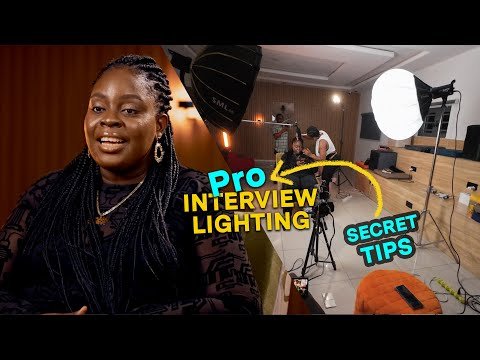
    You can shoot on a basic phone and still look cinematic… or shoot on an expensive camera and look terrible. The difference?

    The secret to perfect lighting for talking head reels at home.

    In 2026, with AI-enhanced tools like CapCut, Runway, and Sora, editing is easier than ever—but bad lighting? AI can’t fully fix that.

    And here is the real talk about high-retention editing:
    If your face isn’t lit properly, people scroll.

    This guide will break down exactly how to master lighting at home so your talking head reels feel clean, cinematic, and high-retention, just like the creators leveling up on vfxcut.xyz.


    Why Lighting Directly Impacts Watch Time

    Lighting isn’t just about visibility—it’s about perception.

    Good lighting:

    • Builds trust instantly
    • Makes your content feel premium
    • Keeps viewers watching longer

    Bad lighting:

    • Creates harsh shadows
    • Reduces clarity
    • Feels unprofessional

    And in short-form content, you have less than 3 seconds to convince someone to stay.


    The Core Lighting Setup (3-Point System)

    This is the foundation of cinematic talking head videos.

    1. Key Light (Main Light)

    • Your primary light source
    • Positioned at a 45° angle
    • Slightly above eye level

    This shapes your face and defines your look.


    2. Fill Light

    • Softens shadows
    • Placed opposite the key light
    • Lower intensity

    If you skip this, your face looks too harsh.


    3. Back Light (Rim Light)

    • Placed behind you
    • Creates separation from background
    • Adds depth

    This is what gives that “pro YouTuber” vibe.


    Best Budget Lighting Options (2026)

    You don’t need expensive gear.

    Natural Window Light

    • Free and powerful
    • Best during morning or golden hour
    • Use curtains to diffuse

    Ring Lights

    • Easy to use
    • Even face lighting
    • Popular for beginners

    LED Panels

    • Adjustable brightness
    • Adjustable color temperature
    • More control than ring lights

    Practical Lights

    Use lamps in the background:

    • Adds depth
    • Enhances mood
    • Improves composition

    Comparison Table: Lighting Options

    Lighting TypeCostControlBest For
    Window LightFreeLowBeginners
    Ring LightLowMediumFace lighting
    LED PanelsMediumHighCinematic setup
    RGB LightsMediumHighCreative backgrounds

    Step-by-Step: The Secret to Perfect Lighting for Talking Head Reels at Home

    Let’s build your setup from scratch.


    Step 1: Choose Your Light Source

    Start simple:

    • Use a window or LED panel
    • Avoid overhead lighting (it creates shadows)

    Your light should always come from the front/side.


    Step 2: Position Your Key Light

    This is critical.

    • Place at 45° angle
    • Slightly above eye level
    • Aim toward your face

    This creates natural facial shadows.


    Step 3: Control Shadows with Fill Light

    No second light?

    Use this trick:

    • Reflect light using a white wall
    • Use a white paper or foam board

    Cheap but effective.


    Step 4: Add Background Separation

    Use a backlight or lamp:

    • Place behind you
    • Aim at shoulders or hair

    This creates depth and prevents flat visuals.


    Step 5: Adjust Color Temperature

    Consistency is key.

    • Warm light = cozy feel
    • Cool light = professional tone

    Mixing colors incorrectly kills your look.


    Step 6: Fine-Tune Exposure

    Inside CapCut:

    • Adjust brightness
    • Fix highlights
    • Balance shadows

    Lighting + color grading = cinematic result.


    Lighting Settings Checklist

    Before recording:

    • Face evenly lit: ✔
    • No harsh shadows: ✔
    • Background separated: ✔
    • Light direction consistent: ✔
    • Color temperature matched: ✔
    • No overexposed highlights: ✔
    • Eyes clearly visible: ✔

    High-Retention Lighting Techniques (2026)

    1. Eye Catchlights

    Your eyes should reflect light.

    This creates:

    • Connection
    • Energy
    • Trust

    2. Contrast Control

    Don’t eliminate all shadows.

    Some shadow = depth
    Too much shadow = distraction


    3. Background Lighting

    Add subtle lights behind you:

    • RGB glow
    • Warm lamp
    • Accent lighting

    This makes your frame feel alive.


    4. Lighting for Movement

    If you move while talking:

    • Keep lighting wide
    • Avoid harsh directional beams

    Integrating Lighting with Editing

    Lighting doesn’t end at recording.

    In Runway:

    • Enhance exposure
    • Fix inconsistencies
    • Smooth lighting transitions

    In Sora:

    • Generate cinematic lighting styles
    • Enhance visual mood

    You can even use keyframing to adjust lighting dynamically across scenes.


    Common Lighting Mistakes (Avoid These)

    Let me save your time:

    • Using only overhead lights
    • Mixing warm and cool lighting
    • Sitting too far from light source
    • Overexposing your face

    Also—don’t rely on editing to fix bad lighting. It rarely works.


    Advanced Setup: Cinematic Home Studio

    Here’s what pro creators are doing:

    • Key light (soft LED panel)
    • Fill light (bounce or soft light)
    • Back light (RGB accent)
    • Background practical lights

    Then:

    • Shoot clean footage
    • Enhance with color grading
    • Add subtle keyframing adjustments

    This hybrid setup creates high-retention visuals.


    Final Thoughts (Creative Mentor Mode)

    Look—mastering the secret to perfect lighting for talking head reels at home is one of the fastest ways to upgrade your content.

    You don’t need expensive gear.

    You need:

    • Good light placement
    • Consistent color
    • Intentional setup

    If your lighting looks clean, your content feels professional—even if your shooting on a phone.

    And in 2026, that’s what wins.


    Call to Action

    Now it’s your turn.

    Set up your lighting using this guide and record a short talking head reel. Focus on positioning, shadows, and consistency.

    Once you see the difference, you’ll never go back.

    And if you want more pro-level tutorials, editing workflows, and insider strategies, check out vfxcut.xyz—the ultimate hub for short-form creators and VFX enthusiasts.

    Your next viral reel doesn’t start with your camera.

    It starts with your lighting.

  • How to Sync Video Cuts to the Beat of Trending Music (Create Viral, High-Retention Edits)

    How to Sync Video Cuts to the Beat of Trending Music (Create Viral, High-Retention Edits)

    Look, I’ve spent hours in the editing suite so you don’t have to—and if there’s one skill that instantly makes your videos feel professional, it’s this:

    How to sync video cuts to the beat of trending music.

    Not random cuts. Not guesswork.

    Precise, intentional timing that locks your visuals to the rhythm.

    Here is the real talk about high-retention editing:
    If your cuts don’t match the beat, your video feels off—even if viewers don’t consciously realize it.

    In 2026, with tools like CapCut, Runway, and Sora, syncing cuts has become faster—but the creative decision-making? That’s still where pros stand out.

    And yeah—this is exactly what creators on vfxcut.xyz use to boost retention and create scroll-stopping edits.


    Why Beat Syncing Increases Watch Time

    Let’s break it down simply:

    Humans are wired to respond to rhythm.

    When your cuts match the beat:

    • Your video feels satisfying
    • Your pacing feels intentional
    • Your retention increases

    When they don’t:

    • It feels awkward
    • Viewers lose interest
    • Watch time drops

    Beat syncing creates a flow state that keeps viewers watching.


    Understanding Music Structure (This Is Key)

    Before you even touch the timeline, understand this:

    Music is structured in:

    • Beats
    • Bars (usually 4 beats)
    • Drops (energy peaks)

    Your job is to align visuals with these elements.


    Types of Beats You Should Use

    • Kick (low bass hit) → Strong cuts
    • Snare (sharp hit) → Quick transitions
    • Hi-hats (fast ticks) → Micro edits

    Not all beats are equal. Choose wisely.


    Best Tools for Beat Sync Editing (2026)

    CapCut

    • Auto beat detection
    • Marker placement
    • Easy keyframing
    • Perfect for fast edits

    Runway

    • AI-assisted timing
    • Smart scene syncing
    • Advanced rhythm detection

    Sora

    • Generates beat-matched visuals
    • Experimental audio-visual sync

    Premiere Pro / After Effects

    • Manual precision
    • Full control over timing
    • Advanced workflows

    Comparison Table: Beat Sync Tools

    ToolEase of UsePrecisionBest For
    CapCut⭐⭐⭐⭐⭐⭐⭐⭐⭐Quick edits
    Runway⭐⭐⭐⭐⭐⭐⭐⭐⭐AI workflows
    Sora⭐⭐⭐⭐⭐⭐⭐⭐Cinematic
    Premiere Pro⭐⭐⭐⭐⭐⭐⭐⭐Pro control

    Step-by-Step: How to Sync Video Cuts to the Beat of Trending Music

    Let’s build a real workflow you can follow today.


    Step 1: Import and Analyze Your Music

    Inside CapCut:

    • Add your audio track
    • Listen fully before editing
    • Identify key moments

    Don’t skip this. This is where most beginners mess up.


    Step 2: Add Beat Markers

    Use:

    • Auto beat detection (CapCut)
      or
    • Manually tap markers

    Mark:

    • Every major beat
    • Drops
    • Transitions in the music

    These markers are your blueprint.


    Step 3: Rough Cut Your Clips

    Now:

    • Place clips along markers
    • Match cuts to beats
    • Focus on structure first

    Don’t worry about perfection yet.


    Step 4: Refine with Micro Timing

    Here’s where pros stand out.

    Adjust cuts:

    • Frame-by-frame
    • Slightly before or after beat

    Yes, sometimes off-beat timing feels better depending on energy.


    Step 5: Add Motion with Keyframing

    Use keyframing to:

    • Add zoom-ins on beats
    • Create motion transitions
    • Emphasize important moments

    This enhances rhythm visually.


    Step 6: Layer Sound Effects

    Add:

    • Whooshes
    • Impacts
    • Bass hits

    These reinforce the beat and increase immersion.


    Step 7: Polish with Color and Flow

    Use color grading to:

    • Match clips
    • Maintain visual consistency
    • Enhance mood

    Even perfect timing won’t save bad visuals.


    Beat Sync Settings Checklist

    Before exporting:

    • Cuts aligned with beats: ✔
    • Markers placed correctly: ✔
    • Keyframing synced: ✔
    • Audio balanced: ✔
    • No awkward cuts: ✔
    • Flow feels natural: ✔
    • Loop works smoothly: ✔

    High-Retention Beat Sync Techniques (2026)

    1. Beat Drop Moments

    Save your best visuals for the drop.

    This creates:

    • Impact
    • Surprise
    • Engagement spikes

    2. Double-Time Editing

    During fast sections:

    • Add more cuts
    • Increase pacing

    This keeps energy high.


    3. Slow Build Sections

    During calm parts:

    • Use fewer cuts
    • Focus on storytelling

    Contrast = retention.


    4. AI Beat Matching

    Use Runway to:

    • Auto-align visuals
    • Improve timing

    Common Mistakes (Avoid These)

    Let me save your time:

    • Cutting randomly without markers
    • Over-editing every beat
    • Ignoring music structure
    • Not refining timing

    Also—don’t trust auto-sync blindly. Always tweak manually.


    Advanced Workflow: Viral Beat Editing System

    Here’s what high-level creators do:

    1. Analyze music deeply
    2. Place manual beat markers
    3. Rough cut clips
    4. Refine timing frame-by-frame
    5. Add keyframing and effects
    6. Enhance with AI tools

    This system creates high-retention edits consistently.


    Final Thoughts (Creative Mentor Mode)

    Look—mastering how to sync video cuts to the beat of trending music is one of the fastest ways to level up your content.

    It’s not about fancy effects.

    It’s about rhythm.

    Every cut should:

    • Feel intentional
    • Match energy
    • Increase retention

    If your timing is on point, your content feels addictive—even if your visuals are simple.

    That’s the secret.


    Call to Action

    Now it’s your turn.

    Take a trending audio track and re-edit one of your videos using beat syncing. Focus on timing, flow, and subtle adjustments.

    When you nail it, you’ll feel it instantly.

    And if you want more pro-level editing breakdowns, workflows, and insider techniques, check out vfxcut.xyz—the ultimate hub for short-form creators and VFX artists.

    Your next viral edit isn’t about better clips.

    It’s about better timing.

  • How to Use “Pattern Interrupts” in Short-Form Editing (The Secret to Breaking Scroll and Boosting Retention)

    How to Use “Pattern Interrupts” in Short-Form Editing (The Secret to Breaking Scroll and Boosting Retention)

    Look, I’ve spent hours in the editing suite so you don’t have to—and if there’s one technique that separates average creators from viral ones in 2026, it’s this:
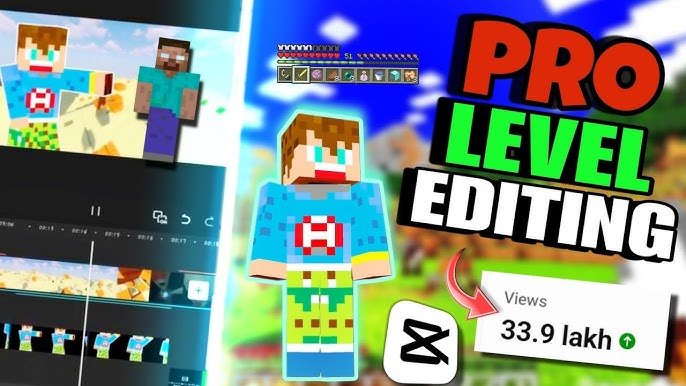
    How to use “Pattern Interrupts” in short-form editing.

    Not just flashy edits. Not random effects.

    We’re talking about strategic disruptions that reset attention and keep viewers locked in.

    Here is the real talk about high-retention editing:
    If your video becomes predictable… people scroll.

    Pattern interrupts are how you break predictability and control attention.

    This guide will show you exactly how to use them using tools like CapCut, Runway, and Sora.

    And yeah—this is exactly the system creators on vfxcut.xyz use to keep retention insanely high.


    What Are Pattern Interrupts?

    Pattern interrupts are intentional changes in visuals, audio, or pacing that disrupt viewer expectations.

    Examples:

    • Sudden zoom-in
    • Quick cut to different angle
    • Sound effect spike
    • Text popping on screen

    They force the brain to say:
    “Wait—what just happened?”

    And that moment? That’s retention.


    Why Pattern Interrupts Increase Watch Time

    Your brain loves patterns—but it also gets bored by them.

    Pattern interrupts:

    • Reset attention
    • Re-engage the viewer
    • Prevent fatigue

    In short-form content, you need this every few seconds.


    Types of Pattern Interrupts You Should Use

    1. Visual Interrupts

    • Zoom cuts
    • Camera angle changes
    • Jump cuts

    These are the most common.


    2. Audio Interrupts

    • Beat drops
    • Sound effects
    • Sudden silence

    Audio changes are incredibly powerful.


    3. Text Interrupts

    • Bold subtitles
    • Pop-up text
    • Kinetic typography

    Great for reinforcing key moments.


    4. Motion Interrupts

    Using keyframing:

    • Sudden movement
    • Speed ramps
    • Transitions

    5. AI-Based Interrupts

    Using Runway and Sora:

    • Scene morphing
    • AI transitions
    • Dynamic cuts

    This is next-level storytelling.


    Best Tools for Pattern Interrupt Editing (2026)

    CapCut

    • Fast editing
    • Easy keyframing
    • Built-in effects

    Runway

    • AI scene changes
    • Smart editing tools

    Sora

    • Cinematic AI transitions
    • Visual storytelling

    Premiere Pro / After Effects

    • Advanced control
    • Complex workflows

    Comparison Table: Pattern Interrupt Tools

    ToolEase of UseFlexibilityBest For
    CapCut⭐⭐⭐⭐⭐⭐⭐⭐⭐Fast edits
    Runway⭐⭐⭐⭐⭐⭐⭐⭐⭐AI workflows
    Sora⭐⭐⭐⭐⭐⭐⭐⭐Cinematic AI
    After Effects⭐⭐⭐⭐⭐⭐⭐Pro motion

    Step-by-Step: How to Use Pattern Interrupts in Short-Form Editing

    Let’s break it down into a real workflow.


    Step 1: Identify Attention Drop Points

    Watch your footage and ask:

    • Where does it feel slow?
    • Where might viewers scroll?

    These are your interrupt zones.


    Step 2: Plan Interrupt Frequency

    Rule of thumb:

    • Every 2–4 seconds → small interrupt
    • Every 5–8 seconds → major interrupt

    This keeps pacing dynamic.


    Step 3: Add Visual Interrupts

    Inside CapCut:

    • Add zoom cuts
    • Change framing
    • Insert jump cuts

    Keep them intentional.


    Step 4: Layer Audio Interrupts

    Add:

    • Whooshes
    • Hits
    • Beat drops

    Even silence can be an interrupt.


    Step 5: Use Text for Emphasis

    Add:

    • Bold subtitles
    • Animated text

    Make key words pop.


    Step 6: Enhance with Motion

    Use keyframing to:

    • Add movement
    • Create transitions
    • Shift focus

    Motion = engagement.


    Step 7: Blend with Color and Style

    Use color grading to:

    • Maintain consistency
    • Highlight changes
    • Support mood

    Interrupts should feel intentional—not chaotic.


    Pattern Interrupt Settings Checklist

    Before exporting:

    • Interrupts spaced correctly: ✔
    • Audio synced: ✔
    • Visual changes smooth: ✔
    • No overuse: ✔
    • Keyframing polished: ✔
    • Color grading consistent: ✔
    • Flow feels natural: ✔

    High-Retention Pattern Interrupt Techniques (2026)

    1. Micro Interrupts

    Small changes:

    • Subtle zoom
    • Quick cut
    • Light motion

    Used frequently.


    2. Shock Interrupts

    Big changes:

    • Scene switch
    • Loud sound
    • Visual effect

    Use sparingly for impact.


    3. Invisible Interrupts

    The best ones don’t feel forced.

    They just keep the video flowing.


    4. AI-Assisted Interrupts

    Use Runway to:

    • Suggest cuts
    • Enhance pacing
    • Automate transitions

    Common Mistakes (Avoid These)

    Let me save your time:

    • Overusing interrupts
    • Adding random effects
    • Ignoring pacing
    • Breaking visual consistency

    Also—don’t confuse chaos with creativity. There’s a difference.


    Advanced Workflow: Viral Interrupt System

    Here’s what pro creators do:

    1. Map out video pacing
    2. Add base edits
    3. Insert pattern interrupts strategically
    4. Enhance with sound design
    5. Refine with AI tools
    6. Final polish with color grading

    This system creates high-retention content consistently.


    Final Thoughts (Creative Mentor Mode)

    Look—mastering how to use “Pattern Interrupts” in short-form editing is one of the most powerful skills you can develop.

    It’s not about adding more.

    It’s about adding the right disruption at the right time.

    Every interrupt should:

    • Reset attention
    • Guide focus
    • Increase retention

    If your video never feels predictable, viewers keep watching.

    Even if your using simple footage, pattern interrupts can make it feel dynamic and engaging.

    That’s the secret.


    Call to Action

    Now it’s your turn.

    Take one of your videos and add pattern interrupts strategically. Focus on timing, balance, and flow.

    Once you get it right, your retention graph will change instantly.

    And if you want more pro-level breakdowns, editing workflows, and insider techniques, check out vfxcut.xyz—the ultimate hub for short-form creators and VFX enthusiasts.

    Your next viral video isn’t about doing more.

    It’s about breaking patterns smarter.

  • How to Edit High-Quality Minecraft Shorts on Mobile (Create Viral Edits with Pro-Level Retention)

    How to Edit High-Quality Minecraft Shorts on Mobile (Create Viral Edits with Pro-Level Retention)

    Look, I’ve spent hours in the editing suite so you don’t have to—and if there’s one niche exploding in 2026, it’s this:

    Minecraft shorts.

    But here’s the problem most creators face:

    Their gameplay might be interesting… but their editing? Flat, slow, and easy to scroll past.

    That’s why mastering how to edit high-quality Minecraft shorts on mobile is the real advantage.

    Here is the real talk about high-retention editing:
    Minecraft content isn’t about gameplay anymore—it’s about pacing, storytelling, and visual energy.

    With tools like CapCut, Runway, and Sora, you can now create insane edits directly from your phone.

    And yeah—this is exactly what creators on vfxcut.xyz are doing to dominate short-form gaming content.


    Why Minecraft Shorts Go Viral in 2026

    Minecraft is perfect for short-form because:

    • Endless creativity
    • Fast-paced moments
    • Clear visual goals (builds, survival, challenges)

    But here’s the catch:

    Without editing, it’s boring.

    With the right editing:

    • You create tension
    • You guide attention
    • You boost retention

    Core Elements of High-Quality Minecraft Shorts

    To stand out, your video needs:

    • Fast pacing
    • Clean cuts
    • Engaging sound design
    • Smooth transitions
    • Strong hook in first 2–3 seconds

    And most importantly:

    Constant visual change.


    Best Mobile Tools for Minecraft Editing (2026)

    CapCut

    • Easy timeline editing
    • Built-in effects
    • Powerful keyframing
    • Perfect for mobile creators

    Runway

    • AI scene detection
    • Background enhancement
    • Motion smoothing

    Sora

    • Cinematic scene generation
    • Advanced storytelling visuals

    Minecraft Recording Tools

    • Screen recorder (built-in or third-party)
    • High FPS recording (60fps recommended)

    Comparison Table: Mobile Editing Tools

    ToolEase of UsePowerBest For
    CapCut⭐⭐⭐⭐⭐⭐⭐⭐⭐Full mobile editing
    Runway⭐⭐⭐⭐⭐⭐⭐⭐⭐AI enhancement
    Sora⭐⭐⭐⭐⭐⭐⭐⭐Cinematic scenes
    Premiere⭐⭐⭐⭐⭐⭐⭐Desktop workflows

    Step-by-Step: How to Edit High-Quality Minecraft Shorts on Mobile

    Let’s break down the exact proccess.


    Step 1: Record High-Quality Gameplay

    Before editing:

    • Record at 1080p or higher
    • Use 60fps for smooth motion
    • Avoid lag or frame drops

    Bad footage = limited results.


    Step 2: Start with a Strong Hook

    First 3 seconds:

    • Show the most exciting moment
    • Use fast cuts
    • Add text or sound instantly

    Example:
    “Can I survive this?” → instant action

    This is where retention begins.


    Step 3: Cut Aggressively

    Inside CapCut:

    • Remove all boring parts
    • Keep only action moments
    • Trim pauses and delays

    If it feels slow—it is slow.


    Step 4: Add Zoom Cuts and Motion

    Use keyframing to:

    • Zoom into important moments
    • Highlight reactions or action
    • Add movement to static clips

    Minecraft visuals benefit massively from zooms.


    Step 5: Sync with Audio

    Add:

    • Background music
    • Sound effects
    • Beat-based cuts

    Match cuts to beats for better flow.


    Step 6: Use Pattern Interrupts

    Every 2–3 seconds:

    • Add zoom
    • Change angle
    • Insert text

    This prevents viewer drop-off.


    Step 7: Add Subtitles and Text

    Minecraft shorts perform better with text:

    • Highlight key moments
    • Add humor
    • Reinforce story

    Bold, animated subtitles increase retention.


    Step 8: Enhance with AI Tools

    Use Runway to:

    • Improve clarity
    • Smooth motion
    • Enhance visuals

    Use Sora for:

    • Creative transitions
    • Cinematic storytelling

    Step 9: Apply Color Grading

    Yes—even Minecraft needs it.

    Use color grading to:

    • Boost contrast
    • Improve brightness
    • Enhance colors

    This makes your video pop.


    Step 10: Optimize for Looping

    Make your ending connect to the beginning.

    Looping increases:

    • Watch time
    • Replays
    • Algorithm boost

    Minecraft Editing Settings Checklist

    Before exporting:

    • Hook in first 3 seconds: ✔
    • Fast pacing: ✔
    • Keyframing applied: ✔
    • Zoom cuts balanced: ✔
    • Audio synced: ✔
    • Color grading polished: ✔
    • No boring sections: ✔
    • Loop works smoothly: ✔

    High-Retention Minecraft Editing Techniques (2026)

    1. Challenge-Based Editing

    Structure your video:

    • Setup
    • Conflict
    • Result

    Keeps viewers invested.


    2. Speed Ramping

    • Speed up boring parts
    • Slow down important moments

    Creates dynamic pacing.


    3. Micro Storytelling

    Even short videos need story:

    • Goal
    • Problem
    • Outcome

    4. AI-Assisted Editing

    Use Runway to:

    • Suggest cuts
    • Improve pacing
    • Automate tasks

    Common Mistakes (Avoid These)

    Let me save your time:

    • Keeping clips too long
    • Ignoring audio
    • No zoom or motion
    • Weak hook

    Also—don’t rely only on gameplay. Editing is what makes it viral.


    Advanced Workflow: Viral Minecraft Editing System

    Here’s what top creators are doing:

    1. Record high-quality gameplay
    2. Cut aggressively
    3. Add zoom and motion
    4. Sync with audio
    5. Insert pattern interrupts
    6. Enhance with AI
    7. Final polish with color grading

    This system creates consistent high-retention content.


    Final Thoughts (Creative Mentor Mode)

    Look—mastering how to edit high-quality Minecraft shorts on mobile isn’t about having the best device.

    It’s about:

    • Smart editing
    • Fast pacing
    • Intentional storytelling

    If your edits feel dynamic, your content feels professional—even if your recording on a phone.

    And that’s the real advantage in 2026.


    Call to Action

    Now it’s your turn.

    Take your Minecraft gameplay and turn it into a high-retention short using this workflow. Focus on pacing, motion, and storytelling.

    When you get it right, you’ll see the difference instantly.

    And if you want more pro-level editing breakdowns, workflows, and insider secrets, check out vfxcut.xyz—the ultimate hub for short-form creators and VFX enthusiasts.

    Your next viral Minecraft short isn’t about better gameplay.

    It’s about better editting.

  • Best Transition Ideas for “Get Ready With Me” (GRWM) Reels (Create Scroll-Stopping, High-Retention Edits)

    Best Transition Ideas for “Get Ready With Me” (GRWM) Reels (Create Scroll-Stopping, High-Retention Edits)

    Look, I’ve spent hours in the editing suite so you don’t have to—and here’s the truth most GRWM creators don’t realize:

    Your transitions are your storytelling.

    Not your outfit. Not your makeup.

    If you master the best transition ideas for “Get Ready With Me” (GRWM) reels, your content instantly feels premium, addictive, and high-retention.

    Here is the real talk about high-retention editing:
    People don’t watch GRWM videos for the final look—they watch for the process.

    And transitions? They are what make that process feel smooth, satisfying, and binge-worthy.

    In 2026, creators are combining smart editing with AI tools like CapCut, Runway, and Sora to create next-level GRWM edits.

    And yeah—this is exactly what creators on vfxcut.xyz are using to keep viewers hooked till the last second.


    Why Transitions Matter in GRWM Content

    GRWM videos are repetitive by nature:

    • Apply product
    • Cut
    • Apply next product

    Without transitions, it gets boring fast.

    With the right transitions:

    • You create flow
    • You maintain attention
    • You increase retention

    The Psychology Behind GRWM Transitions

    GRWM works because of:

    • Transformation
    • Progression
    • Satisfaction

    Transitions amplify these emotions by:

    • Making changes feel instant
    • Creating visual rhythm
    • Adding micro-surprises

    Best Transition Ideas for “Get Ready With Me” (GRWM) Reels

    Let’s break down what’s actually working right now.


    1. Match Cut Transition (GRWM Classic)

    • Same pose → different stage
    • Before makeup → after foundation

    Why it works:

    • Feels seamless
    • Highlights transformation

    2. Hand Swipe Transition

    • Swipe hand across camera
    • Cut to next stage

    Pro tip:
    Match speed and direction.


    3. Object Cover Transition

    • Use makeup brush, phone, or hand
    • Cover lens → cut

    This creates a natural transition point.


    4. Zoom-In Transition (Keyframing Heavy)

    Use keyframing to:

    • Zoom into face
    • Cut at peak zoom
    • Resume motion

    This adds energy and focus.


    5. Spin Transition

    • Slight camera or head spin
    • Cut mid-motion

    Feels dynamic and trendy.


    6. Jump Cut Transformation

    • Instant switch between looks
    • No transition effect

    Raw but powerful.


    7. AI Scene Morph (Next-Level)

    Using Runway and Sora:

    • Blend makeup stages
    • Morph facial features
    • Create seamless transformation

    This is where 2026 editing gets crazy.


    Best Tools for GRWM Transition Editing

    CapCut

    • Easy transitions
    • Keyframing tools
    • Built-in effects

    Runway

    • AI transitions
    • Scene blending

    Sora

    • Cinematic transformations
    • AI-generated visuals

    Premiere Pro / After Effects

    • Advanced masking
    • Precision control

    Comparison Table: Transition Tools

    ToolEase of UsePowerBest For
    CapCut⭐⭐⭐⭐⭐⭐⭐⭐⭐Fast GRWM edits
    Runway⭐⭐⭐⭐⭐⭐⭐⭐⭐AI transitions
    Sora⭐⭐⭐⭐⭐⭐⭐⭐Cinematic morphs
    Premiere Pro⭐⭐⭐⭐⭐⭐⭐⭐Advanced workflows

    Step-by-Step: Creating High-Retention GRWM Transitions

    Let’s build a real workflow.


    Step 1: Plan Your Sequence

    Before filming:

    • Decide your stages
    • Plan transition points
    • Keep movements consistent

    Good planning = smooth edits.


    Step 2: Record with Intent

    While filming:

    • Keep camera stable
    • Repeat same position
    • Use consistent lighting

    This makes transitions cleaner.


    Step 3: Cut Precisely

    Inside CapCut:

    • Align clips frame-by-frame
    • Match positions
    • Remove unnecessary frames

    Precision is everything.


    Step 4: Add Motion with Keyframing

    Use keyframing to:

    • Add zoom-ins
    • Create motion flow
    • Smooth transitions

    This is where pro-level editting shows.


    Step 5: Sync with Audio

    Transitions should hit:

    • Beat drops
    • Sound effects
    • Voice cues

    Audio makes transitions feel intentional.


    Step 6: Apply Effects (Lightly)

    Add:

    • Motion blur
    • Whoosh sounds
    • Subtle transitions

    Don’t overdo it.


    Step 7: Color Match Everything

    Use color grading to:

    • Match skin tones
    • Fix lighting differences
    • Maintain consistency

    Nothing breaks immersion faster than mismatched color.


    GRWM Transition Settings Checklist

    Before exporting:

    • Transitions aligned: ✔
    • Keyframing smooth: ✔
    • Audio synced: ✔
    • Lighting consistent: ✔
    • Color grading matched: ✔
    • No jarring cuts: ✔
    • Flow feels natural: ✔

    High-Retention GRWM Techniques (2026)

    1. Micro Transitions Every Step

    Don’t wait for big changes.

    Add:

    • Small zooms
    • Quick cuts
    • Subtle movement

    2. Invisible Transitions

    The best transitions are hidden.

    They feel natural—not forced.


    3. Speed Ramping

    • Speed up application
    • Slow down reveal

    Creates drama.


    4. AI-Assisted Editing

    Use Runway to:

    • Smooth transitions
    • Blend frames
    • Improve pacing

    Common Mistakes (Avoid These)

    Let me save your time:

    • Overusing effects
    • Ignoring positioning
    • Bad lighting consistency
    • Not syncing with audio

    Also—don’t rely only on presets. Customize everything.


    Advanced Workflow: Viral GRWM Editing System

    Here’s what top creators are doing:

    1. Plan transitions before filming
    2. Record consistent footage
    3. Cut precisely
    4. Add keyframing motion
    5. Sync with audio
    6. Enhance with AI tools
    7. Final polish with color grading

    This system creates high-retention GRWM content consistently.


    Final Thoughts (Creative Mentor Mode)

    Look—mastering the best transition ideas for “Get Ready With Me” (GRWM) reels isn’t about flashy edits.

    It’s about flow.

    Every transition should:

    • Guide the viewer
    • Highlight transformation
    • Increase retention

    If your transitions feel smooth, your content feels premium—even if your using just your phone.

    And that’s the real advantage in 2026.


    Call to Action

    Now it’s your turn.

    Record a simple GRWM video and apply 2–3 transition techniques from this guide. Focus on timing, consistency, and subtlety.

    When you get it right, your content will instantly feel more engaging.

    And if you want more pro-level breakdowns, workflows, and insider secrets, check out vfxcut.xyz—the ultimate hub for short-form creators and VFX enthusiasts.

    Your next viral GRWM reel isn’t about the products you use.

    It’s about how you transition between them.