Look, I’ve spent hours in the editing suite so you don’t have to—and if there’s one skill that instantly separates average creators from cinematic storytellers, it’s this:
How to use color grading to make mobile videos look cinematic.
Not transitions. Not effects. Not even expensive cameras.
Color grading.
Here is the real talk about high-retention editing:
People don’t consciously notice good color grading—but they feel it. And that feeling is what keeps them watching.
In 2026, with AI tools like CapCut, Runway, and Sora, you don’t need Hollywood gear to get cinematic results.
And yeah—this is exactly the type of workflow creators on vfxcut.xyz are using to turn simple mobile footage into scroll-stopping visuals.
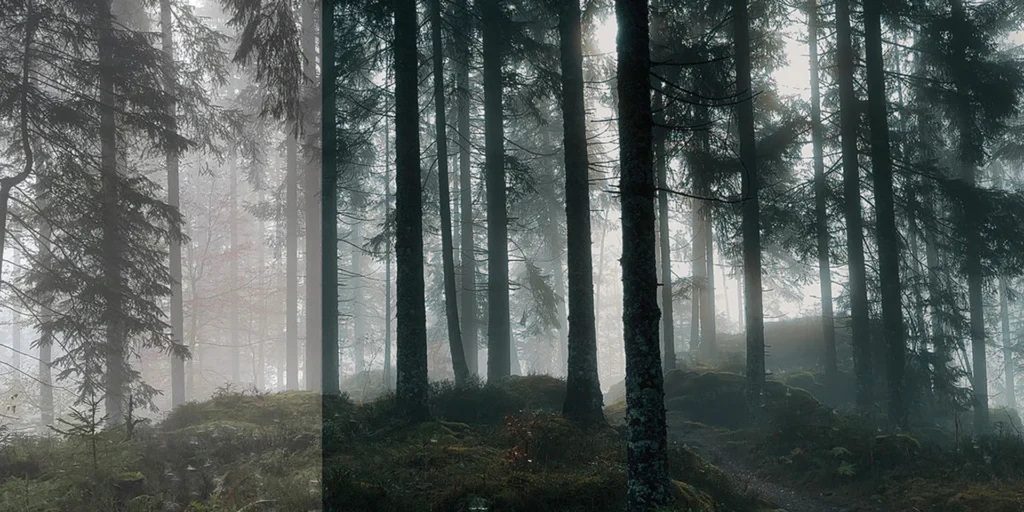
What Is Color Grading (And Why It Matters for Retention)
Color grading is the process of:
- Adjusting colors
- Enhancing mood
- Creating a consistent visual style
But here’s the key difference:
- Color correction = fixing mistakes
- Color grading = creating emotion
If your colors feel random, your video feels amateur.
If your colors feel intentional, your content feels cinematic—even if your shooting on a phone.

Why Cinematic Color Boosts Watch Time
Let’s break this down:
- Warm tones → emotional connection
- Cool tones → dramatic tension
- High contrast → visual clarity
- Balanced exposure → professional feel
These factors increase:
- Viewer comfort
- Engagement
- Retention
Color grading isn’t just aesthetic—it’s psychological.
Best Tools for Mobile Color Grading (2026)
CapCut
- Built-in color grading tools
- LUT support
- Easy keyframing for exposure shifts
- Perfect for mobile creators
Runway
- AI color matching
- Auto scene grading
- Advanced tone adjustments
Sora
- Generates cinematic lighting styles
- AI-assisted grading suggestions
- Future-forward workflows
Premiere Pro / DaVinci Resolve
- Professional-level grading
- Advanced color wheels
- Full control
Comparison Table: Color Grading Tools
| Tool | Ease of Use | Control | Best For |
|---|---|---|---|
| CapCut | ⭐⭐⭐⭐⭐ | ⭐⭐⭐⭐ | Mobile editing |
| Runway | ⭐⭐⭐⭐ | ⭐⭐⭐⭐⭐ | AI workflows |
| Sora | ⭐⭐⭐ | ⭐⭐⭐⭐⭐ | Cinematic AI |
| DaVinci Resolve | ⭐⭐ | ⭐⭐⭐⭐⭐ | Pro grading |
The Cinematic Color Formula (Steal This)
Most cinematic looks follow this:
- Warm highlights
- Cool shadows
- Slight desaturation
- High contrast
This creates that “film look” you see everywhere.
Step-by-Step: How to Use Color Grading to Make Mobile Videos Look Cinematic
Let’s break it down into a real workflow.
Step 1: Start with Color Correction
Inside CapCut:
Fix:
- Exposure
- White balance
- Contrast
If your base is wrong, your grade will fail.
Step 2: Adjust Contrast and Lighting
Increase:
- Contrast slightly
- Highlights (but don’t blow them out)
- Shadows (for depth)
This creates dimension.
Step 3: Set Your Color Mood
Decide your vibe:
- Warm cinematic → orange tones
- Cool cinematic → blue tones
- Neutral → documentary style
Stick to one direction.
Step 4: Adjust Color Wheels (Advanced Look)
If available:
- Push shadows toward blue
- Push highlights toward orange
- Keep midtones natural
This is the Hollywood look.
Step 5: Add LUTs (Optional)
LUTs are preset color grades.
Use them as a base—but always tweak manually.
Don’t rely 100% on LUTs.
Step 6: Use Keyframing for Dynamic Grading
This is next-level:
- Change exposure during transitions
- Adjust color tone across scenes
Keyframing adds life to your visuals.
Step 7: Final Polish with Saturation
Reduce saturation slightly.
Over-saturated footage looks cheap.
Subtle = cinematic.
Color Grading Settings Checklist
Before exporting:
- Exposure balanced: ✔
- White balance correct: ✔
- Contrast adjusted: ✔
- Color mood consistent: ✔
- Saturation controlled: ✔
- No color clipping: ✔
- Skin tones natural: ✔
High-Retention Color Techniques (2026)
1. Scene Consistency
All clips should match.
Mismatch kills immersion.
2. Subject Isolation
Use color to highlight subject.
- Bright subject
- Slightly muted background
This guides attention.
3. Mood Transitions
Change color tone across scenes:
- Warm → emotional
- Cool → dramatic
This keeps viewers engaged.
4. AI Color Matching
Use Runway to:
- Match clips automatically
- Maintain consistency
Common Mistakes (Avoid These)
Let me save you time:
- Over-saturating colors
- Crushing shadows too much
- Ignoring skin tones
- Using random LUTs
Also—don’t rush the proccess. Good grading takes patience.
Advanced Workflow: Cinematic AI Color Pipeline
Here’s what pro creators do:
- Correct footage in CapCut
- Enhance with Runway AI grading
- Apply cinematic style via Sora
- Final manual tweaks
This hybrid workflow delivers insane results.
Final Thoughts (Creative Mentor Mode)
Look—learning how to use color grading to make mobile videos look cinematic is one of the highest ROI skills in content creation.
It doesn’t matter if your camera is average.
If your color grading is strong:
- Your content feels premium
- Your retention increases
- Your videos stand out instantly
And once you master this, even basic clips look like film.
That’s the power.
Call to Action
Now it’s your turn.
Take one of your mobile videos and apply this color grading workflow. Experiment with tones, contrast, and mood.
When you get it right, your footage will feel completely different.
And if you want more deep, pro-level tutorials like this, visit vfxcut.xyz—the ultimate hub for short-form creators and VFX artists.
Your next viral video isn’t about better gear.
It’s about better color.