Discover the best AI video upscalers for low-quality mobile footage and transform blurry clips into sharp, viral-ready videos.
Why Upscaling is the Secret Weapon for Viral Short-Form Content
Look, I’ve spent hours in the editing suite so you don’t have to—and here’s the truth: most viral videos aren’t shot on expensive cameras anymore. They start as low-quality mobile clips… and get transformed.
In 2026, the difference between a video that flops and one that explodes often comes down to:
- Clarity
- Perceived quality
- Retention
Blurry footage kills retention instantly. But with the rise of AI video upscalers, you can now take 480p or 720p clips and push them toward near 4K quality—if you know what your doing.
And yes, tools like CapCut, Runway, and Topaz Video AI are leading this revolution.
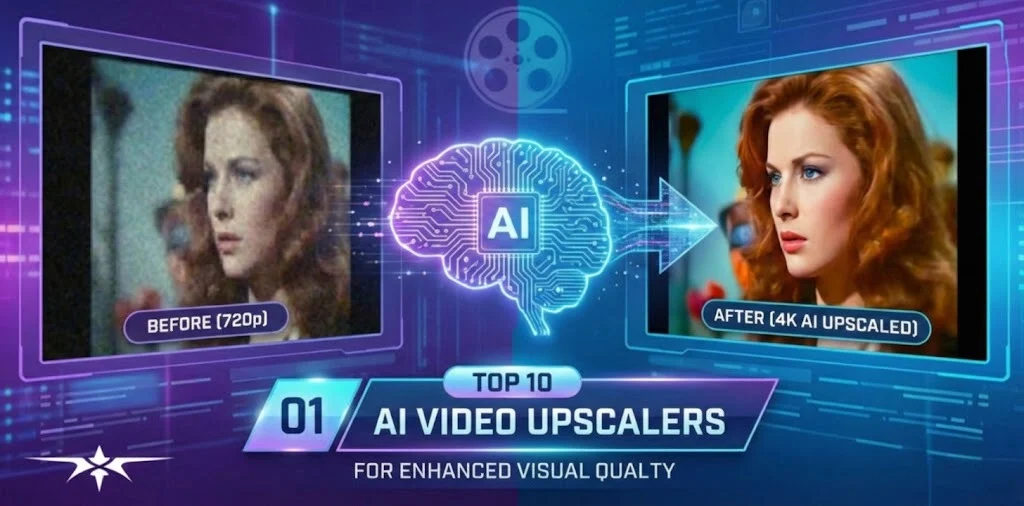
What Makes an AI Video Upscaler “Good” in 2026?
Not all upscalers are equal. The best AI video upscalers for low-quality mobile footage do three things exceptionally well:
1. Detail Reconstruction
They don’t just stretch pixels—they predict missing detail using trained AI models.
2. Noise Reduction
Mobile footage often has grain. A good upscaler removes noise without smearing faces.
3. Motion Consistency
Bad upscalers cause flickering. The best ones maintain temporal consistency frame-by-frame.
Here is the real talk about high-retention editing:
If your upscale introduces artifacts, your audience will feel it—even if they don’t consciously notice it.
Best AI Video Upscalers for Low-Quality Mobile Footage (2026 Picks)
1. Topaz Video AI (Industry Standard)
Best for: Professional-grade enhancement
Topaz is still king. Its AI models like Proteus and Artemis are insane for:
- Recovering facial details
- Removing compression artifacts
- Upscaling up to 8K
Downside? It’s slower. But quality-wise, nothing beats it.
2. Runway (Cloud-Based Power)
Best for: Fast AI workflows
Runway’s upscaling + enhancement tools are perfect for creators who want:
- Quick processing
- Browser-based editing
- Integrated VFX tools
Bonus: You can combine upscaling with background removal and motion tracking.
3. CapCut AI Upscaler (Best for TikTok Creators)
Best for: Speed + simplicity
CapCut AI now includes:
- One-click video enhancement
- Built-in sharpening + denoise
- Auto optimization for TikTok
It’s not as powerful as Topaz—but it’s fast, and honestly, that matters more for content volume.
4. DaVinci Resolve (Studio AI Tools)
Best for: Advanced editors
With Neural Engine features:
- Super Scale upscaling
- Noise reduction
- Professional color grading
This is where upscaling meets cinematic finishing.
5. Sora (Next-Gen Enhancement)
Best for: AI-assisted recreation
Sora isn’t just an upscaler—it can rebuild scenes.
You can enhance footage by generating missing frames or improving visual quality beyond traditional upscaling.
This is where the future is heading.
Comparison Table: Best AI Upscalers (2026)
| Tool | Quality | Speed | Ease of Use | Best For |
|---|---|---|---|---|
| Topaz Video AI | ⭐⭐⭐⭐⭐ | Slow | Medium | Professional edits |
| Runway | ⭐⭐⭐⭐ | Fast | Easy | Cloud workflows |
| CapCut AI | ⭐⭐⭐ | Very Fast | Very Easy | TikTok/Reels |
| DaVinci Resolve | ⭐⭐⭐⭐⭐ | Medium | Hard | Advanced users |
| Sora | ⭐⭐⭐⭐⭐ | Experimental | Medium | Future workflows |
AI Upscaling Settings Checklist (Pro-Level Optimization)
Before you hit export, lock these in:
Resolution Target
- 1080p minimum (for TikTok)
- 4K if cropping is needed
Sharpening
- Keep it subtle (avoid halos)
- Use AI sharpening instead of manual when possible
Noise Reduction
- Medium strength (don’t overdo it)
- Preserve skin texture
Frame Interpolation
- Use only if footage is choppy
- Avoid over-smoothing (it looks fake)
Bitrate
- 10–20 Mbps for vertical video
Small tweaks here massively impact final retention.
Step-by-Step: How to Upscale Low-Quality Mobile Footage
Step 1: Analyze Your Footage
Ask yourself:
- Is it blurry or just low resolution?
- Is there noise or compression artifacts?
- Is motion smooth?
This determines your workflow.
Step 2: Choose the Right Tool
- High-quality project → Topaz Video AI
- Fast TikTok content → CapCut
- Hybrid workflow → Runway
Don’t overcomplicate it.
Step 3: Apply AI Upscaling
In Topaz:
- Select Proteus model
- Set upscale to 200–400%
- Adjust recover detail + reduce noise
In CapCut:
- Use “Enhance Quality”
- Combine with sharpening
This is where the magic starts.
Step 4: Fix Artifacts Manually
Even AI isn’t perfect.
Use:
- Masking for faces
- Selective sharpening
- Blur backgrounds slightly
Yes, this takes extra time—but it’s what separates pros from beginners.
Step 5: Add Motion & Keyframing
Now we move into storytelling.
- Add subtle zoom-ins
- Use keyframing for movement
- Keep visual changes every 1–2 seconds
This boosts retention massively.
Step 6: Color Grading After Upscaling
Never color grade before upscaling.
- Adjust contrast
- Fix white balance
- Enhance skin tones
Good color grading can make average footage look premium.
Step 7: Export for TikTok
- 1080×1920
- H.264 codec
- High bitrate
- Clean audio
Your video is now ready to compete.
Advanced Techniques (What Actually Makes It Viral)
1. Hybrid AI Workflow
Use:
- Topaz for upscaling
- CapCut for editing
- Runway for effects
Stacking tools = better results.
2. Perceptual Sharpness Trick
Instead of over-sharpening:
- Increase contrast slightly
- Add micro grain
This creates the illusion of sharpness without artifacts.
3. Retention-Based Editing
Upscaling alone won’t save bad pacing.
Every 2 seconds:
- Add motion
- Change visuals
- Reinforce the hook
4. AI + VFX Fusion
Combine upscaling with:
- Motion graphics
- Text overlays
- Sound design
This is where your content becomes addictive.
Common Mistakes That Kill Quality
- Over-sharpening (creates halos)
- Ignoring noise reduction
- Upscaling already compressed exports
- Skipping color grading
- Rushing the proccess
And the biggest one: relying only on AI.
AI enhances. It doesn’t replace editing skill.
The Future of AI Upscaling
We’re moving toward:
- Real-time enhancement
- AI scene reconstruction
- Fully automated pipelines
Tools like Sora will soon blur the line between “fixing” footage and completely recreating it.
Final Thoughts: The Real Difference
Here’s the truth most creators won’t admit:
Your footage doesn’t need to be perfect.
It needs to feel high-quality.
The best AI video upscalers for low-quality mobile footage give you the technical edge—but retention comes from editing decisions.
So focus on:
- Clarity
- Motion
- Storytelling
That’s what actually makes videos go viral.
Your Next Move
Now it’s your turn.
Take your worst mobile clip and run it through one of these AI upscalers. Test different settings, experiment with keyframing, and push your editting skills.
Then post it. Watch the retention. Analyze the data.
And when you’re ready to go even deeper into AI editing, VFX workflows, and viral storytelling, head over to vfxcut.xyz—the ultimate hub for creators who refuse to stay average.
Go transform your footage into something people can’t scroll past.