Learn how to use a phone as a webcam for high-quality streaming with pro settings, AI tools, and creator workflows (2026).
Look, I’ve spent hours in the editing suite so you don’t have to… and here’s something most creators overlook:
Your phone camera is probably better than your webcam.
In 2026, smartphone cameras are insanely powerful — better sensors, better dynamic range, better color science. Yet most people still stream with low-quality webcams that kill their visual quality and retention.
So in this guide, you’ll learn how to use a phone as a webcam for high-quality streaming, with pro-level setup, AI enhancements, and the exact workflow used by modern creators.
Why Using Your Phone as a Webcam Is a Game-Changer
Here is the real talk about high-retention editing:
Viewers don’t just listen — they watch closely.
Better video quality leads to:
- Higher watch time
- More engagement
- Better perceived authority
And guess what?
Your phone gives you:
- Sharper image
- Better low-light performance
- More control over exposure
That’s instant upgrade.
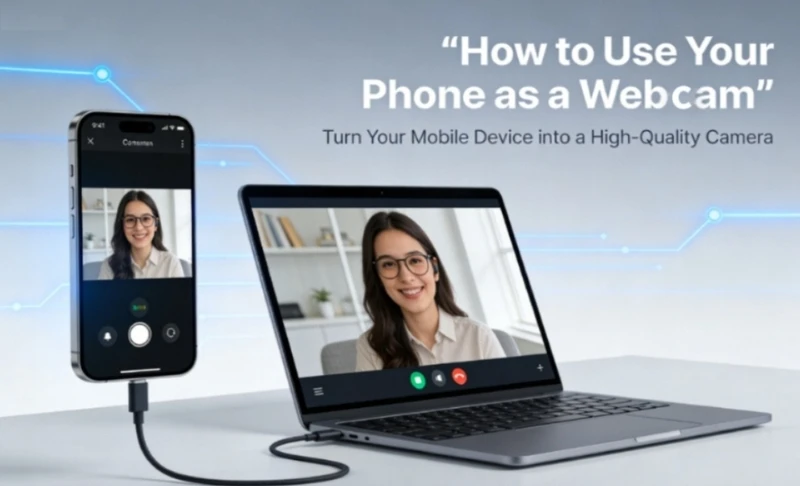
What You Need (Basic Gear Setup)
You don’t need a studio. Just smart setup.
Essential Gear
- Smartphone (iPhone or Android)
- USB cable or stable WiFi
- Tripod or phone holder
- Good lighting (very important)
Optional (But Powerful)
- External mic (audio matters more than video)
- Ring light or softbox
- Clean background
Bad lighting will ruin even the best camera. Remember that.
Best Apps to Turn Your Phone into a Webcam
Let’s talk tools.
Top Apps in 2026
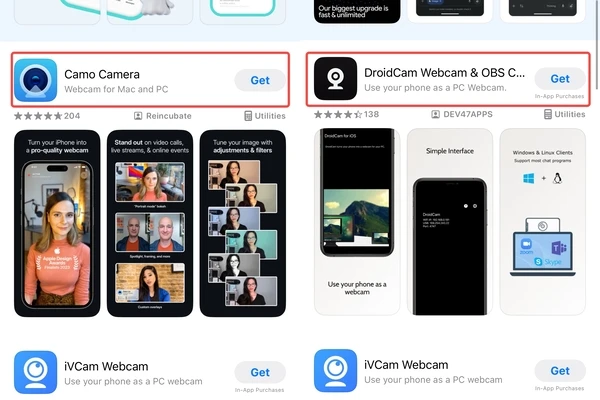
- DroidCam
- EpocCam
- iVCam
- Camo
These apps connect your phone to your PC and convert it into a webcam source.
Comparison Table (Which App Should You Use?)
| App | Quality | Latency | AI Features | Best For |
|---|---|---|---|---|
| DroidCam | Good | Medium | Low | Free users |
| EpocCam | Very Good | Low | Medium | iPhone users |
| iVCam | Excellent | Low | Medium | High-quality streaming |
| Camo | Pro-Level | Very Low | High | Creators |
Pro Insight: Camo is closest to DSLR-level output.
Settings Checklist (For High-Quality Streaming)
Before going live, check this:
Camera Settings
- Resolution: 1080p (minimum)
- Frame Rate: 30fps (or 60fps if stable)
- Exposure: Locked (avoid flicker)
- Focus: Manual (no hunting)
Lighting Setup
- Light facing your face
- Avoid backlight
- Use soft lighting
Audio Setup
- Use external mic if possible
- Sync audio properly
Miss this, and your stream will feel unprofessional.
Step-by-Step: How to Use a Phone as a Webcam for High-Quality Streaming
Let’s set it up properly.
Step 1: Install Webcam App
Download:
- App on your phone
- Companion software on your PC
Example:
Install DroidCam on both devices.
Step 2: Connect Phone to PC
Two options:
USB (Recommended)
- Stable connection
- Lower latency
- Better quality
WiFi
- More flexible
- Slight delay possible
Always go USB if you’re serious.
Step 3: Select Camera Source in Streaming Software
Open OBS or Streamlabs.
- Add “Video Capture Device”
- Select your phone app
Boom — your phone is now your webcam.
Step 4: Adjust Camera Settings Manually
This is where most people fail.
Do NOT leave auto settings on.
Set:
- Exposure manually
- White balance fixed
- Focus locked
Auto settings cause flicker and brightness shifts.
Step 5: Frame Your Shot (Like a Pro)
- Eye-level camera
- Rule of thirds
- Clean background
Even small framing improvements boost retention.
Step 6: Optimize Lighting
Lighting > camera quality.
Use:
- Soft front light
- No harsh shadows
- Balanced brightness
Good lighting makes your video look cinematic.
Advanced Creator Workflow (2026 Setup)
Here’s what serious creators are doing:
- Phone as camera (main video source)
- OBS for streaming
- Runway AI for background effects
- CapCut AI for post-stream edits
This hybrid workflow gives you:
- Live quality
- Post-production polish
High-Retention Streaming Techniques
Streaming isn’t just about quality — it’s about keeping attention.
1. Micro-Movements
- Slight camera repositioning
- Subtle zoom (digital keyframing in OBS)
2. Clean Visuals
- Good color grading
- Balanced exposure
3. Face Focus
- Keep subject sharp
- Blur background slightly
These small changes improve viewer retention massively.
Color Grading for Webcam Streams
Even live video can be improved.
In OBS:
- Adjust contrast
- Boost saturation slightly
- Correct skin tones
Flat image = boring stream.
Common Mistakes (That Kill Your Stream Quality)
Let’s fix these fast:
- Using WiFi with weak signal
- Leaving auto exposure on
- Ignoring lighting
- Using front camera (sometimes worse)
- Not stabilizing phone
And yeah… sometimes your setup looks bad because of small details you ignored.
Pro Tips for Next-Level Quality
- Use rear camera (better sensor)
- Clean your lens (seriously)
- Keep phone cool (overheating reduces quality)
- Use airplane mode (no interruptions)
- Test before going live
These tiny steps make a big difference.
The AI Advantage (2026 Streaming Upgrade)
Modern creators are using AI for:
- Background removal
- Noise reduction
- Auto framing
Tools like Runway can enhance your stream visuals even further.
But don’t overdo it — natural always wins.
Final Thoughts (Creative Mentor Mode)
Look, learning how to use a phone as a webcam for high-quality streaming is one of the fastest upgrades you can make as a creator.
You don’t need expensive gear.
You need:
- Smart setup
- Proper lighting
- Clean workflow
Once you dial this in, your content instantly feels more professional.
Your Next Move
Set this up today:
- Connect your phone
- Adjust lighting
- Test your stream
Then compare it to your old webcam.
You’ll see the difference instantly.
And if you want more pro-level editing guides, AI workflows, and viral strategies, check out vfxcut.xyz — the ultimate hub for short-form creators and VFX artists.
Now upgrade your setup… because better visuals = higher retention = more growth 🚀