Learn how to reduce video file size without losing quality for web using pro compression, AI tools, and export settings (2026).
Look, I’ve spent hours in the editing suite so you don’t have to… and here’s something most creators get completely wrong:
Big file size ≠ high quality.
In fact, if your video file is too large, platforms like TikTok, Instagram, and YouTube will compress it harder — which actually makes your final result look worse.
So if you want sharper visuals, faster uploads, and better retention, you need to master how to reduce video file size without losing quality for web.
Let’s break it down like a pro.

Why File Size Matters More Than Ever in 2026
Here is the real talk about high-retention editing:
- Large files take longer to upload
- Platforms compress them aggressively
- Compression artifacts reduce clarity
- Poor quality = lower retention
Your goal isn’t just quality…
It’s optimized quality.
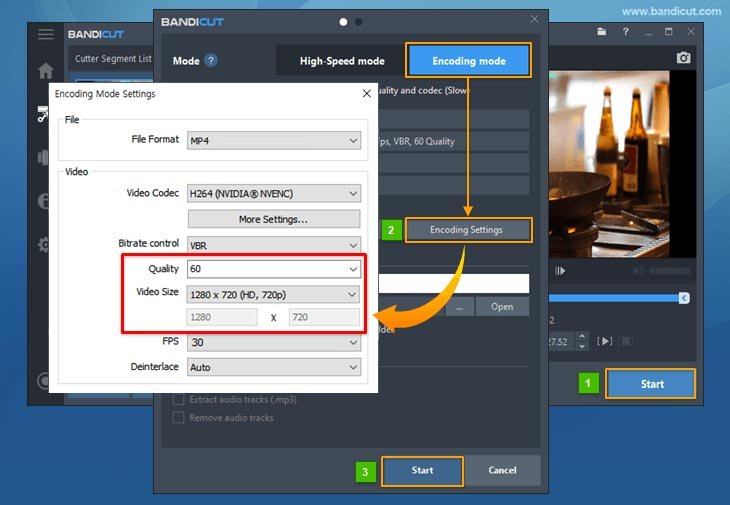
The Science Behind Video Compression (Simple Version)
Every video file is controlled by:
- Resolution (1080p, 4K)
- Bitrate (data per second)
- Codec (H.264, H.265)
- Frame rate (fps)
Reduce the wrong one… and your video looks terrible.
Optimize the right one… and you get small size + high quality.
Compression Tools Comparison (2026 Workflow)
| Tool | Best For | Compression Control | AI Features | Ease of Use |
|---|---|---|---|---|
| HandBrake | File size reduction | Advanced | No | Medium |
| Premiere Pro | Export control | Very High | Low | Advanced |
| CapCut AI | Quick export | Medium | High | Easy |
| Runway ML | AI enhancement | Medium | Very High | Easy |
Pro Insight: Use HandBrake for final compression — it’s insanely powerful and free.
The Perfect Export Settings (Save This)
If you want small file size without quality loss:
Video Settings
- Resolution: 1080×1920 (short-form)
- Frame Rate: 30fps (constant)
- Codec: H.264 (safe) or H.265 (smaller size)
Bitrate Guide
- TikTok/Reels: 8–12 Mbps
- YouTube Shorts: 10–15 Mbps
Audio Settings
- AAC
- 128–320 kbps
- 48kHz
This balance keeps your video clean and lightweight.
Step-by-Step: How to Reduce Video File Size Without Losing Quality for Web
Now let’s go practical.
Step 1: Export a Clean Master File
From your editor (Premiere, CapCut, etc.):
- Export at high quality
- Don’t over-compress yet
- Use constant frame rate
This is your “source file”.
Step 2: Use HandBrake for Compression
Import your video into HandBrake.
Set:
- Format: MP4
- Video Codec: H.264 or H.265
- Framerate: Same as source (constant)
Now adjust the most important setting:
RF Value (Quality Control)
- RF 18–22 = Best quality
- RF 23–28 = Smaller size
Sweet spot:
RF 20–23
This reduces size while keeping detail.
Step 3: Optimize Bitrate (Advanced)
Switch to average bitrate mode if needed.
Set:
- 8–12 Mbps for short-form
Enable:
- 2-pass encoding (better quality)
This step is where most people mess up the proccess.
Step 4: Resize Smartly (If Needed)
If your video is 4K:
- Downscale to 1080p
Why?
Most platforms don’t need 4K — and it kills file size.
Step 5: Preview Before Export
Always check:
- Sharpness
- Motion clarity
- Text readability
Compression can ruin small details like captions.
Step 6: Upload Strategically
Upload:
- From stable internet
- Without re-editing multiple times
Each export reduces quality slightly.
Advanced AI Compression Workflow (2026)
Here’s what high-level creators are doing now:
- Edit in Premiere Pro
- Enhance in Runway ML (AI sharpening)
- Export high-quality master
- Compress using HandBrake
- Final check before upload
AI helps recover detail lost during compression.
High-Retention Editing + File Size Optimization
Here’s something most guides won’t tell you:
Editing style affects compression.
Why?
- Fast cuts compress better
- Static shots show artifacts more
- Clean backgrounds reduce file size
So yes… your editting style impacts your file size.
Compression-Friendly Editing Tips
1. Avoid Noise & Grain
Grain increases file size massively.
2. Use Clean Color Grading
Flat colors compress better than chaotic visuals.
3. Limit Overlays
Too many effects = heavier files.
4. Keep Motion Controlled
Extreme motion increases bitrate demand.
Common Mistakes (That Kill Quality)
Let’s fix these:
- Exporting at extremely high bitrate
- Using variable frame rate
- Compressing multiple times
- Ignoring audio settings
- Uploading raw 4K files
And yeah… sometimes your just overthinking it.
Pro Tips for Perfect Balance
- Always use constant frame rate
- Stick to 1080p for short-form
- Use RF instead of guessing bitrate
- Test different compression levels
- Watch on mobile before posting
Remember:
Your goal isn’t maximum quality — it’s optimal quality.
The Retention Connection (This Is Important)
Low-quality video = lower watch time.
Viewers might not say it… but they feel it.
- Blurry video → less trust
- Compression artifacts → distraction
- Poor audio → instant skip
Good compression keeps your content looking professional.
Final Thoughts (Creative Mentor Mode)
Look, learning how to reduce video file size without losing quality for web is a game-changer.
Once you understand:
- Bitrate
- Codec
- Resolution
You stop guessing… and start controlling your output.
And that’s what separates casual creators from serious ones.
Your Next Move
Take one of your videos and:
- Export a clean version
- Compress using HandBrake
- Compare before/after
You’ll see how much size you can save without losing quality.
And if you want more pro-level editing workflows, AI techniques, and viral strategies, check out vfxcut.xyz — the ultimate hub for short-form creators and VFX artists.
Now go optimize your videos… because faster uploads + better quality = more reach 🚀